


In today’s fast-paced world, technology is an integral part of our lives. From smartphones to smartwatches, we rely on various devices to make our lives more convenient. One such device that has gained popularity in recent times is the AirTag, a small tracking device from Apple. While the AirTag can be incredibly useful for keeping track of your belongings, its notifications can sometimes become overwhelming. If you’re wondering how to turn off AirTag notifications, you’re in the right place. In this comprehensive guide, we’ll walk you through the steps to do just that.
Understanding AirTag Notifications
Before we dive into the process of disabling AirTag notifications, it’s essential to understand what these notifications are and why they exist.
What Are AirTag Notifications?
AirTag notifications are alerts that your iPhone sends when it detects that an unknown AirTag is traveling with you. This feature is designed to protect your privacy and ensure that you are not being tracked without your knowledge.
Why Do AirTag Notifications Exist?
The primary purpose of AirTag notifications is to prevent unauthorized tracking. If someone places an AirTag near you without your consent, your iPhone will notify you to let you know that there might be an AirTag nearby that isn’t yours. This proactive approach helps protect users from potential privacy violations.
Reasons to Turn Off AirTag Notifications
While AirTag notifications serve a crucial purpose, there are valid reasons why you might want to turn them off temporarily or permanently.
1. Frequent False Alarms
AirTag notifications can sometimes trigger false alarms, especially if you frequently share items with family members or friends who also use AirTags. These constant alerts can be annoying.
2. Privacy Concerns
Although AirTag notifications are meant to protect your privacy, some users may find them invasive or unnecessary. If you’re not concerned about being tracked, you might want to disable these notifications.
3. Annoyance in Crowded Areas
In densely populated areas, like malls or public transportation, your iPhone may detect multiple AirTags nearby. This can lead to a barrage of notifications that you may find bothersome.
4. Controlled Environments
In some situations, such as at home or in your office, you may have full control over the AirTags in your vicinity. In such cases, disabling notifications can be convenient.
Turning Off AirTag Notifications: Step-by-Step Guide
Now that we’ve covered the basics, let’s delve into the steps to turn off AirTag notifications.
1. Open the “Find My” App
To begin the process, open the “Find My” app on your iPhone.
2. Select the “Items” Tab
Tap on the “Items” tab at the bottom of the screen. This tab is where you can manage your AirTags and other tracked items.
3. Choose Your AirTag
Locate and select the AirTag for which you want to turn off notifications.
4. Access AirTag Settings
On the AirTag’s details page, tap on the “AirTag” name or icon. This will take you to the AirTag’s settings.
5. Disable “Notify When Left Behind”
Scroll down to find the “Notify When Left Behind” option and toggle it off. This will prevent your iPhone from sending notifications when the AirTag is away from you.
6. Confirm Your Choice
A pop-up window will appear, asking you to confirm that you want to disable notifications. Confirm your choice by tapping “Turn Off.”
7. Notifications Are Off
Congratulations! You’ve successfully turned off AirTag notifications for the selected AirTag.
Disabling Notifications for Multiple AirTags
If you have multiple AirTags and want to disable notifications for all of them, you can follow these additional steps.
1. Open AirTag Notifications Settings
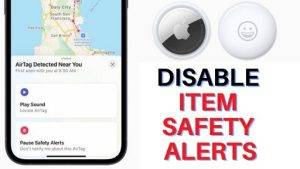
Go back to the main “Items” tab in the “Find My” app and tap the “AirTag Notifications” link.
2. Disable All Notifications
Toggle off the “AirTag Notifications” switch at the top of the screen. This will disable notifications for all your AirTags.
3. Confirm Your Choice
A confirmation pop-up will appear. Confirm your decision by tapping “Turn Off.”
4. Notifications Are Disabled
All AirTag notifications are now turned off for your entire collection of AirTags.
Also Read: How Far To Airtags Work
Temporarily Turning Off Notifications
If you only want to disable notifications temporarily and plan to re-enable them later, follow these steps.
1. Open Control Center
Swipe down from the top right corner of your iPhone’s screen to open the Control Center.
2. Activate “Silent Mode”
Tap the “Silent Mode” icon to mute all notifications, including AirTag notifications.
3. Notifications Are Muted
Your iPhone is now in silent mode, and you won’t receive any AirTag notifications until you turn off silent mode.
4. Turn Off Silent Mode
To re-enable notifications, simply tap the “Silent Mode” icon again in the Control Center.
AirTag notifications are a useful feature designed to protect your privacy and security. However, there are situations where you may want to turn them off temporarily or permanently. Whether you’re dealing with frequent false alarms, privacy concerns, or simply want peace and quiet in crowded areas, knowing how to disable AirTag notifications is essential.
By following the steps outlined in this guide, you can easily manage your AirTag notifications to suit your preferences. Whether you’re a seasoned AirTag user or a newcomer, having control over your notifications ensures that your Apple experience is tailored to your needs.
Remember that while turning off AirTag notifications can be convenient, it’s essential to use this feature responsibly and be aware of the potential privacy implications. Always prioritize your safety and security when using technology in your daily life.