

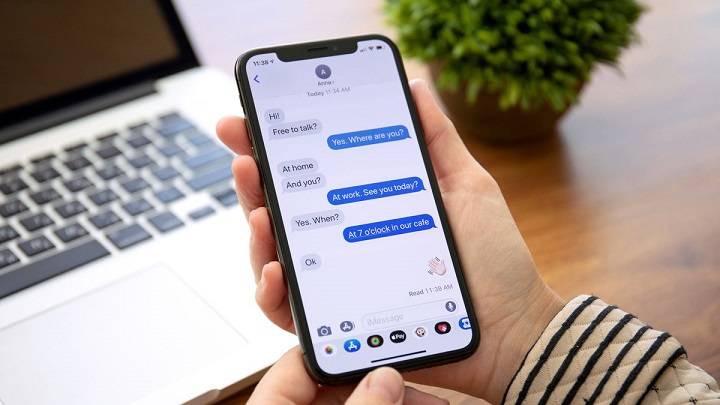
Are you ready to take your messaging game to the next level? In this comprehensive guide, we’ll unlock the secrets of iPhone text effects and show you how to create eye-catching messages that stand out from the crowd. Whether you’re looking to add flair to your texts or impress your friends with animated effects, we’ve got you covered. Let’s dive in and explore the world of iPhone text effects!
Understanding iPhone Text Effects
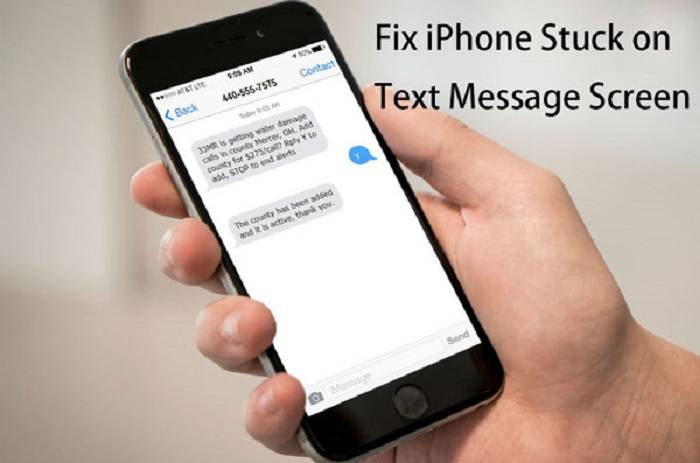
iPhone text effects offer a fun and creative way to enhance your messages. From bold fonts to dynamic animations, there’s a wide range of effects to choose from. Understanding how to use these effects effectively can make your messages more engaging and memorable.
Accessing Text Effects on iPhone
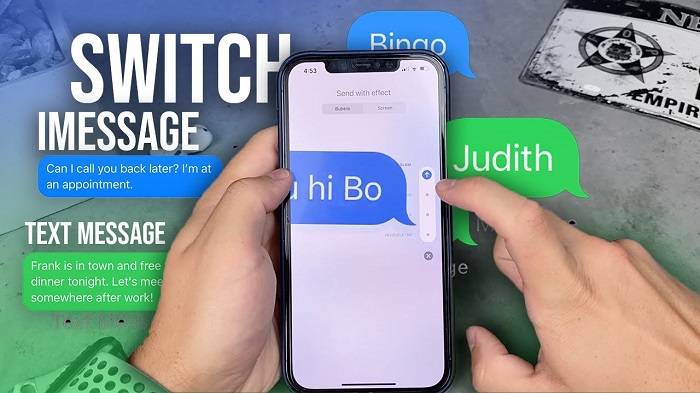
To access text effects on your iPhone, simply open the Messages app and start composing a new message or reply. Tap on the text input field to bring up the keyboard, then press and hold the arrow button on the right side of the screen. This will reveal the Effects menu, where you can choose from a variety of text effects to apply to your message.
Exploring Different Text Effects
iPhone offers a variety of text effects to suit every mood and occasion. Experiment with effects like Spotlight, Echo, and Loud to make your messages stand out. You can also combine different effects or customize the color and size of your text to create unique combinations that reflect your personality.
Step-by-Step Tutorials
Ready to dive into the world of iPhone text effects? Follow these step-by-step tutorials to learn how to create stunning messages that are sure to impress:
Applying Basic Text Effects: Learn how to apply basic text effects like Bubble, Slam, and Invisible Ink to add flair to your messages.
Creating Animated Effects: Discover how to animate your messages with effects like Fireworks, Lasers, and Shooting Star for a dynamic and playful touch.
Customizing Text Styles: Explore the options for customizing text styles, including font, color, and size, to personalize your messages and make them truly your own.
Tips for Using Text Effects
To make the most of iPhone text effects, consider the following tips:
- Keep it Subtle: While text effects can be fun, it’s essential to use them sparingly to avoid overwhelming your recipients. Reserve flashy animations for special occasions and stick to more subtle effects for everyday messages.
- Match the Mood: Choose text effects that match the mood and tone of your message. For example, use playful animations for casual conversations and elegant fonts for formal messages.
- Experiment and Have Fun: Don’t be afraid to experiment with different text effects and combinations to find what works best for you. The more you play around with the options, the more confident you’ll become in using text effects to enhance your messages.
Exploring Advanced Text Effects
Delve deeper into the world of iPhone text effects by exploring advanced options and techniques. Learn how to combine multiple effects, create custom animations, and use hidden features to take your messages to the next level.
Personalizing Text Effects
Discover how to personalize text effects to match your unique style and preferences. From choosing the perfect font and color to adding emojis and stickers, learn how to make your messages truly your own with personalized text effects.
Using Text Effects in Different Contexts
Explore the various contexts in which you can use iPhone text effects beyond traditional messaging. From social media posts and digital invitations to creative projects and presentations, find out how text effects can enhance communication in diverse settings.
Sharing Tips and Tricks
Share your favorite tips and tricks for using iPhone text effects with others. Whether it’s a shortcut for applying effects quickly or a creative idea for combining different effects, sharing your expertise can inspire and empower others to get creative with text effects.
Staying Updated on New Features
Stay informed about the latest updates and additions to iPhone text effects. Explore upcoming features, beta releases, and insider tips to stay ahead of the curve and make the most of new opportunities for creative expression.
FAQs (Frequently Asked Questions)
Can I use text effects in all messaging apps on iPhone?
Text effects are primarily available in the Messages app on iPhone. While some third-party messaging apps may offer similar features, compatibility may vary.
Will the recipient see the same text effects on their device?
Text effects applied to messages will be visible to recipients using compatible devices and software. If the recipient’s device or messaging app does not support text effects, they may see a standard version of the message.
Can I customize the duration or speed of animated text effects?
Currently, iPhone text effects do not offer options for customizing the duration or speed of animated effects. However, you can experiment with different effects to find ones that suit your preferences.
Are there any accessibility considerations for using text effects?
While text effects can enhance the visual appeal of messages, it’s essential to consider accessibility for users with visual impairments. Avoid relying solely on text effects to convey important information and ensure that your messages remain accessible to all recipients.
Can I undo or remove text effects once applied to a message?
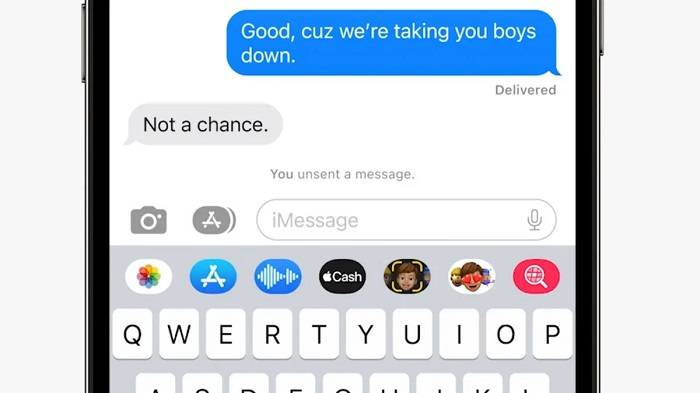
Yes, you can undo or remove text effects from a message by tapping the “Undo” button or selecting the “Effects Off” option from the Effects menu. This will revert the message to its original format without any applied effects.
Related Post:
Understanding Abortion Pills: A Comprehensive Guide
The Impact of Social Media on SEO: Leveraging Platforms for Visibility
Choosing the Right Capacity: A Comprehensive Guide to Suit Your Household’s Hot Water Needs
Tracking the Impact of Purchased Views on Your Content: A Comprehensive Guide
In conclusion, iPhone text effects offer a fun and versatile way to add personality and style to your messages. By mastering the art of text effects and following the tips and tutorials provided in this guide, you can elevate your messaging game and impress your friends and family with stunning messages that capture attention and spark conversation. So go ahead, unleash your creativity, and explore the endless possibilities of iPhone text effects!