

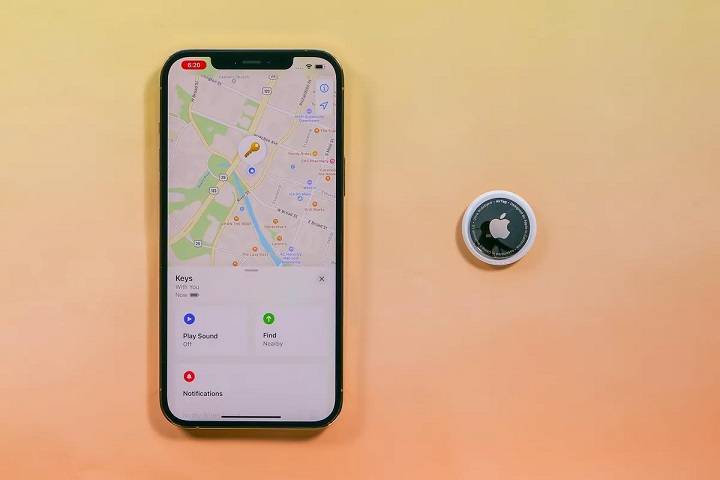
Apple’s AirTag is a popular tracking device designed to help you locate your belongings easily. However, many users wonder, “can you use AirTag with Android?” This comprehensive guide will explore this question in detail, covering various related topics to provide a complete understanding of AirTag compatibility with Android devices.
Understanding AirTag and Its Functionality
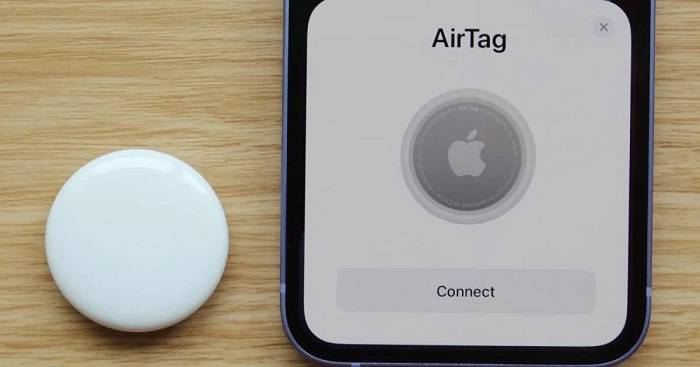
What is an AirTag?
An AirTag is a small, circular tracking device developed by Apple to help you locate personal items such as keys, wallets, bags, and more. By attaching an AirTag to your items, you can easily find them using the Find My app on your iPhone or other Apple devices.
How Does AirTag Work?
AirTags use Bluetooth technology to communicate with your Apple devices. When you lose an item with an AirTag attached, the Find My app shows its location on a map. If the item is nearby, you can use Precision Finding, which leverages Ultra-Wideband technology for accurate location tracking.
Can You Use AirTag with Android?
AirTag Compatibility with Android Devices
The short answer to “can you use AirTag with Android” is no, you cannot use all features of the AirTag with an Android device. AirTags are designed to work seamlessly within the Apple ecosystem, including iPhones, iPads, and Macs. The primary functionalities of AirTag, such as tracking and Precision Finding, are not accessible through Android devices.
What Can Android Users Do with AirTag?
While full functionality is not available, there are limited interactions that Android users can have with AirTags. For instance, if an Android user finds an AirTag, they can tap it with their NFC-enabled device to see if the owner has marked it as lost and provided contact information.
Limitations for Android Users
Android users cannot set up AirTags, track their location, or receive notifications about the AirTag’s status. These features are exclusive to Apple’s Find My network and require an Apple device to access.
Alternative Tracking Options for Android Users
Samsung Galaxy SmartTag
Key Features
- Precise Tracking: Uses Bluetooth Low Energy (BLE) technology for accurate location tracking.
- SmartThings Find: Integrates with the SmartThings ecosystem for easy location tracking.
- Privacy and Security: Ensures your data is secure with end-to-end encryption.
- Versatile Integration: Works seamlessly with Samsung Galaxy devices and the SmartThings app.
How to Set Up
- Unbox Your SmartTag: Remove the SmartTag from its packaging.
- Prepare Your Galaxy Device: Ensure your Samsung Galaxy device is updated to the latest software version.
- Open the SmartThings App: Launch the SmartThings app on your Samsung device.
- Add New Device: Tap on the ‘+’ icon to add a new device.
- Select SmartTag: Choose SmartTag from the list of devices.
- Follow On-Screen Instructions: Follow the prompts to complete the setup and register the SmartTag to your Samsung account.
Tile Trackers
Key Features
- Wide Compatibility: Works with both Android and iOS devices.
- Loud Ring: Helps you locate your items with a loud ring.
- Community Find: Leverages the Tile community to help locate lost items.
- Replaceable Battery: Features a replaceable battery for extended use.
How to Set Up
- Unbox Your Tile Pro: Remove the Tile Pro from its packaging.
- Download the Tile App: Install the Tile app from the Google Play Store.
- Create an Account: Open the app and create a Tile account.
- Add Your Tile: Tap the ‘+’ icon to add a new Tile.
- Follow On-Screen Instructions: Follow the prompts to activate and register your Tile Pro.
Chipolo One
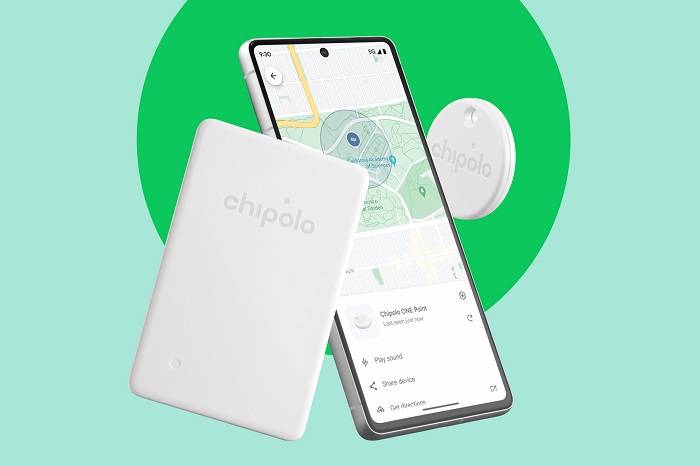
Key Features
- Out of Range Alerts: Notifies you when you leave an item behind.
- Community Search: Uses the Chipolo community to help find lost items.
- Loud Alarm: Features a loud alarm to help locate items.
- Water-Resistant: Designed to withstand splashes and brief submersion in water.
How to Set Up
- Unbox Your Chipolo One: Remove the Chipolo One from its packaging.
- Download the Chipolo App: Install the Chipolo app from the Google Play Store.
- Create an Account: Open the app and create a Chipolo account.
- Add Your Chipolo: Tap the ‘+’ icon to add a new Chipolo.
- Follow On-Screen Instructions: Follow the prompts to activate and register your Chipolo One.
Comparing AirTag with Alternative Trackers
Compatibility and Ecosystem
- AirTag: Designed to work seamlessly within the Apple ecosystem, including iPhones, iPads, and the Find My app.
- Samsung Galaxy SmartTag: Works best within the Samsung ecosystem, particularly with Galaxy devices and the SmartThings app.
- Tile and Chipolo: Offer broad compatibility with both Android and iOS devices, making them versatile options for users of both platforms.
Tracking Technology
- AirTag: Utilizes Ultra-Wideband (UWB) technology for precise location tracking, alongside Bluetooth.
- Samsung Galaxy SmartTag: Uses Bluetooth Low Energy (BLE) for tracking.
- Tile and Chipolo: Primarily use Bluetooth for tracking, with additional features like community find and out-of-range alerts.
Privacy and Security
All these trackers prioritize user privacy with robust encryption protocols. AirTag and Samsung Galaxy SmartTag offer end-to-end encryption and anti-stalking features, while Tile and Chipolo provide secure data handling through their respective apps.
Maximizing Tracker Performance on Android
Regular Maintenance
Regularly check the battery status of your tracker and replace it promptly when needed. Clean the tracker and its contacts to ensure proper functioning.
Optimal Placement
Place the tracker in a location where it is unlikely to experience interference or physical obstructions. For example, attaching it to the outside of a bag rather than inside a densely packed compartment can improve connectivity.
Use of Protective Accessories
Using protective cases or holders can help shield your tracker from environmental stressors that could impact its performance. These accessories can also make it easier to attach the tracker to various items securely.
Leveraging Community Features
Many alternative trackers, such as Tile and Chipolo, offer community features that allow other users to help locate your lost items. Ensure these features are enabled in the app to maximize your chances of recovering lost items.
Related Features and Topics
Precision Finding (Apple AirTag)
Precision Finding uses Ultra-Wideband technology to provide accurate directions to your AirTag. When you are within range, your iPhone can display the exact distance and direction to your AirTag, making it easy to locate even in cluttered environments.
Find My Network (Apple AirTag)
The Find My network leverages a vast and secure system of Apple devices to help locate your AirTag. If your AirTag is lost, it sends out a secure Bluetooth signal that nearby devices can detect. These devices then anonymously relay the location back to you, significantly expanding the effective range of your AirTag.
Battery Life and Replacement
Most trackers, including AirTag, Tile, and Chipolo, use replaceable CR2032 batteries with a battery life of approximately one year. Regularly checking and replacing the battery ensures continuous functionality.
Anti-Stalking Features
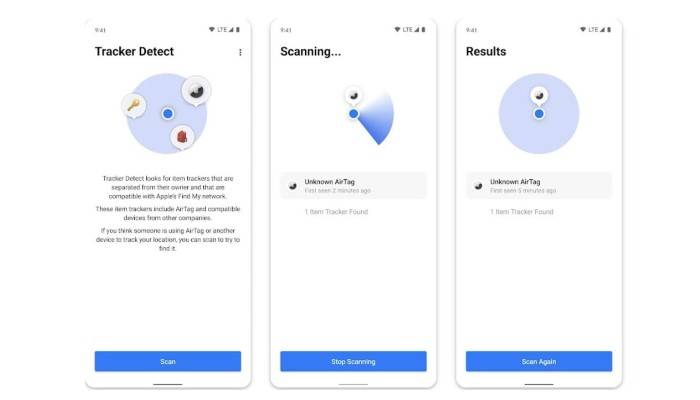
Trackers like AirTag and Samsung Galaxy SmartTag include anti-stalking features to prevent unwanted tracking. If an unknown tracker is found moving with you, your phone will alert you, and you can take steps to disable the tracker.
Using Trackers for Travel
Trackers are excellent tools for keeping track of your luggage when traveling. Placing a tracker in your suitcase can help you locate it quickly at baggage claim or if it gets lost. This provides peace of mind during your travels, knowing you can track your luggage at any time.
Monitoring Pets with Trackers
Attach a tracker to your pet’s collar to monitor their whereabouts. This provides peace of mind knowing you can find your pet if they wander off. While trackers are not a substitute for a dedicated pet tracker, they can be a useful addition for monitoring your pet’s location.
Securing Electronics with Trackers
Attach trackers to electronics like cameras, tablets, and laptops. This helps you locate these valuable items if they are misplaced or stolen. Securing your electronics with trackers can protect your investment and ensure you always know where your devices are.
Using Trackers for Outdoor Gear
Attach trackers to outdoor gear such as bicycles, camping equipment, and sports gear. This can help you keep track of your items during outdoor activities and ensure they are not lost or stolen.
Frequently Asked Questions
Can you use AirTag with Android?
While you cannot use all features of AirTag with an Android device, you can still interact with found AirTags using an NFC-enabled Android device. Full functionality requires an Apple device.
What are the best alternatives to AirTag for Android users?
The best alternatives to AirTag for Android users include Samsung Galaxy SmartTag, Tile, and Chipolo. These trackers offer similar functionality and are compatible with Android devices.
How do I set up a Samsung Galaxy SmartTag?
To set up a Samsung Galaxy SmartTag, unbox the device, open the SmartThings app on your Galaxy device, add a new device, select SmartTag, and follow the on-screen instructions.
Can I track my AirTag using an Android device?
No, you cannot track your AirTag using an Android device. AirTags are designed to work with Apple devices through the Find My app.
Are there any trackers that work with both Android and iOS devices?
Yes, trackers like Tile and Chipolo are compatible with both Android and iOS devices, making them versatile options for users of both platforms.
Related Post:
How to Find an AirTag: A Comprehensive Guide
How to Connect an AirTag: A Comprehensive Guide
Android Version of AirTag: The Ultimate Guide to Smart Tracking for Android Users
While the answer to “can you use AirTag with Android” is mostly no, there are several alternative tracking solutions available for Android users. Devices like Samsung Galaxy SmartTag, Tile, and Chipolo offer robust tracking features compatible with Android devices. By understanding the limitations and exploring these alternatives, Android users can still enjoy the benefits of modern tracking technology. This comprehensive guide ensures you get the most out of your tracking device investment, whether you use it for everyday items, travel, or outdoor gear.