

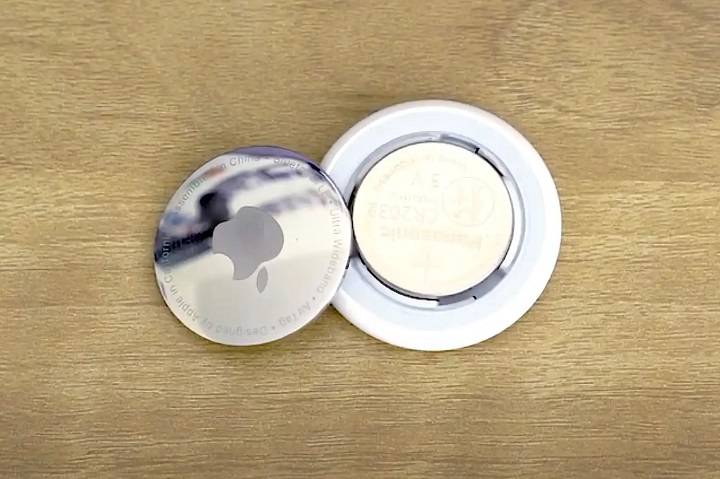
Apple’s AirTag is a fantastic tool for keeping track of your belongings, but to keep it running smoothly, you’ll need to know how to change the battery in AirTag. This comprehensive guide will provide detailed instructions on how to change the battery in AirTag and cover various related topics to ensure you get the most out of your device.
Understanding AirTag Basics
What is an AirTag?
An AirTag is a small, circular tracking device developed by Apple to help you locate personal items such as keys, wallets, bags, and more. By attaching an AirTag to your items, you can easily find them using the Find My app on your iPhone or other Apple devices.
Why You Need to Change Battery in AirTag
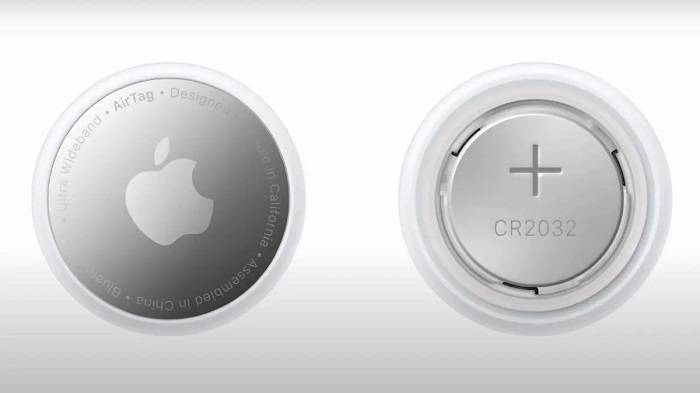
The AirTag uses a CR2032 lithium coin cell battery that typically lasts about a year under normal usage conditions. Knowing how to change the battery in AirTag is essential for maintaining its functionality and ensuring you can always track your belongings.
How to Change Battery in AirTag
Step-by-Step Guide to Changing the Battery in AirTag
- Prepare Your AirTag: Ensure your hands are clean and dry to avoid any damage to the AirTag.
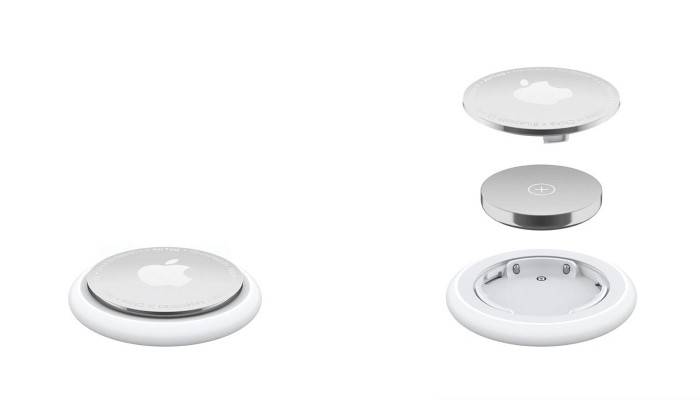
- Locate the Back Cover: The stainless steel back cover is where you will focus your efforts.
- Press and Rotate: Press down firmly on the stainless steel back cover and rotate it counterclockwise until it stops.
- Remove the Cover: Lift the cover off once it has been rotated and set it aside.
- Remove the Old Battery: Carefully take out the old CR2032 battery from the AirTag.
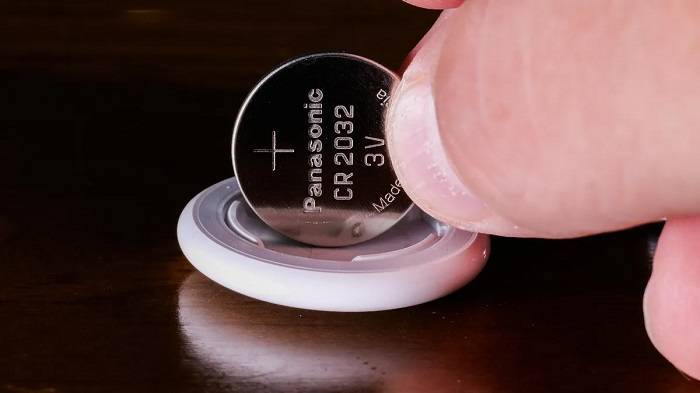
- Insert the New Battery: Place the new CR2032 battery into the AirTag with the positive side facing up.
- Reattach the Cover: Align the three tabs on the cover with the slots on the AirTag, press down, and rotate the cover clockwise until it stops.
- Ensure Proper Fit: Make sure the cover is securely fastened to ensure the AirTag is properly sealed.
Tips for Changing the Battery
- Use Gentle Pressure: Apply firm but gentle pressure to avoid damaging the AirTag.
- Rotate Correctly: Make sure to rotate the cover counterclockwise to open and clockwise to close.
- Keep Parts Together: When you remove the cover and battery, place them in a safe spot to avoid losing any components.
Choosing the Right Battery
Recommended Battery Brands
When replacing the battery, it’s important to choose a high-quality CR2032 lithium coin cell battery. Reliable brands include:
- Duracell
- Energizer
- Panasonic
Checking Battery Freshness
Ensure the battery is fresh and has not been stored for long periods. Check the expiration date on the battery packaging to guarantee optimal performance.
Troubleshooting Common AirTag Issues
AirTag Not Connecting
If your AirTag is not connecting to your device after changing the battery, try the following steps:
- Check Battery Installation: Ensure the battery is properly installed with the positive side facing up.
- Restart Your Device: Restart your iPhone or other Apple device.
- Re-pair the AirTag: Remove the AirTag from the Find My app and re-pair it.
AirTag Not Responding
If your AirTag is unresponsive after changing the battery:
- Open and Inspect: Open the AirTag to check for any visible issues with the battery or internal components.
- Replace Battery Again: Try replacing the battery with another new one.
- Contact Apple Support: If the issue persists, contact Apple Support for further assistance.
Maintaining Your AirTag
Regular Inspections
Regularly inspect your AirTag for any signs of wear or damage. This includes checking the battery and ensuring the back cover is securely fastened.
Cleaning the AirTag
Keep your AirTag clean to ensure it functions properly:
- Wipe Down: Use a soft, dry cloth to wipe down the exterior of the AirTag.
- Clean Contacts: If necessary, clean the battery contacts with a small amount of rubbing alcohol on a cotton swab.
Enhancing AirTag Durability
Using Protective Accessories
Consider using protective accessories such as keychain holders or waterproof cases to enhance the durability and longevity of your AirTag.
Avoiding Extreme Conditions
Avoid exposing your AirTag to extreme temperatures or harsh conditions to prevent damage and ensure it continues to function effectively.
Comparing AirTag with Other Trackers
Tile Trackers
Tile trackers are a popular alternative to AirTags. While they offer similar tracking capabilities, they typically do not match the seamless integration and ease of use provided by the Apple ecosystem.
Samsung Galaxy SmartTag
Samsung Galaxy SmartTag is another competitor in the tracking device market. It works best within the Samsung ecosystem and offers similar tracking features, but like Tile, it lacks some of the advanced features and integration of the AirTag.
Chipolo One
Chipolo One trackers provide an alternative with broad compatibility with both Android and iOS devices. They use Bluetooth for tracking and offer features like out-of-range alerts and community find, but they do not provide the same level of integration as AirTags.
Advanced Features of AirTag
Precision Finding
Precision Finding uses Ultra-Wideband technology to provide accurate directions to your AirTag. When you are within range, your iPhone can display the exact distance and direction to your AirTag, making it easy to locate even in cluttered environments.
Find My Network
The Find My network leverages a vast and secure system of Apple devices to help locate your AirTag. If your AirTag is lost, it sends out a secure Bluetooth signal that nearby devices can detect. These devices then anonymously relay the location back to you, significantly expanding the effective range of your AirTag.
Lost Mode
If you lose an item with an AirTag attached, you can enable Lost Mode in the Find My app. When Lost Mode is activated, your AirTag will send notifications when it is detected by another device in the Find My network. You can also enter contact information so that anyone who finds your AirTag can reach you.
Privacy and Security Features
End-to-End Encryption
AirTags use end-to-end encryption to ensure that your location data is secure. The location data and history are never stored on the AirTag itself. Communication with the Find My network is encrypted, ensuring that only you can see where your AirTag is located.
Anti-Stalking Measures
AirTag includes anti-stalking features to prevent unwanted tracking. If an unknown AirTag is found moving with you, your iPhone will alert you. You can then use your device to disable the AirTag. This feature ensures that AirTags cannot be used to track people without their knowledge.
Frequently Asked Questions
How do you change the battery in AirTag?
To change the battery in AirTag, press down on the stainless steel back cover and rotate it counterclockwise until it stops. Lift the cover off, remove the old battery, and insert a new CR2032 battery with the positive side facing up.
How often do I need to change the battery in AirTag?
The AirTag battery typically lasts about one year under normal usage conditions. You will receive a notification from the Find My app when the battery is running low.
What should I do if my AirTag is not working after changing the battery?
If your AirTag is not working after changing the battery, ensure the battery is properly installed, restart your device, and try re-pairing the AirTag. If the issue persists, contact Apple Support.
Can I use rechargeable batteries in my AirTag?
While standard CR2032 batteries are recommended, some rechargeable CR2032 batteries may be compatible. However, their performance and longevity may vary.
What are the signs that my AirTag battery needs to be replaced?
Signs that your AirTag battery needs to be replaced include receiving a low battery notification from the Find My app, the AirTag not responding, or the AirTag failing to connect to your device.
Related Post:
Samsung AirTag: A Comprehensive Guide to Smart Tracking
How to Charge an AirTag: Everything You Need to Know
How Long Do AirTag Batteries Last? A Comprehensive Guide
Knowing how to change the battery in AirTag is essential for maintaining and troubleshooting your device. By following the steps outlined in this guide, you can easily replace the battery, ensure proper functionality, and extend the lifespan of your AirTag. Whether you use AirTags for everyday items, travel, or pet tracking, understanding these maintenance techniques ensures you get the most out of your Apple AirTag investment.