

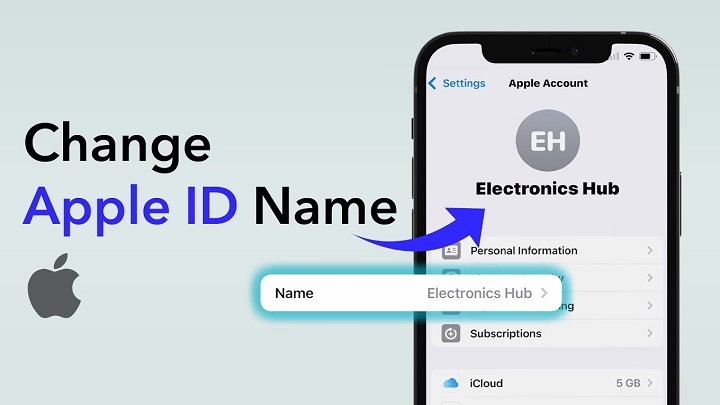
Whether you’re handing down your iPhone, managing multiple Apple IDs, or just updating your login details, changing the Apple ID on an iPhone is a common task for many users. But it’s one that should be done carefully to avoid losing access to your apps, data, and services like iCloud, iMessage, or the App Store.
Here’s a complete and easy-to-follow guide on how to change your Apple ID on your iPhone—plus what you should do before and after making the switch.
Why You Might Want to Change Your Apple ID
There are a few reasons people decide to change the Apple ID associated with their iPhone:
- You’re using a family member’s Apple ID and want to switch to your own
- You’ve created a new Apple ID with a new email address
- You’re selling or giving away your iPhone
- You’ve forgotten your login and started a new Apple ID
- You’re separating your Apple account from a shared device
Whatever the reason, switching is straightforward if you follow the right steps.
What to Do Before Changing Apple ID
Before logging out of your current Apple ID, it’s important to protect your data and make sure everything is synced properly. Here’s a short checklist:
Back Up Your iPhone
Use iCloud or iTunes (or Finder on macOS Catalina and later) to back up your device. This protects all your current settings, photos, apps, and data.
- Go to Settings > [Your Name] > iCloud > iCloud Backup
- Tap Back Up Now
Make Sure You Know the Password
You’ll need the password of the current Apple ID to sign out. If you don’t remember it, visit iforgot.apple.com to reset it.
Turn Off “Find My iPhone”
This is essential before switching Apple IDs.
- Go to Settings > [Your Name] > Find My > Find My iPhone
- Toggle it off and enter your Apple ID password when prompted
How to Sign Out of Your Current Apple ID
Once you’ve completed the above steps:
- Open Settings on your iPhone
- Tap your name at the top of the screen
- Scroll down and tap Sign Out
- Choose whether to keep a copy of your data (such as Contacts, Calendars, Safari, etc.)
- Tap Sign Out again to confirm
Your iPhone will now be signed out of iCloud, the App Store, and other Apple services.
How to Sign In with a New Apple ID
Once signed out, it’s time to enter your new Apple ID:
- Open Settings
- Tap Sign in to your iPhone at the top
- Enter your new Apple ID and password
- Follow the prompts to complete two-factor authentication
- Decide if you want to merge data on the phone with the new account
After signing in, you’ll have access to iCloud, iMessage, FaceTime, and the App Store with your new Apple ID.
What Happens to Your Data?
Changing your Apple ID can affect your access to certain apps and services tied to the previous account. Here’s what you need to know:
Apps and Purchases
Apps, music, movies, and books purchased under the old Apple ID will still be on the device, but you won’t be able to update or re-download them unless you switch back to the original Apple ID.
iCloud Data
Any iCloud data like photos, notes, or backups tied to the old Apple ID won’t transfer automatically. If you chose to keep a copy of this data before signing out, it remains on the device. However, syncing with iCloud will now occur under the new Apple ID.
Subscriptions
Subscriptions like Apple Music or iCloud+ won’t carry over to the new Apple ID. You’ll need to resubscribe under the new account if needed.
Can You Change the Email for Your Existing Apple ID Instead?
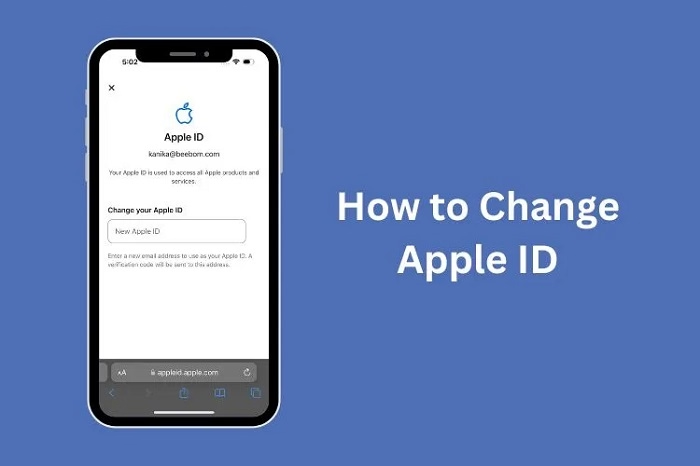
Yes. If you just want to use a new email without creating a whole new Apple ID, you can change the email linked to your current Apple ID.
Here’s how:
- Visit appleid.apple.com and sign in
- Click Sign-In & Security > Apple ID
- Enter your new email and verify it
Once confirmed, your Apple ID email is updated across all devices.
Tips for Managing Multiple Apple IDs
Some users keep more than one Apple ID—for example, one for work and one for personal use. Here are some tips for handling this:
- Use Family Sharing to share purchases across accounts
- Keep a record of which ID has which subscriptions or purchases
- Avoid switching too frequently to prevent sync issues or confusion
- Use iCloud Keychain to remember your logins securely
FAQs
Can I change my Apple ID without losing my data?
Yes, if you back up your iPhone and choose to keep a copy of your iCloud data before signing out, most of your local data will remain. However, cloud-stored content will only sync with the currently logged-in Apple ID.
What if I forgot my old Apple ID password?
Use Apple’s password recovery tool at iforgot.apple.com. You must know this password to turn off Find My iPhone and sign out.
Will my apps disappear if I change Apple ID?
No, the apps remain on your device, but you can’t update them unless you’re signed into the Apple ID used to download them.
Can I have two Apple IDs on one iPhone?
Not at the same time for iCloud, but you can use different Apple IDs for iCloud and the App Store if needed. This is managed in Settings > [Your Name] > Media & Purchases.
How often can I change my Apple ID?
There’s no strict limit, but frequent changes may trigger account security measures from Apple. It’s best to change only when necessary.