

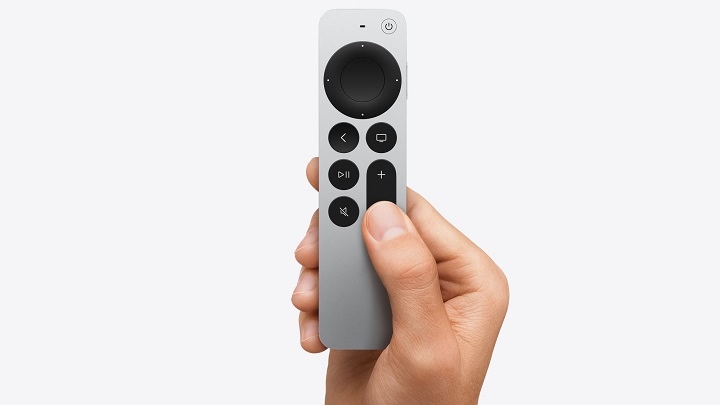
If your Apple TV remote isn’t controlling your TV volume properly—or if it suddenly stopped working after an update—you may be wondering: How do I reset the volume on my Apple TV remote? Whether you’re using the Siri Remote (2nd or 3rd generation) or the older Apple TV Remote, resetting the volume control is easy and takes just a few steps.
This guide walks you through how to reset volume on your Apple TV remote, reprogram the volume controls, and troubleshoot any sound issues you’re facing.
What Does Resetting the Volume on Apple TV Remote Mean?
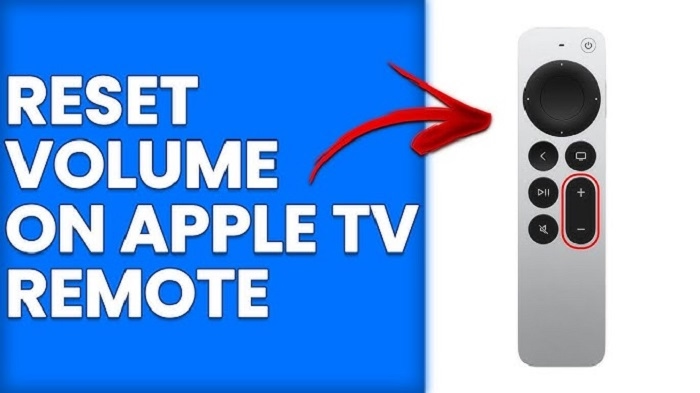
Resetting the volume means reconfiguring or removing the remote’s volume control settings, especially if the volume buttons no longer work or control the wrong device.
The Apple TV remote uses infrared (IR) or HDMI-CEC (Consumer Electronics Control) to send volume commands to your TV, soundbar, or AV receiver. If this link breaks or gets confused, resetting helps restore the proper connection.
When Should You Reset Apple TV Remote Volume?
You should reset or reprogram your remote’s volume if:
- Volume buttons have stopped responding
- Volume controls the wrong device (e.g., switches TV volume instead of soundbar)
- There’s a long delay between pressing and volume change
- You switched TVs or sound systems
- Volume works intermittently or is stuck
How to Reset Volume on Apple TV Remote
Follow these steps to reset and reconfigure your Apple TV remote’s volume control.
Step-by-Step Instructions
- Go to Settings on your Apple TV
- Select Remotes and Devices
- Tap Volume Control
- Choose “Off” to temporarily disable volume control
- Wait a few seconds, then go back and choose:
- Auto via HDMI (Receiver/TV) if using HDMI-CEC
- Or Learn New Device if you’re using an IR-based setup
This process clears the current volume configuration and lets you start fresh.
How to Learn a New Volume Device (IR Setup)
If you use an IR-based soundbar or receiver, you can train your Apple TV remote to control it manually.
To do this:
- Go to Settings > Remotes and Devices > Volume Control
- Tap Learn New Device
- Follow the on-screen instructions and use your original TV or soundbar remote to teach the Apple TV remote
- Test the volume after setup
Apple TV will remember this configuration and use it until changed or reset again.
Check HDMI-CEC Settings on Your TV
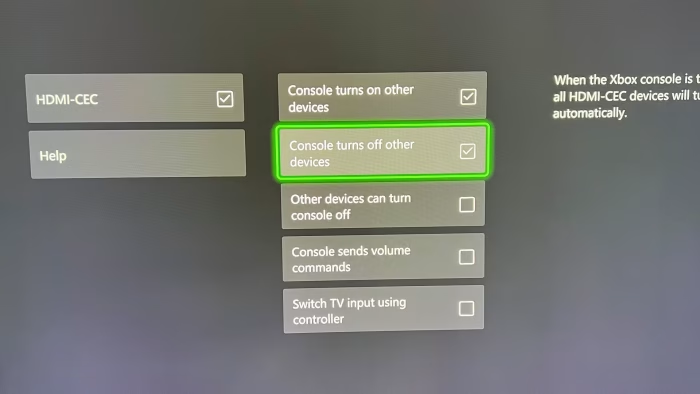
If your remote is set to control volume via HDMI, make sure your TV or receiver has HDMI-CEC enabled.
It may be called:
- Anynet+ (Samsung)
- Bravia Sync (Sony)
- Simplink (LG)
- Viera Link (Panasonic)
Enable it in your TV settings for the Apple TV remote to pass volume commands through the HDMI cable.
How to Restart or Reset the Remote Itself
If resetting the volume doesn’t help, try restarting the remote:
For Siri Remote (2nd/3rd Gen):
- Press and hold the TV/Control Center button + Volume Down for 5 seconds
- The remote will disconnect and re-pair after a few seconds
- Check if volume buttons now work
This refreshes the remote’s connection and can fix issues without needing a full Apple TV reset.
Update Your Apple TV Software
Outdated firmware can cause volume issues. To update:
- Go to Settings > System > Software Updates
- Tap Update Software
- Install any available updates
Volume control bugs are often fixed in newer tvOS versions.
Reset Volume Settings to Factory Default
While there’s no single “reset volume” button, removing any learned devices and turning volume control to “Off” in settings essentially resets the volume control function. Then, you can start fresh with Auto or Learn New Device.
FAQs
How do I reset the volume control on Apple TV remote?
Go to Settings > Remotes and Devices > Volume Control, set it to Off, then reconfigure using Auto via HDMI or Learn New Device.
Why are the volume buttons not working on my Apple TV remote?
It may be due to a bad HDMI-CEC connection, IR misalignment, outdated software, or a need to reprogram the volume control.
Can I use the Apple TV remote to control my soundbar?
Yes, if the soundbar supports IR or HDMI-CEC. Use Learn New Device in settings to train the remote to control your soundbar’s volume.
How do I know if my TV supports HDMI-CEC?
Check your TV’s manual or settings. Look for terms like Anynet+, Simplink, Bravia Sync, or HDMI Control and enable it.
Will resetting the Apple TV remote affect other settings?
No, resetting the remote or volume control only affects that function. Your apps, login info, and Apple TV settings will remain unchanged.