

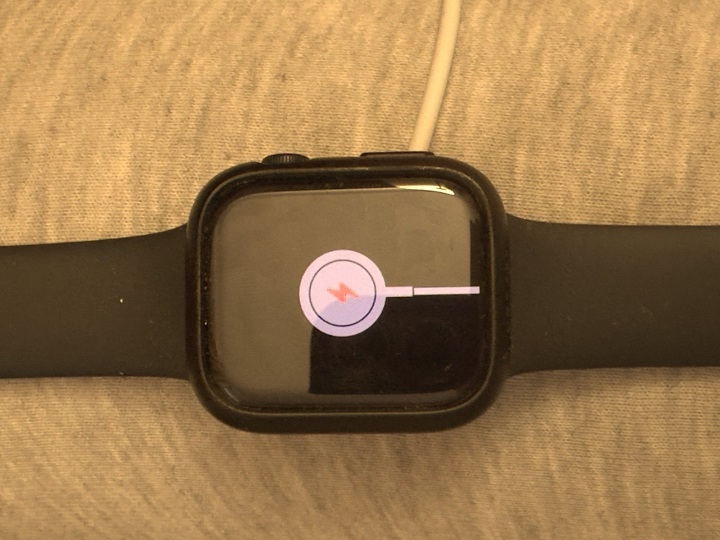
If your Apple Watch isn’t charging, don’t panic. This is a common issue that many users face, and in most cases, it can be solved with a few simple steps. Whether it’s a hardware glitch, cable problem, or software issue, we’ll walk you through all the possible solutions to get your Apple Watch back to life.
Check the Basics First
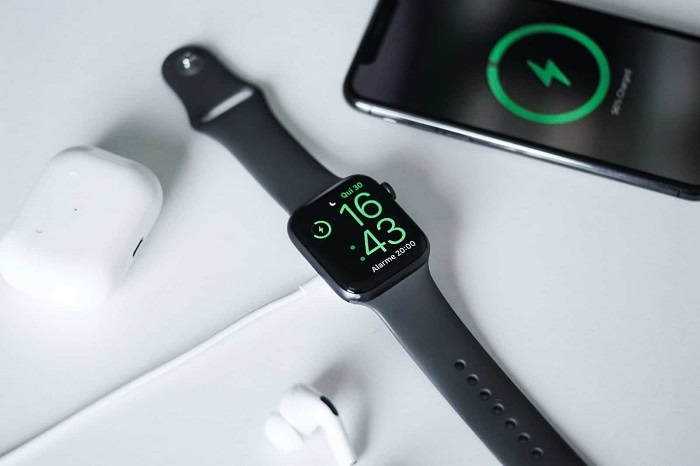
Start with the obvious checks before moving to more technical fixes:
- Ensure the charger is connected to a working power outlet.
- Make sure the magnetic charging cable is properly aligned with the back of your Apple Watch.
- Remove any plastic film or debris from the charging area.
- Confirm that you’re using the original Apple charger or a certified third-party alternative.
If you’ve confirmed all of the above and your watch still won’t charge, continue to the next steps.
Look for the Charging Icon
When you place your Apple Watch on the charger, you should see a green lightning bolt on the screen. If it shows a red lightning bolt or no symbol at all:
- The battery might be completely drained. Leave it on the charger for at least 30 minutes.
- Try a different charging cable or adapter.
Clean the Watch and Charger
Dust, dirt, or sweat can interfere with charging. Do the following:
- Use a dry, soft cloth to clean the back of your watch.
- Clean the magnetic charging disk with a microfiber cloth.
- Avoid using liquids, as moisture can damage the internal components.
Try a Force Restart
Sometimes, a software glitch might prevent charging. Here’s how to force restart your Apple Watch:
- Hold down the Side Button and the Digital Crown at the same time.
- Keep holding until you see the Apple logo (this takes about 10–15 seconds).
- After the watch restarts, place it back on the charger.
Use a Different Charger or Outlet
Your Apple Watch might not be the issue at all. The problem could lie in the USB power brick, power strip, or wall outlet.
- Try plugging the charging cable into a different USB adapter or another wall outlet.
- Test the cable and charger with another Apple Watch, if available.
Check for Software Updates
If your watch is turning on but not charging properly, outdated software might be the issue. Update watchOS using the Watch app on your iPhone:
- Open the Watch app.
- Go to General > Software Update.
- If an update is available, connect your Apple Watch to the charger and install it.
Disable Optimized Battery Charging
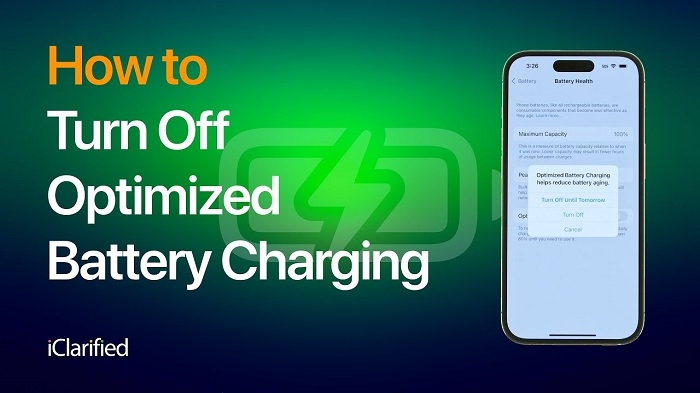
On watchOS, the Optimized Battery Charging feature learns your routine and may delay charging past 80% until you need it. If you think this is causing issues:
- Go to Settings > Battery > Battery Health.
- Toggle off Optimized Battery Charging.
Check for Overheating
If your watch is too hot, it may temporarily disable charging to prevent damage.
- Remove it from the charger.
- Let it cool for 10–15 minutes in a shaded area.
- Try charging again.
Use Apple Certified Accessories
Cheap, unlicensed chargers may not work with your Apple Watch. Always use:
- Apple’s original charging puck.
- MFi-certified third-party chargers (Made for iPhone/Watch).
Still Not Charging? Contact Apple Support
If you’ve tried all the steps above and your Apple Watch still won’t charge:
- Your battery may be damaged.
- The charging port or internal components might be faulty.
In such cases, it’s best to contact Apple Support or visit an Apple Store for inspection and repair. If your watch is under warranty or covered by AppleCare, you might be eligible for a free repair or replacement.
An Apple Watch not charging can be frustrating, but it’s often an easy fix. From checking your cables and outlets to cleaning the device and restarting it, most issues can be resolved at home. If the problem persists, don’t hesitate to reach out to Apple Support for professional help. A quick diagnosis might save your watch from permanent damage and get it back on your wrist where it belongs.