


If you’re experiencing issues with your Samsung TV remote, like unresponsiveness, delayed actions, or unexpected behavior, resetting the remote can often be the solution. Whether it’s a physical problem with the buttons, connectivity issues, or a software glitch, resetting the remote can restore its functionality. In this guide, we’ll walk you through how to reset your Samsung remote step by step.
Why You Might Need to Reset Your Samsung Remote

There are several reasons you may need to reset your Samsung TV remote. Some of the most common include:
- Unresponsiveness: Buttons on the remote may stop working, or it may not respond at all.
- Connectivity Issues: If your remote uses Bluetooth (like the Samsung Smart Remote), it might lose connection with the TV.
- Interference or Glitches: Sometimes, the remote may act erratically due to signal interference or software glitches.
- Battery Problems: If your batteries are running low or are incorrectly placed, the remote might not work properly.
Before you go ahead with a reset, it’s a good idea to check for simple issues such as battery replacement or ensuring there’s no obstruction between the remote and the TV’s sensor.
How to Reset a Samsung Remote (Basic Method)
If your Samsung remote is unresponsive, one of the easiest and quickest ways to reset it is to perform a soft reset. Here’s how:
Remove the Batteries
- Take the batteries out of the remote. Wait for about 1-2 minutes to ensure that the remote is fully powered down.
- After this time, put the batteries back in. Make sure they are placed correctly, with the positive (+) and negative (-) sides matching the markings inside the battery compartment.
Press and Hold the Power Button
- After reinserting the batteries, press and hold the Power button on the remote for at least 8-10 seconds. This will drain any residual power from the remote and effectively reset it.
- Release the power button, then try using the remote again. Check if the buttons work, and see if the remote is now responsive.
How to Reset a Samsung Smart Remote
For newer Samsung TVs that use a Bluetooth-connected Smart Remote (which has a sleek design and fewer physical buttons), the reset process may differ slightly. Here’s how to reset a Samsung Smart Remote:
Turn Off the TV
- Power off your TV using the Power button on the TV itself or using another remote.
- If the TV is off, proceed with the next steps to reset the remote.
Reset the Smart Remote
- Press and hold the Return and Play/Pause buttons simultaneously for about 10-15 seconds.
- This will reset the Bluetooth connection between the remote and the TV.
- After a few seconds, the remote may blink or show some indication that it has been reset.
Re-pair the Remote
- After resetting the remote, turn the TV back on using the Power button on the TV.
- Once the TV is powered on, hold the Back and Play/Pause buttons together for 3 seconds to re-pair the remote with the TV.
Check if the remote now works properly by navigating through the TV menu.
How to Reset a Samsung Universal Remote
If you’re using a Samsung Universal Remote that controls not just your TV but other devices as well, resetting it is a bit different. Here’s how you can do it:
Remove the Batteries
- Take the batteries out of the remote and wait for about 1-2 minutes.
Press the Reset Button
- While the batteries are out, press and hold the Power button for about 10-15 seconds to drain any residual power.
- Release the button, and then put the batteries back in.
- Try turning on the TV or controlling other devices with the remote.
If this doesn’t work, you can manually reprogram the remote by following the steps in the user manual or on-screen instructions from your TV.
Alternative Methods for Resetting the Remote
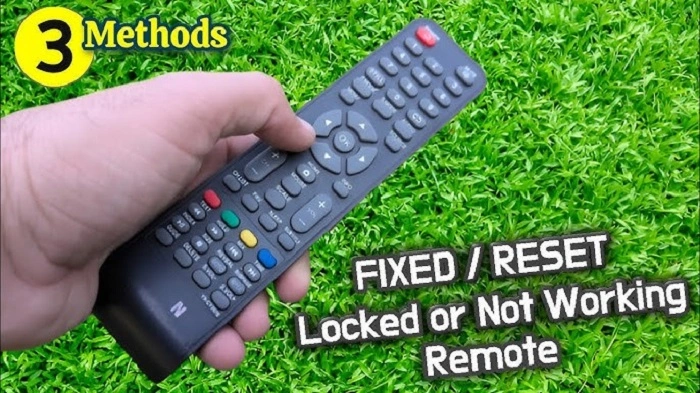
If the above methods don’t work, there are a few other things you can try:
Update the TV’s Software
Sometimes, a remote may not work correctly if the TV’s software is outdated. To check for updates:
- Go to Settings on your Samsung TV.
- Select Support and then choose Software Update.
- If there’s an update available, select Update Now.
Once the update is complete, try using the remote again.
Check for Interference
If your Samsung remote uses infrared (IR) signals, ensure that there are no obstacles or interference between the remote and the TV’s sensor. The signal can be blocked by objects, excessive sunlight, or other electronic devices. Move any obstructions and try using the remote again.
Try a Different Remote
If all else fails, try using a different Samsung remote to see if the issue is with the remote or the TV itself. If the new remote works, then it’s likely that your original remote is faulty.
Contact Samsung Support for Help
If resetting the remote doesn’t work, and you’ve ruled out other potential issues, it may be time to reach out to Samsung support. They can provide troubleshooting steps or guide you through more advanced reset options.
If your remote is still under warranty, you might be eligible for a replacement. You can contact Samsung support via their website, by phone, or through a local Samsung service center.
Preventing Future Remote Issues
Once your Samsung remote is reset and working properly, it’s a good idea to take steps to prevent future issues. Here are some tips to ensure your remote stays in good condition:
- Replace Batteries Regularly: Low batteries can cause the remote to become unresponsive. Replace the batteries every few months to keep your remote functioning well.
- Avoid Dropping the Remote: Drop damage can cause internal issues with the remote. Keep it safe and avoid dropping it on hard surfaces.
- Keep the Remote Clean: Dust and dirt can accumulate inside the remote, causing it to malfunction. Wipe the remote with a soft cloth to keep it clean.
Resetting your Samsung remote is a simple process that can resolve a variety of issues, from unresponsiveness to connectivity problems. Whether you have a traditional IR remote or a modern Smart Remote, there’s a reset method that should work for you. If all else fails, contacting Samsung support is always a good option. With a little patience and troubleshooting, you can get your Samsung remote back to working condition and continue enjoying your TV without interruptions.