

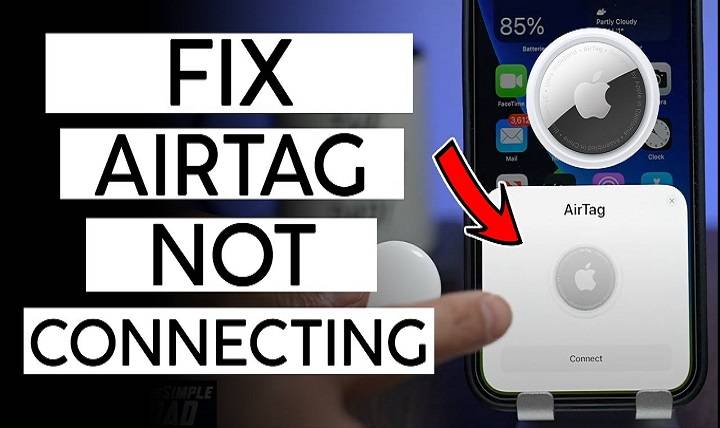
Apple’s AirTag is a powerful and convenient device for tracking your belongings, but sometimes users encounter issues with connectivity. This comprehensive guide will address why your AirTag won’t connect and provide detailed troubleshooting steps and solutions. We’ll also explore various related topics to ensure you get the most out of your AirTag.
Understanding AirTag Connectivity Issues
What is an AirTag?
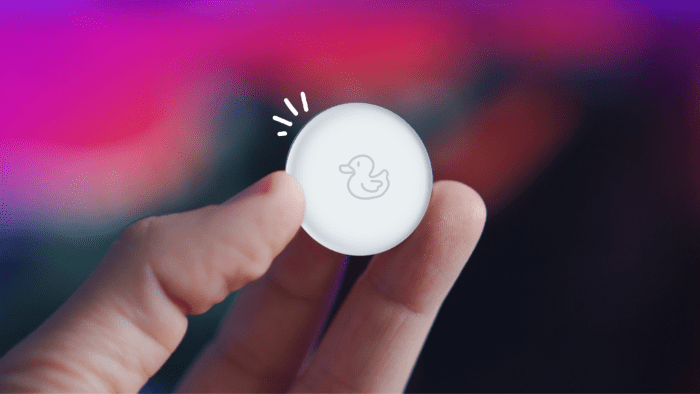
An AirTag is a small, circular tracking device developed by Apple to help you locate personal items such as keys, wallets, bags, and more. By attaching an AirTag to your items, you can easily find them using the Find My app on your iPhone or other Apple devices.
Common Reasons Why AirTag Won’t Connect
- Bluetooth Issues: Bluetooth must be enabled and functioning correctly for your AirTag to connect.
- Software Updates: Outdated software on your iPhone or AirTag can cause connectivity problems.
- Battery Problems: A depleted or improperly installed battery can prevent the AirTag from connecting.
- Proximity: The AirTag needs to be within a certain range of your iPhone to connect.
- Interference: Other electronic devices or physical obstructions can interfere with the Bluetooth signal.
Troubleshooting Steps
Check Bluetooth Settings
Ensure that Bluetooth is enabled on your iPhone. You can do this by going to Settings > Bluetooth and making sure the switch is turned on. If Bluetooth is already on, try toggling it off and on again to reset the connection.
Update Software
Make sure your iPhone and AirTag are running the latest software. To check for updates on your iPhone, go to Settings > General > Software Update. For the AirTag, updates are applied automatically when connected to your iPhone.
Inspect the Battery
Check if the AirTag’s battery is properly installed and has sufficient charge. To do this, press and rotate the back cover of the AirTag counterclockwise to open it, then remove and reinsert the CR2032 battery, ensuring the positive side is facing up.
Move Closer to the AirTag
Ensure that your iPhone is within a few inches of the AirTag during the connection process. Sometimes, moving closer can help establish a better connection.
Restart Your iPhone
Restarting your iPhone can resolve temporary software glitches that might be causing the connectivity issue. To restart, press and hold the power button until the “slide to power off” slider appears, then slide to turn off. After the device powers down, press and hold the power button again until the Apple logo appears.
Reset the AirTag
If the AirTag still won’t connect, try resetting it. Remove the battery, wait for 30 seconds, then reinsert the battery. This can help resolve any internal issues with the AirTag.
Common Issues and Solutions
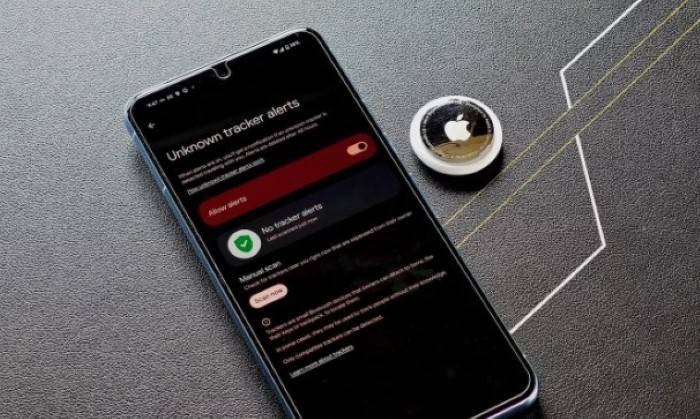
AirTag Not Detected
If your AirTag is not being detected by your iPhone, ensure that your device is running iOS 14.5 or later. Additionally, check that Bluetooth and Location Services are enabled. If the problem persists, try resetting the network settings on your iPhone by going to Settings > General > Reset > Reset Network Settings.
Intermittent Connection
An intermittent connection can be caused by interference from other electronic devices. Ensure that your AirTag and iPhone are not surrounded by other Bluetooth devices or electronic equipment. Moving to a different location can also help reduce interference.
AirTag Connecting to Wrong Device
If your AirTag is connecting to a different device, ensure that your iPhone is the primary device for the AirTag. Remove the AirTag from the other device and reset it before attempting to reconnect it to your iPhone.
Inaccurate Location Information
If the location information provided by your AirTag is inaccurate, check that your iPhone’s Location Services are enabled and properly configured. Go to Settings > Privacy > Location Services and ensure that Location Services are turned on and that the Find My app has permission to use your location.
Maximizing AirTag Performance
Regular Maintenance
Regularly check the battery status of your AirTag and replace it promptly when needed. Clean the AirTag and its contacts to ensure proper functioning.
Optimal Placement
Place the AirTag in a location where it is unlikely to experience interference or physical obstructions. For example, attaching it to the outside of a bag rather than inside a densely packed compartment can improve connectivity.
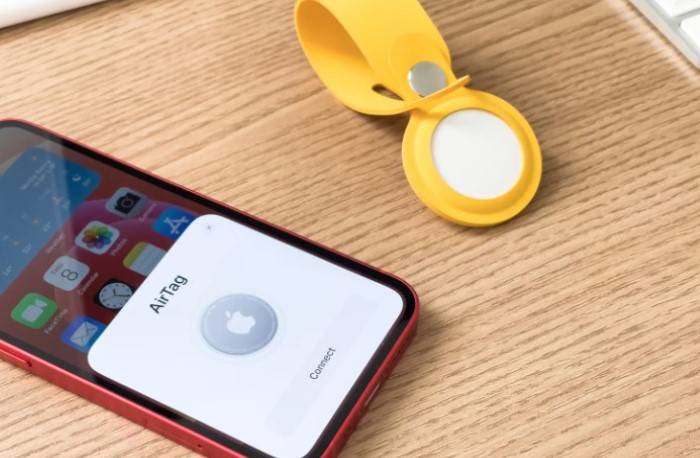
Use of Protective Accessories
Using protective cases or holders can help shield your AirTag from environmental stressors that could impact its performance. These accessories can also make it easier to attach the AirTag to various items securely.
Leveraging the Find My Network
The Find My network leverages a vast and secure system of Apple devices to help locate your AirTag. If your AirTag is lost, it sends out a secure Bluetooth signal that nearby devices can detect. These devices then anonymously relay the location back to you, significantly expanding the effective range of your AirTag.
Related Features and Topics
Precision Finding
Precision Finding uses Ultra-Wideband technology to provide accurate directions to your AirTag. When you are within range, your iPhone can display the exact distance and direction to your AirTag, making it easy to locate even in cluttered environments.
Privacy and Security
Apple has designed AirTags with privacy and security in mind. The location data and history are never stored on the AirTag itself. Communication with the Find My network is end-to-end encrypted, ensuring that only you can see where your AirTag is located. This design prevents unauthorized tracking and ensures your privacy is maintained.
Anti-Stalking Features
AirTag includes anti-stalking features to prevent unwanted tracking. If an unknown AirTag is found moving with you, your iPhone will alert you. You can then use your device to disable the AirTag. This feature ensures that AirTags cannot be used to track people without their knowledge.
Battery Life and Replacement
The battery life of an AirTag is approximately one year under normal usage conditions. When the battery is low, you will receive a notification from the Find My app. Replacing the battery is simple:
- Open the AirTag: Press and rotate the stainless steel back cover counterclockwise until it stops.
- Remove the Old Battery: Take out the depleted CR2032 battery.
- Insert the New Battery: Place a new CR2032 battery with the positive side facing up.
- Close the AirTag: Align the three tabs on the cover with the slots on the AirTag, press down, and rotate the cover clockwise until it stops.
Using AirTags for Travel
Use AirTags to keep track of your luggage when traveling. Placing an AirTag in your suitcase can help you locate it quickly at baggage claim or if it gets lost. This provides peace of mind during your travels, knowing you can track your luggage at any time.
Monitoring Pets with AirTag
Attach an AirTag to your pet’s collar to monitor their whereabouts. This provides peace of mind knowing you can find your pet if they wander off. While AirTags are not a substitute for a dedicated pet tracker, they can be a useful addition for monitoring your pet’s location.
Securing Electronics with AirTags
Attach AirTags to electronics like cameras, tablets, and laptops. This helps you locate these valuable items if they are misplaced or stolen. Securing your electronics with AirTags can protect your investment and ensure you always know where your devices are.
Using AirTags for Outdoor Gear
Attach AirTags to outdoor gear such as bicycles, camping equipment, and sports gear. This can help you keep track of your items during outdoor activities and ensure they are not lost or stolen.
Frequently Asked Questions
Why won’t my AirTag connect to my iPhone?
There are several reasons why your AirTag won’t connect, including Bluetooth issues, outdated software, battery problems, and proximity. Follow the troubleshooting steps provided to resolve the issue.
How can I reset my AirTag?
To reset your AirTag, remove the battery, wait for 30 seconds, then reinsert the battery. This can help resolve any internal issues with the AirTag.
Can interference affect my AirTag’s connectivity?
Yes, interference from other electronic devices or physical obstructions can affect the Bluetooth signal and impact connectivity. Try moving to a different location or reducing the number of nearby electronic devices.
What should I do if my AirTag is connecting to the wrong device?
Ensure that your iPhone is the primary device for the AirTag. Remove the AirTag from the other device and reset it before attempting to reconnect it to your iPhone.
Related Post:
Elevate Your Pocket Essentials: Exploring the Ridge Wallet AirTag Integration
Mastering Apple’s Device Locator: How to Track AirTag Effectively
How to Set Up an AirTag: A Comprehensive Step-by-Step Guide
Understanding why your AirTag won’t connect and knowing how to troubleshoot common issues is essential for ensuring continuous functionality. By following the steps and tips provided in this guide, you can resolve connectivity problems and maximize the performance of your AirTag. Whether you use AirTags for everyday items, travel, or outdoor gear, this comprehensive guide ensures you get the most out of your Apple AirTag investment. Proper maintenance and timely troubleshooting will keep your AirTag functioning optimally, providing peace of mind and enhanced convenience in your daily life.