


Apple’s AirTag is an innovative tracking device designed to help you keep track of your personal belongings. One crucial aspect of using an AirTag effectively is knowing how to open it, whether it’s for replacing the battery or troubleshooting issues. This comprehensive guide will walk you through the process of how to open AirTag and explore various related topics to ensure you get the most out of your device.
Understanding AirTag Basics

What is an AirTag?
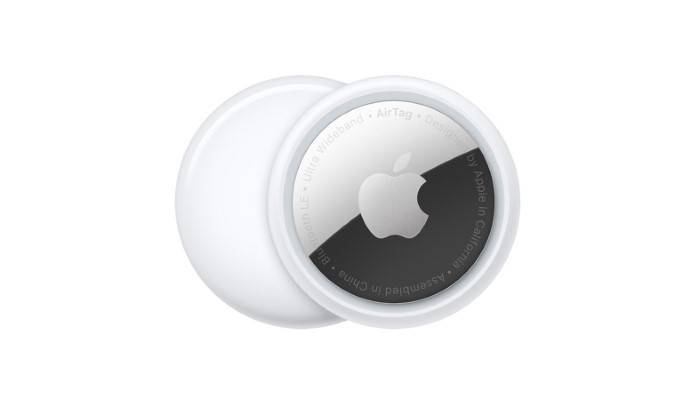
An AirTag is a small, circular tracking device developed by Apple to help you locate personal items such as keys, wallets, bags, and more. By attaching an AirTag to your items, you can easily find them using the Find My app on your iPhone or other Apple devices.
Why You Might Need to Open an AirTag
There are several reasons why you might need to open an AirTag:
- Battery Replacement: The AirTag uses a CR2032 battery that lasts about a year under normal use.
- Troubleshooting: If your AirTag isn’t functioning properly, opening it to check the battery or internal components may help.
- Maintenance: Regular maintenance, such as cleaning the battery contacts, can ensure your AirTag continues to work effectively.
How to Open AirTag
Step-by-Step Guide to Opening an AirTag
- Prepare Your AirTag: Ensure your hands are clean and dry to avoid any damage to the AirTag.
- Locate the Back Cover: The stainless steel back cover is where you will focus your efforts.
- Press and Rotate: Press down firmly on the stainless steel back cover and rotate it counterclockwise until it stops.
- Remove the Cover: Lift the cover off once it has been rotated and set it aside.
- Access the Battery: You will now have access to the CR2032 battery inside the AirTag.
Tips for Opening AirTag
- Use Gentle Pressure: Apply firm but gentle pressure to avoid damaging the AirTag.
- Rotate Correctly: Make sure to rotate the cover counterclockwise; turning it the wrong way can make it more difficult to open.
- Keep Parts Together: When you remove the cover and battery, place them in a safe spot to avoid losing any components.
Replacing the AirTag Battery
Step-by-Step Guide to Replacing the Battery
- Remove the Old Battery: Once you’ve opened the AirTag, carefully take out the old CR2032 battery.
- Insert the New Battery: Place the new CR2032 battery into the AirTag with the positive side facing up.
- Reattach the Cover: Align the three tabs on the cover with the slots on the AirTag, press down, and rotate the cover clockwise until it stops.
- Ensure Proper Fit: Make sure the cover is securely fastened to ensure the AirTag is properly sealed.
Choosing the Right Battery
When replacing the battery, it’s important to choose a high-quality CR2032 lithium coin cell battery. Brands like Duracell, Energizer, and Panasonic are reliable options. Ensure the battery is fresh and has not been stored for long periods.
Troubleshooting Common AirTag Issues

AirTag Not Connecting
If your AirTag is not connecting to your device, try the following steps:
- Check Battery: Ensure the battery is properly installed and has a charge.
- Restart Your Device: Restart your iPhone or other Apple device.
- Re-pair the AirTag: Remove the AirTag from the Find My app and re-pair it.
AirTag Not Responding
If your AirTag is unresponsive:
- Open and Inspect: Open the AirTag to check for any visible issues with the battery or internal components.
- Replace Battery: Try replacing the battery with a new one.
- Contact Apple Support: If the issue persists, contact Apple Support for further assistance.
Maintaining Your AirTag
Regular Inspections
Regularly inspect your AirTag for any signs of wear or damage. This includes checking the battery and ensuring the back cover is securely fastened.
Cleaning the AirTag
Keep your AirTag clean to ensure it functions properly:
- Wipe Down: Use a soft, dry cloth to wipe down the exterior of the AirTag.
- Clean Contacts: If necessary, clean the battery contacts with a small amount of rubbing alcohol on a cotton swab.
Enhancing AirTag Durability
Using Protective Accessories
Consider using protective accessories such as keychain holders or waterproof cases to enhance the durability and longevity of your AirTag.
Avoiding Extreme Conditions
Avoid exposing your AirTag to extreme temperatures or harsh conditions to prevent damage and ensure it continues to function effectively.
Comparing AirTag with Other Trackers
Tile Trackers
Tile trackers are a popular alternative to AirTags. While they offer similar tracking capabilities, they typically do not match the seamless integration and ease of use provided by the Apple ecosystem.
Samsung Galaxy SmartTag
Samsung Galaxy SmartTag is another competitor in the tracking device market. It works best within the Samsung ecosystem and offers similar tracking features, but like Tile, it lacks some of the advanced features and integration of the AirTag.
Chipolo One
Chipolo One trackers provide an alternative with broad compatibility with both Android and iOS devices. They use Bluetooth for tracking and offer features like out-of-range alerts and community find, but they do not provide the same level of integration as AirTags.
Advanced Features of AirTag
Precision Finding
Precision Finding uses Ultra-Wideband technology to provide accurate directions to your AirTag. When you are within range, your iPhone can display the exact distance and direction to your AirTag, making it easy to locate even in cluttered environments.
Find My Network
The Find My network leverages a vast and secure system of Apple devices to help locate your AirTag. If your AirTag is lost, it sends out a secure Bluetooth signal that nearby devices can detect. These devices then anonymously relay the location back to you, significantly expanding the effective range of your AirTag.
Lost Mode
If you lose an item with an AirTag attached, you can enable Lost Mode in the Find My app. When Lost Mode is activated, your AirTag will send notifications when it is detected by another device in the Find My network. You can also enter contact information so that anyone who finds your AirTag can reach you.
Frequently Asked Questions
How do you open an AirTag?
To open an AirTag, press down on the stainless steel back cover and rotate it counterclockwise until it stops. Lift the cover off to access the battery.
Why do I need to open an AirTag?
You might need to open an AirTag to replace the battery, troubleshoot issues, or perform regular maintenance.
What type of battery does an AirTag use?
An AirTag uses a CR2032 lithium coin cell battery, which typically lasts about one year under normal usage conditions.
Can I replace the AirTag battery myself?
Yes, you can easily replace the AirTag battery yourself by opening the device and inserting a new CR2032 battery.
What should I do if my AirTag is not working after replacing the battery?
If your AirTag is not working after replacing the battery, ensure the battery is properly installed, restart your device, and try re-pairing the AirTag. If the issue persists, contact Apple Support.
Related Post:
AirTag Won’t Connect: Troubleshooting and Solutions
Find AirTag: The Ultimate Guide to Locating Your Apple AirTag
AirTag Lost Mode: A Comprehensive Guide to Locating Your Items
Knowing how to open AirTag is essential for maintaining and troubleshooting your device. By following the steps outlined in this guide, you can easily replace the battery, ensure proper functionality, and extend the lifespan of your AirTag. Whether you use AirTags for everyday items, travel, or pet tracking, understanding these maintenance techniques ensures you get the most out of your Apple AirTag investment.