


Apple’s AirTag is a game-changer for keeping track of your personal belongings. However, users sometimes encounter the issue of their “AirTag not showing up” in the Find My app. This comprehensive guide will walk you through possible reasons for this problem, provide detailed troubleshooting steps, and discuss related topics to ensure your AirTag works seamlessly.
Understanding AirTag Functionality
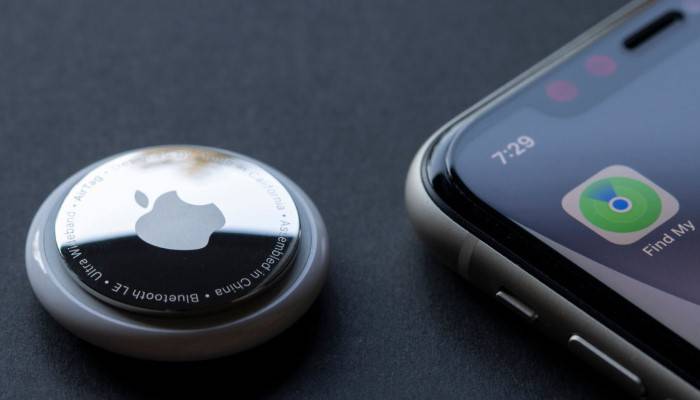
What is an AirTag?
An AirTag is a small, circular tracking device developed by Apple. It’s designed to be attached to personal items like keys, wallets, and bags, allowing users to locate these items using the Find My app on their iPhone, iPad, or Mac.
How Does AirTag Work?
AirTag utilizes Bluetooth technology to communicate with nearby Apple devices in the Find My network. When your AirTag is out of range, it sends a secure Bluetooth signal that nearby devices can detect. These devices relay the AirTag’s location back to you, ensuring you can find your lost items.
Common Reasons for AirTag Not Showing Up
Bluetooth and Location Services Issues
One of the most common reasons for an “AirTag not showing up” is problems with Bluetooth and location services. Ensure both Bluetooth and location services are enabled on your device.
AirTag Battery Problems
If the AirTag’s battery is dead or not properly installed, it won’t be able to connect to your device. Check the battery and replace it if necessary.
Software Glitches
Occasionally, software glitches can prevent your AirTag from showing up in the Find My app. Restarting your device or updating to the latest iOS version can often resolve these issues.
Network Issues
If there is a problem with your network connection, the AirTag might not show up. Ensure you have a stable internet connection.
AirTag Setup Issues
If the AirTag was not set up correctly or is not linked to your Apple ID, it will not appear in the Find My app. Double-check the setup process to ensure everything is configured correctly.
How to Troubleshoot AirTag Not Showing Up

Step-by-Step Troubleshooting Guide
- Check Bluetooth and Location Services: Ensure Bluetooth and location services are enabled on your device.
- Verify AirTag Battery: Open the AirTag and check the battery. Replace it with a new CR2032 battery if necessary.
- Restart Your Device: Restart your iPhone or iPad to resolve any temporary software glitches.
- Update iOS: Ensure your device is running the latest version of iOS.
- Check Network Connection: Make sure you have a stable internet connection.
- Reset AirTag: If all else fails, reset your AirTag and set it up again.
Check Bluetooth and Location Services
- Open the Settings app on your iPhone.
- Tap on Bluetooth and ensure it is turned on.
- Go back to Settings and tap on Privacy.
- Tap on Location Services and ensure it is turned on.
Verify AirTag Battery
- Press down on the stainless steel back cover of the AirTag and rotate it counterclockwise to open it.
- Remove the battery and check its condition.
- Replace the battery with a new CR2032 battery, ensuring the positive side is facing up.
- Reassemble the AirTag and listen for a sound indicating the battery is connected.
Restart Your Device
- Press and hold the Power button on your iPhone until the Slide to Power Off slider appears.
- Slide to power off your device.
- Wait a few seconds, then press and hold the Power button again to turn your device back on.
Update iOS
- Open the Settings app on your iPhone.
- Tap on General and then Software Update.
- If an update is available, tap Download and Install.
Check Network Connection
- Ensure you are connected to a Wi-Fi or cellular network.
- Open a web page in Safari to confirm your internet connection is working.
Reset AirTag
- Open the Find My app on your iPhone.
- Tap on the Items tab.
- Select the AirTag that is not showing up.
- Scroll down and tap Remove Item.
- Follow the setup process again to reconnect your AirTag.
Related Topics
AirTag Setup Process
Understanding the initial setup process can help prevent issues with your AirTag not showing up. Ensure you follow the steps correctly to pair your AirTag with your Apple ID.
Battery Replacement
Regularly check and replace the AirTag battery to ensure it remains functional. The CR2032 battery typically lasts about one year.
Using Find My App
Learn how to use the Find My app effectively to locate your AirTag and other Apple devices. Familiarize yourself with its features and settings.
AirTag Security Features
AirTags come with robust security features, including end-to-end encryption and anti-stalking measures. Understanding these features can help you use your AirTag safely and securely.
Comparing AirTag with Other Trackers
Explore how AirTag compares with other tracking devices like Tile, Samsung Galaxy SmartTag, and Chipolo One. Understand the differences in features, usability, and performance.
Apple Ecosystem Integration
AirTag is designed to work seamlessly within the Apple ecosystem. Learn how it integrates with your other Apple devices and services for a smooth user experience.
Troubleshooting Other AirTag Issues
Apart from “AirTag not showing up,” other common issues include connectivity problems, inaccurate location data, and notification issues. Learn how to troubleshoot these problems.
Enhancing AirTag Performance
Tips and tricks to enhance the performance of your AirTag, including using protective accessories and optimizing settings for better tracking accuracy.
AirTag Privacy Concerns
Addressing privacy concerns with AirTags, including how to ensure your device is not used for unwanted tracking and how Apple protects user privacy.
Future Updates and Features
Stay informed about potential future updates and features for AirTags that could enhance their functionality and address current limitations.
Frequently Asked Questions
Why is my AirTag not showing up in the Find My app?
Ensure Bluetooth and location services are enabled, check the AirTag battery, restart your device, and ensure it is running the latest iOS version. If the problem persists, reset the AirTag and set it up again.
How do I reset my AirTag?
To reset your AirTag, open the Find My app, select the AirTag, scroll down, and tap “Remove Item.” Follow the setup process again to reconnect your AirTag.
How often should I replace the AirTag battery?
The AirTag battery typically lasts about one year. The Find My app will notify you when the battery is running low, giving you ample time to replace it.
Can multiple people track an AirTag?
No, an AirTag can only be associated with one Apple ID at a time. Only the person who set up the AirTag can track it.
How do I check the battery status of my AirTag?
Open the Find My app, select your AirTag, and you will see the battery status displayed on the screen.
Related Post:
How to Charge an AirTag: Everything You Need to Know
How Long Do AirTag Batteries Last? A Comprehensive Guide
How to Find an AirTag: A Comprehensive Guide
How to Connect an AirTag: A Comprehensive Guide
Experiencing the “AirTag not showing up” issue can be frustrating, but with the right troubleshooting steps, you can quickly resolve it. By following the detailed guide provided, you can ensure your AirTag remains functional and reliable. Understanding related topics, such as the initial setup process, battery maintenance, and security features, will further enhance your AirTag experience.