

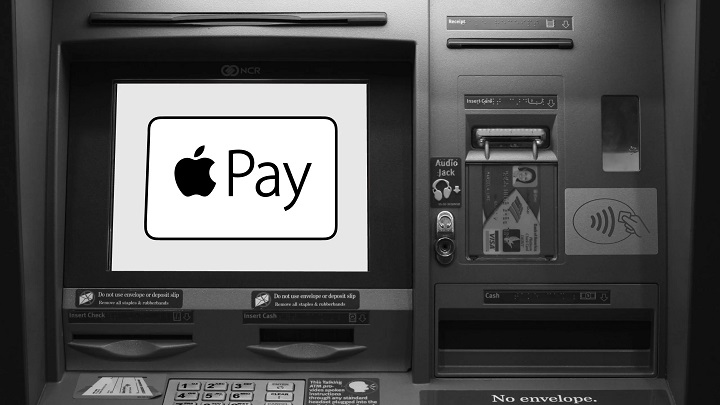
With the rise of digital payments, many users wonder: Can you use Apple Wallet at an ATM? The short answer is yes—but only at select ATMs that support contactless transactions. Apple Wallet offers a secure, tap-and-go way to access cash without your physical card, but it depends on the bank, the ATM type, and your card’s compatibility.
Here’s a detailed breakdown of how Apple Wallet works at ATMs, how to set it up, which banks support it, and what to do if it doesn’t work.
Understanding Apple Wallet and Contactless ATM Access
Apple Wallet lets you store debit and credit cards on your iPhone or Apple Watch using Apple Pay. For ATMs that support NFC (Near Field Communication), you can withdraw cash just by holding your device near the ATM reader—no need to insert your physical card.
These are often called cardless ATMs, and they work much like tapping to pay at a store.
How to Use Apple Wallet at ATM
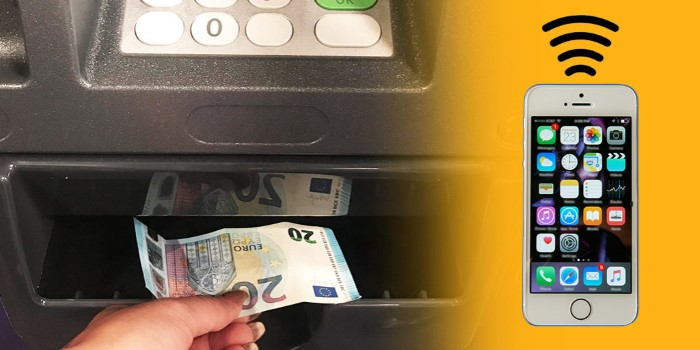
To withdraw money using Apple Wallet, follow these steps:
Step-by-Step Guide
- Find a compatible ATM
Look for ATMs with the contactless symbol (four curved lines) or signs indicating support for Apple Pay.
- Open your Apple Wallet
Double-click the side button on your iPhone (or Apple Watch) to open Apple Pay and select your debit card.
- Authenticate with Face ID or Touch ID
This step confirms it’s you.
- Hold your device near the NFC reader
The ATM will recognize your card, just like a tap-to-pay transaction.
- Enter your PIN
You’ll still need to enter your regular debit card PIN to complete the transaction.
- Withdraw cash as usual
After verifying your PIN, choose your withdrawal amount and proceed.
Which Banks Support Apple Wallet at ATM?
Not all banks have enabled NFC-compatible ATMs. Here are some major banks that allow Apple Wallet use at select ATMs:
| Bank Name | Cardless ATM Support | Apple Wallet Support | Notes |
| Bank of America | ✅ | ✅ | Look for contactless logo |
| Chase | ✅ | ✅ | Works with Apple Pay at ATMs |
| Wells Fargo | ✅ | ✅ | Offers NFC-enabled ATMs |
| Citibank | ✅ | ✅ | Limited ATMs support Apple Pay |
| Capital One | ✅ | ✅ | Some ATMs accept digital cards |
Make sure your debit card is added to Apple Wallet, and the ATM you’re using has NFC capability.
What You Need to Use Apple Wallet at ATM
To successfully withdraw cash using Apple Wallet, you must have:
- A compatible iPhone or Apple Watch with Apple Pay enabled
- A bank-issued debit card added to Apple Wallet
- Access to a contactless-enabled ATM
- Your debit card PIN
If any of these components are missing, the transaction won’t work.
Apple Wallet ATM Withdrawal: Pros and Cons

| Pros | Cons |
| No need to carry a physical wallet | Not all ATMs support Apple Wallet |
| Faster and more convenient | Requires PIN entry (not fully touchless) |
| Secure authentication with Face ID | Limited to bank-issued debit cards only |
| Great backup if you forget your card | Doesn’t support credit card withdrawals via ATM |
Apple Wallet ATM Support on Apple Watch
Yes, you can also use Apple Watch to access an ATM—if it supports contactless withdrawal.
- Double-click the side button
- Choose your debit card
- Hold the Apple Watch near the ATM’s NFC reader
- Enter your PIN on the ATM
This is ideal for quick access when your phone isn’t nearby.
Why Apple Wallet May Not Work at ATMs
If your attempt to use Apple Wallet at an ATM fails, these might be the reasons:
- The ATM doesn’t support NFC
- Your bank doesn’t allow cardless ATM withdrawals
- Your debit card isn’t set up for Apple Pay
- You’re trying to use a credit card, which won’t work for withdrawals
- Apple Pay isn’t available on older iPhones or outdated iOS versions
How to Add Debit Card to Apple Wallet
- Open the Wallet app on your iPhone
- Tap the “+” in the top right corner
- Select Debit or Credit Card
- Follow the prompts to scan or manually enter your card
- Verify with your bank, if needed
Once added, your card is ready for use at Apple Pay-compatible ATMs.
Security of Using Apple Wallet at ATM
Apple Pay and Apple Wallet offer strong security benefits:
- No card number shared during the transaction
- Face ID or Touch ID verification before any use
- Transactions are encrypted
- Your real card number isn’t stored on your device
Even if your phone is lost, Find My iPhone allows you to remotely disable Apple Wallet.
FAQs
Can I use Apple Wallet at any ATM?
No. Only ATMs that support NFC and Apple Pay will work. Look for the contactless symbol on the machine.
Does Apple Wallet work for cash withdrawals?
Yes, but only with debit cards at NFC-enabled ATMs. Credit cards in Apple Wallet do not support ATM withdrawals.
What if my ATM doesn’t accept Apple Pay?
You’ll need to use your physical card or locate a nearby NFC-supported ATM via your bank’s app.
Is Apple Wallet secure for ATM use?
Yes. Your actual card number is never shared, and each transaction is authenticated with Face ID, Touch ID, or your passcode.
Can I withdraw money with Apple Wallet without a PIN?
No. ATMs still require you to enter your debit card PIN, even when using Apple Wallet.