

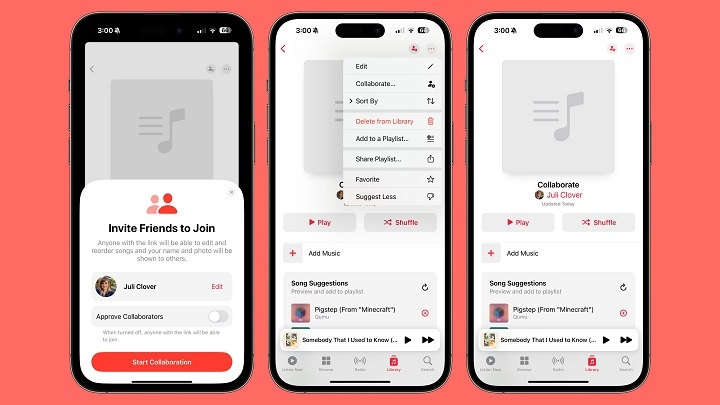
Apple Music is one of the most popular music streaming platforms globally, and with its Family Sharing feature, it allows multiple users to enjoy premium access under one subscription. If you’re wondering how to add someone to your Apple Music plan, especially under a Family Plan, you’re in the right place.
Here’s everything you need to know—from eligibility and setup to inviting users and troubleshooting common issues.
Can You Share Apple Music with Someone?
Yes, you can. Apple Music allows sharing through the Apple One Family Plan or a standalone Apple Music Family subscription. Up to six people, including yourself, can use Apple Music under one shared plan.
To do this, you need to set up Family Sharing on your Apple device. Once that’s done, every member of your family group gets access to Apple Music using their own Apple ID and personalized music library.
What You Need Before Adding Someone
Before inviting someone to your Apple Music plan, make sure:
- You’ve subscribed to the Apple Music Family Plan or Apple One Family/Premier
- You are the Family Organizer in your Apple Family Sharing group
- The person you’re adding has an Apple ID
- All devices are updated to the latest version of iOS, iPadOS, or macOS
Once everything’s in place, you can add them to your Family Sharing group and give them access to Apple Music.
How to Set Up Family Sharing (If You Haven’t Yet)
If you’ve never used Family Sharing before, here’s how to get started.
On iPhone or iPad
- Go to Settings
- Tap [your name] > Family Sharing
- Tap Set Up Your Family
- Follow the on-screen instructions to invite family members
On Mac
- Go to System Settings (or System Preferences on older macOS)
- Click Family > Set Up Family
- Add your family members using their Apple IDs
Once added, each member will receive an invitation. After they accept, they’ll be part of your Family Sharing group.
How to Add Someone to Your Apple Music Plan
If Family Sharing is already active and you’re subscribed to a Family Plan, adding someone is simple.
Steps to Add a Family Member
- Open Settings
- Tap [your name] > Family Sharing
- Tap Add Member
- Enter the email address associated with the person’s Apple ID
- Choose how to send the invitation (Messages, Mail, etc.)
- Ask them to accept the invite and follow prompts on their device
After joining your family group, the new member will automatically gain access to your Apple Music subscription.
How It Works for the New Member
Once someone is added:
- They’ll open the Music app
- Tap Continue or Join Apple Music
- Choose their music preferences
- Start enjoying Apple Music with their own playlists, favorites, and library
Each member has a separate account and listening history—you only share the subscription cost, not the recommendations or downloaded songs.
Common Issues and Fixes
Invite Not Received
Ask the recipient to check their email or Messages for an Apple invitation. If it doesn’t appear, resend the invite or restart both devices.
Already Part of Another Family Group
Apple only allows one Family Sharing group at a time. The invited person must leave their existing group before joining yours.
Still Getting Charged for Apple Music Individually
The added member should cancel their personal Apple Music subscription. Once they accept your invite, Apple Music Family access takes over after their current billing period ends.
Child Account Can’t Join
If the person you’re adding is under 13, you’ll need to create a child Apple ID for them under your Family Sharing group.
Apple Music Sharing Options Compared
| Plan Type | Number of Users | Monthly Price | Notes |
| Individual Plan | 1 | $10.99 (USD) | Only for one person |
| Family Plan | Up to 6 | $16.99 (USD) | Shared access with Family Sharing |
| Apple One Family Bundle | Up to 6 | $22.95 (USD) | Includes Apple Music, TV+, Arcade, iCloud |
| Apple One Premier Bundle | Up to 6 | $32.95 (USD) | Adds News+ and Fitness+ to the bundle |
If you already subscribe to Apple services, Apple One may be a better value for your entire family.
Tips for Managing Shared Apple Music
- Each member gets their own profile, so you don’t need to worry about your playlists getting mixed upParents can set Screen Time and content restrictions for younger users
- Members can be removed at any time from Family Sharing settings
- Family Sharing also includes shared purchases for apps, movies, and iCloud storage (if enabled)
FAQs
How many people can I add to Apple Music Family Plan?
You can add up to five other people, making it a total of six users under one plan.
Can each family member have their own playlists and music?
Yes, every person has a separate Apple Music experience tied to their own Apple ID.
Is there an extra cost to add someone?
No extra fee is required beyond the monthly cost of the Family Plan or Apple One subscription.
Can I remove someone later?
Yes. Go to your Family Sharing settings and remove any member at any time.
Do added users need to live at the same address?
No. Family members don’t have to share the same physical address to join your Family Sharing group.