


YouTube Premium offers an enhanced experience on the platform with benefits like ad-free videos, background playback, and access to YouTube Music. However, not everyone wants or needs to continue paying for these extras. Whether you’re switching to a different music service, tightening your budget, or simply not finding it worth the cost, canceling YouTube Premium is quick and easy once you know where to look.
Why You Might Want to Cancel YouTube Premium
YouTube Premium can be a great value for heavy users, but that doesn’t mean it’s for everyone. Common reasons for cancellation include:
- You’re not using the extra features enough to justify the cost.
- You’re trying to reduce monthly subscription expenses.
- You prefer alternative platforms like Spotify or Netflix.
- You accidentally subscribed or were on a free trial and don’t want to be charged.
No matter the reason, Google makes it relatively simple to opt out of the service.
What Happens When You Cancel
Before we dive into how to cancel, it’s important to understand what happens after you end your subscription:
- You will retain Premium benefits until the end of your current billing period.
- Your account reverts to the free version of YouTube and YouTube Music.
- Your downloaded videos and music will no longer be available offline.
- You will start seeing ads again on all YouTube content.
- Any saved playlists or preferences in YouTube Music will still be available but may be more limited in functionality.
How to Cancel YouTube Premium on Desktop
If you’re using a computer, canceling through a web browser is straightforward.
Steps:
- Visit YouTube.com and log into your account.
- Click on your profile icon in the top right corner.
- Go to “Purchases and memberships”.
- Under the “Memberships” section, find YouTube Premium and click “Manage Membership”.
- Select “Deactivate” or “Cancel membership”.
- You’ll be prompted to confirm your decision and possibly answer a few feedback questions.
Once completed, you’ll receive a confirmation, and your Premium benefits will last until your current billing cycle ends.
How to Cancel YouTube Premium on Android
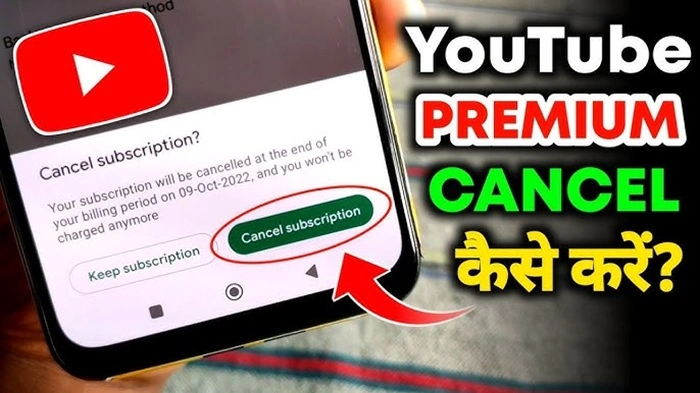
If you subscribed to YouTube Premium using an Android phone or tablet, here’s how you can cancel through the app or Google Play:
Through YouTube App:
- Open the YouTube app.
- Tap your profile picture in the top right.
- Go to Purchases and memberships.
- Tap YouTube Premium > Deactivate.
- Follow the prompts to confirm cancellation.
Through Google Play:
- Open the Google Play Store.
- Tap the menu icon (three lines or your profile photo).
- Select Payments & subscriptions > Subscriptions.
- Find YouTube Premium and tap Cancel subscription.
- Follow the instructions and confirm.
Google will notify you via email that your subscription has been canceled.
How to Cancel YouTube Premium on iPhone or iPad
If you subscribed through the App Store, you need to cancel through your Apple ID, not the YouTube app.
Steps:
- Open your Settings app.
- Tap your Apple ID at the top of the screen.
- Go to Subscriptions.
- Find YouTube Premium in the list.
- Tap it and choose Cancel Subscription.
Since Apple handles the billing, canceling through Google or YouTube won’t work if you used your Apple account for the original purchase.
What If You’re on a Free Trial?
YouTube Premium often comes with a 1-month free trial for first-time users. If you don’t want to be charged when the trial ends, be sure to cancel at least 24 hours before your billing date.
Follow the same steps outlined above depending on your device. You’ll still have access to Premium features until your trial period expires.
Can You Pause Instead of Canceling?
Yes. YouTube Premium offers a pause option in some regions. This allows you to pause your subscription for up to 6 months, after which it will automatically resume.
How to Pause:
- Follow the same path to cancel your subscription.
- Look for the “Pause instead” option during the cancellation process.
- Select the duration and confirm.
This can be a good option if you’re taking a break or going on vacation but plan to return.
Troubleshooting Cancellation Issues
Here are some things to check if you’re having trouble canceling:
- Multiple Accounts: Make sure you’re logged into the correct Google account—the one tied to your subscription.
- App Store vs. Google Billing: If you subscribed via the Apple App Store, you must cancel through Apple.
- Pending Charges: If you recently changed payment info or have a pending charge, you may need to resolve that before canceling.
- Corporate or Family Plans: If you’re on a family plan, only the family manager can cancel the subscription.
YouTube Premium can significantly enhance your experience, but it’s not for everyone. Whether you subscribed by accident, used a free trial, or simply want to cut costs, canceling is relatively simple across devices. Just be sure to cancel at least a day before your next billing cycle to avoid charges.
After canceling, you can still enjoy the core features of YouTube for free, and you always have the option to re-subscribe later if you change your mind.