

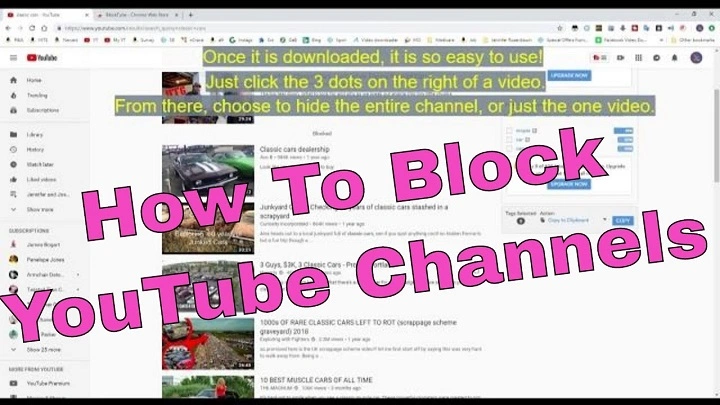
YouTube is the world’s largest video platform, offering everything from educational tutorials to entertainment and news. But not every video is something you want to see—or want your kids to see. Whether you’re trying to avoid spoilers, block inappropriate content, or clean up your feed, you’ve probably wished there was an easy way to block specific videos on YouTube.
Can You Block Videos on YouTube?
YouTube doesn’t offer a direct “block this video” button for regular users. However, there are several effective workarounds to help limit or hide specific videos or types of content. These include:
- Marking videos as “Not Interested”
- Blocking entire channels
- Using Restricted Mode
- Installing browser extensions (desktop only)
- Customizing the YouTube Kids experience
- Setting up parental controls
Let’s explore each of these options in detail.
Mark Videos as “Not Interested”
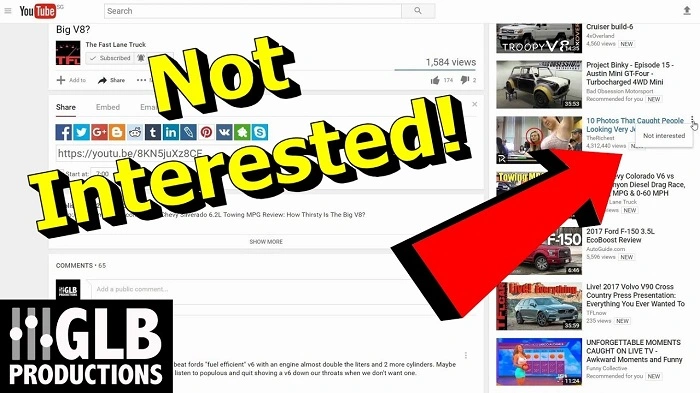
This is the most direct way to tell YouTube you don’t want to see a certain video or type of content again.
How to Do It:
- On the YouTube homepage or suggested videos list, tap the three dots (⋮) next to the video.
- Choose “Not Interested.”
- Optionally, select “Tell us why” and pick a reason—like “I’ve already watched this” or “I don’t like the video.”
This will help train YouTube’s recommendation algorithm to stop showing similar content in the future.
Block a YouTube Channel
If the videos you want to block are all coming from a single creator, you can block the entire channel.
On Desktop:
- Visit the channel page.
- Click the About tab.
- Click the flag icon and choose “Block user.”
- Confirm your choice.
On Mobile:
- Go to the channel’s profile.
- Tap the three dots in the top right corner.
- Tap “Block user.”
Once blocked, that channel’s content won’t appear in your recommendations or comments.
Note: This doesn’t prevent the videos from being visible if you search for them manually.
Turn On Restricted Mode
YouTube’s Restricted Mode filters out content that may be inappropriate for younger audiences. It isn’t perfect, but it helps reduce exposure to explicit, violent, or otherwise adult content.
On Desktop:
- Scroll to the bottom of any YouTube page.
- Click “Restricted Mode” and toggle it on.
On Mobile:
- Tap your profile picture.
- Go to Settings > General.
- Toggle “Restricted Mode” on.
Keep in mind this setting is device-specific—it won’t sync across all your devices automatically.
Use Browser Extensions (For Desktop)
If you want even more control over the videos that appear on YouTube, browser extensions can help. These tools allow you to block specific keywords, video titles, or channels.
Recommended Extensions:
- Video Blocker (Chrome and Firefox): Lets you block videos by title, keyword, or channel name.
- Unhook YouTube: Helps you declutter your feed and hide Shorts, comments, trending, and more.
- uBlock Origin: With advanced filters, you can block specific elements or types of content.
To use them, install the extension from your browser’s web store and configure the settings to block the videos or topics you want to avoid.
Use YouTube Kids for More Control
If you’re trying to block videos for children, YouTube Kids offers stronger parental controls than the regular YouTube app.
Features Include:
- Blocking individual videos or entire channels
- Setting age-appropriate content filters
- Approving only hand-selected videos and channels
- Setting screen time limits
How to Block a Video in YouTube Kids:
- Tap the three dots next to the video.
- Select “Block this video.”
- Authenticate with your parental access code or password.
This is one of the few ways to block a specific video on YouTube using official tools.
Block YouTube Videos with Google Family Link
For parents managing a child’s YouTube access, Google Family Link can add another layer of content control.
What You Can Do:
- Approve or block apps (like YouTube or YouTube Kids)
- Set time limits
- Monitor search and watch history
- Enable Restricted Mode remotely
While you can’t block individual videos directly through Family Link, you can use it in combination with YouTube Kids or supervised accounts for more controlled access.
Report Problematic Content
If you come across a video that violates YouTube’s guidelines—such as hate speech, harassment, or explicit content—you can report it to have it reviewed.
How to Report:
- Click the three dots next to the video.
- Choose “Report” and select the reason.
- Submit the report.
YouTube’s moderation team will review the video, and if it violates policies, it may be removed or restricted.
Sign Out or Use Incognito Mode (As a Last Resort)
If you’re not signed in, YouTube won’t tailor content to your account. Using Incognito Mode or signing out can prevent certain videos from influencing your feed or history—useful if you’ve accidentally clicked on unwanted content.
How to Use Incognito Mode:
- Tap your profile picture in the YouTube app.
- Tap “Turn on Incognito.”
Note: YouTube won’t save any history while in this mode.
Final Thoughts
While YouTube doesn’t currently offer a built-in feature to block individual videos permanently across your account, you still have a wide range of tools to control what shows up in your feed. By combining “Not Interested” feedback, channel blocks, browser extensions, and parental control apps, you can effectively clean up your YouTube experience.
Whether you’re protecting kids from inappropriate content or simply trying to avoid spoilers and spam, knowing how to block videos on YouTube helps you take charge of your viewing environment.