

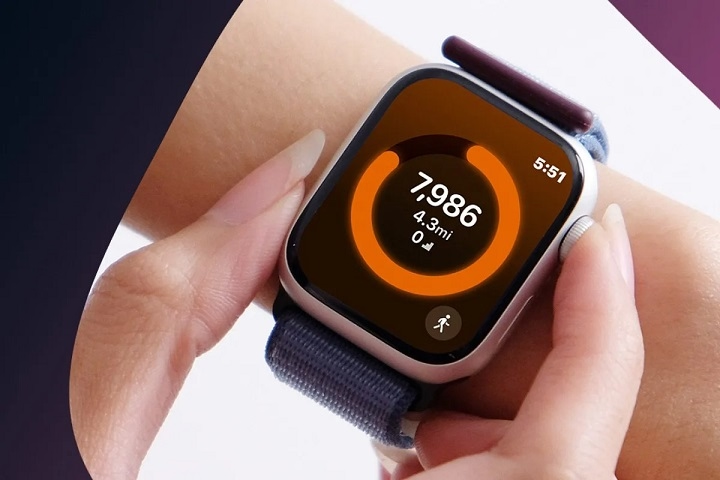
Your Apple Watch does more than just tell time—it also acts as a powerful fitness tracker. One of the most popular features is step tracking, which helps you monitor your daily movement and stay active. Whether you’re aiming for 10,000 steps or just trying to beat yesterday’s count, checking your steps on Apple Watch is quick and easy.
Use the Activity App on Apple Watch

The built-in Activity app is the fastest way to get an overview of your daily movement, including your step count.
To check steps:
- Press the Digital Crown to go to the Home Screen.
- Open the Activity app (the icon has colorful rings).
- Scroll down using your finger or the Digital Crown.
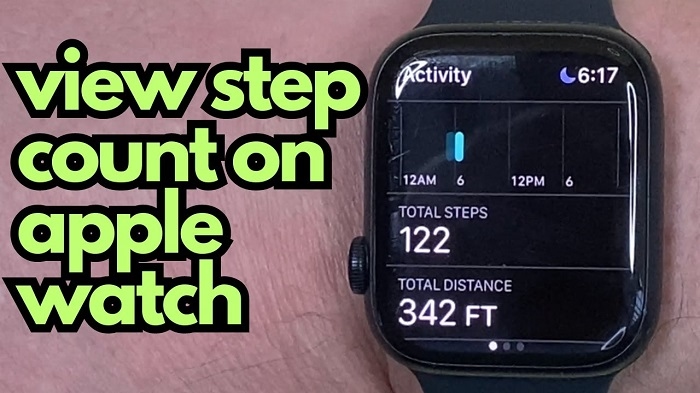
- You’ll see your step count, distance, and flights climbed listed under the TOTALS section.
This gives you a real-time update of how many steps you’ve taken so far today.
View Steps Using the Fitness App on iPhone
Your Apple Watch syncs automatically with your iPhone’s Fitness app (previously called Activity app), where you can get more detailed data.
To view steps on iPhone:
- Open the Fitness app.
- Tap on the Summary tab.
- Scroll down to see your daily activity.
- Tap the Move ring graph, then scroll down—you’ll see your step count for that day.
You can also swipe between days to view your past step counts.
Check Steps in the Health App
The Health app provides the most comprehensive view of your daily, weekly, and monthly step trends.
Here’s how:
- Open the Health app on your iPhone.
- Tap Browse at the bottom right.
- Select Activity > Steps.
- You’ll see a graph showing your steps by hour, day, week, month, or year.
The data shown here is automatically pulled from your Apple Watch and iPhone, making it easy to track long-term trends.
Add a Steps Complication to Your Watch Face
For even faster access to your steps, you can add a steps complication (a small widget) to your watch face using third-party apps.
Here’s how:
- Download a third-party app like Pedometer++ or StepsApp from the App Store.
- Open the app and allow it to access your health data.
- Customize your watch face:
- Touch and hold your watch face.
- Tap Edit > swipe to the Complications tab.
- Choose a spot on the watch face and select the steps app as the complication.
- Now you can see your step count directly on your watch face at a glance.
Use Siri to Check Your Steps
If you’re on the go and don’t want to tap around, just ask:
“Hey Siri, how many steps have I taken today?”
Siri will instantly tell you your step count based on your synced Apple Watch data.
Set Goals and Monitor Progress
While the Apple Watch doesn’t let you set a specific step goal, you can focus on Move goals, which indirectly encourage step activity.
To change your Move goal:
- Open the Activity app on your watch.
- Press firmly (or long-press for newer models) on the screen.
- Tap Change Move Goal.
- Adjust to your desired calorie target, which usually correlates with step activity.
Track Steps Over Time with Trends
Apple Watch automatically monitors your step trends over time in the Health app:
- Open Health > Activity > Steps.
- Scroll down to view Trends—you’ll see if your average steps are going up or down.
This is great for building healthier habits and setting realistic goals.
Checking your steps on Apple Watch is simple and flexible. Whether you use the Activity app on your wrist, the Fitness or Health apps on your iPhone, or even Siri, staying on top of your step count takes just seconds. By making step tracking a habit, you’ll stay motivated, more active, and closer to your fitness goals—one step at a time.