


Losing an Apple Watch can be frustrating, especially if the battery has died. Without an active connection to your iPhone or the internet, locating a dead Apple Watch can be more challenging, but there are still ways to find it. Apple provides built-in tools like Find My and past location history to help track down a missing device, even if it is no longer powered on.
This guide explains how to find a dead Apple Watch, what steps to take before losing it, and alternative ways to locate it when traditional methods fail.
Can You Find an Apple Watch If It’s Dead?
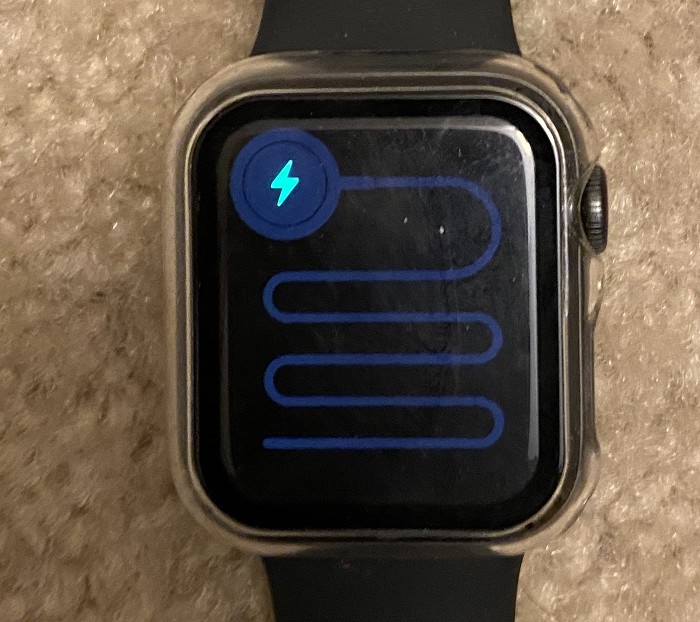
Yes, even if your Apple Watch is dead, you may still be able to locate its last known location using the Find My app. If your watch was connected to Wi-Fi or your iPhone before it died, Find My will show its last recorded position. However, if the watch was completely disconnected before the battery drained, finding it becomes more difficult.
Steps to Find Your Apple Watch If It’s Dead
Use the Find My App on iPhone
Find My is Apple’s official tracking tool that helps locate lost devices. Even if your Apple Watch is dead, Find My may show its last known location.
- Open the Find My app on your iPhone.
- Tap on Devices at the bottom.
- Scroll to find your Apple Watch in the list.
- If the watch was connected to your iPhone before it died, you will see its last known location on the map.
- If it is nearby, use the Directions feature to navigate to the last recorded location.
Use Find My on iCloud
If you do not have access to your iPhone, you can use iCloud to find your Apple Watch.
- Go to iCloud.com on a web browser.
- Log in with your Apple ID and password.
- Click on Find iPhone (it also includes other devices).
- Select All Devices at the top and choose your Apple Watch.
- If it was last connected to the internet before shutting down, you will see the last known location.
Check for Last Location Notifications
If you have enabled Notify When Left Behind for your Apple Watch, you may have received a notification when you moved too far away from it.
- Open the Find My app on your iPhone.
- Tap on Devices and select your Apple Watch.
- Check if there was a left behind notification, which may indicate where you last had the device.
Retrace Your Steps
If Find My does not provide a useful location, try to think back to where you last used your Apple Watch. Ask yourself these questions:
- Where did you last see your Apple Watch?
- Were you at home, work, a gym, or a friend’s house?
- Could it have fallen between couch cushions or under a bed?
- Did you take it off to charge, wash your hands, or exercise?
Physically retracing your steps can often lead you to your missing watch.
Ask Siri to Find Your Apple Watch
If your Apple Watch is misplaced but not completely dead, you can try asking Siri for help.
- Say “Hey Siri, where is my Apple Watch?“
- Siri will check Find My and tell you its last location.
- If the watch is still online, Siri may also play a sound to help you find it.
Check Bluetooth Connection History
If your Apple Watch was connected to your iPhone recently, it may still appear in Bluetooth settings.
- Open Settings on your iPhone.
- Tap Bluetooth.
- Check if your Apple Watch appears in the My Devices list.
- If it says Connected, it means the watch is still nearby but not dead.
What to Do If You Still Can’t Find Your Apple Watch
If you have tried the above steps and still cannot find your watch, consider these additional methods.
Enable Lost Mode
Lost Mode helps secure your Apple Watch by preventing unauthorized access.
- Open the Find My app.
- Select Devices and tap on your Apple Watch.
- Scroll down and tap Activate Under Lost Mode.
- Enter a contact number and message for anyone who finds it.
If your Apple Watch is later turned on and connected to the internet, it will display your contact details.
Check Apple Maps Timeline
If you use Google Maps or Apple Maps, your location history may provide clues about where your watch was last used.
- Open Google Maps or Apple Maps.
- Check Timeline History to see your last known locations.
- Compare this to the last time you remember wearing your watch.
Ask Family or Friends for Help
If you were recently with family or friends, ask if they saw your watch or if you left it at their place.
How to Prevent Losing Your Apple Watch in the Future
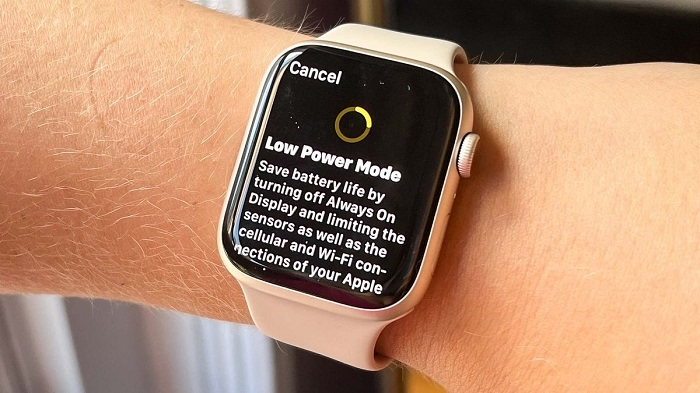
To avoid losing your Apple Watch again, take these preventive measures.
Enable Find My on Your Apple Watch
Find My must be turned on to track your Apple Watch.
- Open Settings on your Apple Watch.
- Tap your Apple ID, then select Find My Watch.
- Ensure Find My Watch is toggled on.
Turn on Notify When Left Behind
This feature alerts you when you leave your Apple Watch behind.
- Open Find My on your iPhone.
- Select your Apple Watch under Devices.
- Tap Notify When Left Behind and enable it.
Use an AirTag or Watch Band with a Tracker
If you frequently misplace your Apple Watch, consider attaching an AirTag to its band or using a third-party watch strap with built-in tracking.
Charge Your Apple Watch Regularly
Keeping your Apple Watch charged helps ensure that Find My can locate it if lost. Try to charge it daily to avoid situations where it dies before you realize it is missing.
FAQs
Can I find my Apple Watch if it is dead
Yes, but only if Find My recorded its last known location before the battery died.
How do I know if my Apple Watch is offline or dead
If Find My shows “No Location Found,” it means the watch is either dead or out of range.
Can I use Find My on another device to locate my Apple Watch
Yes, you can log into iCloud on another device and use Find My to check its last location.
Will my Apple Watch ring if it is dead
No, the Play Sound feature only works if the watch is powered on.
What should I do if I can’t find my Apple Watch anywhere
Enable Lost Mode in Find My, check location history, and retrace your steps.