

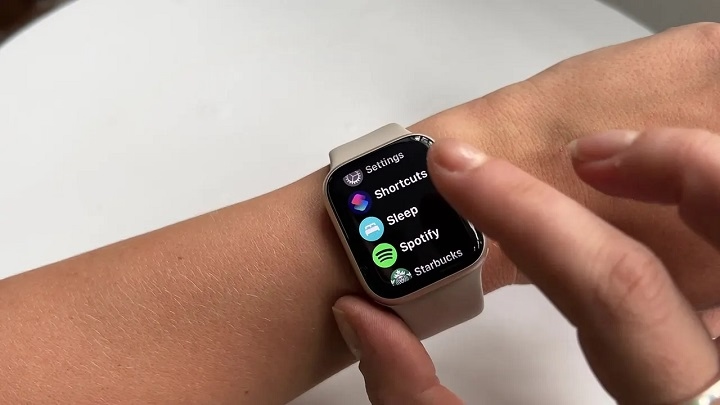
Apple Watch offers a sleep tracking feature that helps monitor sleep patterns, set bedtime routines, and improve overall sleep quality. By setting up sleep on Apple Watch, users can track sleep duration, heart rate, and respiratory rate, gaining insights into their sleeping habits.
This guide explains how to set up sleep on Apple Watch, customize sleep schedules, and use features like sleep focus and wind down to improve rest.
Why Use Sleep Tracking on Apple Watch
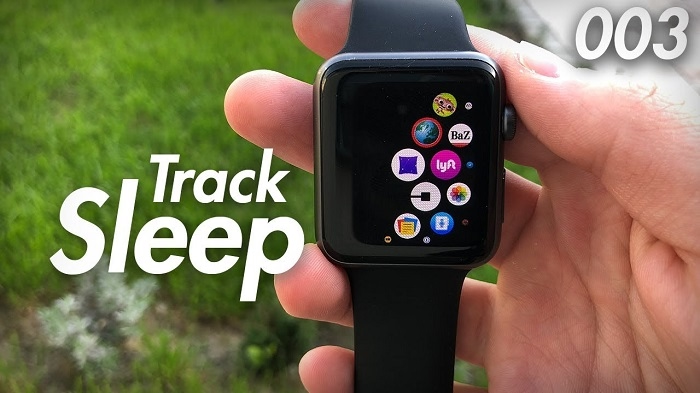
Sleep tracking on Apple Watch helps users monitor sleep duration and patterns, set bedtime reminders and alarms, enable sleep focus to minimize distractions, track heart rate and respiratory rate during sleep, and improve sleep consistency with scheduled routines.
How to Set Up Sleep on Apple Watch
Setting up sleep tracking on Apple Watch requires configuring settings in the health and watch apps on iPhone.
Enable Sleep in the Health App
Open the health app on your iPhone. Tap browse and select sleep. Tap get started under the set up sleep section. Follow the prompts to set up a sleep goal, bedtime, and wake-up time. Enable sleep focus to limit distractions during sleep.
Set Up Sleep Schedule on Apple Watch
Open the watch app on iPhone. Tap sleep under my watch. Tap set up sleep schedule. Adjust the bedtime and wake-up time for each day. Enable sleep mode to reduce screen brightness and notifications. Toggle on track sleep with Apple Watch.
Once sleep tracking is enabled, Apple Watch automatically records sleep data every night.
How to Customize Sleep Settings on Apple Watch
Adjust Sleep Schedule
Open the sleep app on Apple Watch. Tap full schedule. Select the schedule you want to edit. Change bedtime, wake-up time, or alarm settings. Tap save to apply changes.
Enable Sleep Focus Mode
Sleep focus reduces distractions by muting notifications and dimming the screen.
Open settings on Apple Watch. Tap focus, then sleep. Toggle sleep focus on. Customize notifications or allow specific contacts to reach you.
Use Wind Down for a Better Sleep Routine
Wind down helps users relax before bed by activating calming activities.
Open the health app on iPhone. Tap sleep, then wind down. Set wind down duration before bedtime. Add apps like meditation, music, or reading to the routine.
Apple Watch automatically starts wind down before sleep to create a consistent bedtime habit.
How to View Sleep Data on Apple Watch and iPhone
On Apple Watch
Open the sleep app. Scroll down to view total sleep time. Tap a specific day to see sleep trends and heart rate data.
On iPhone
Open the health app. Tap sleep under browse. View weekly and monthly sleep trends. Check sleep stages, including deep, core, and rem sleep.
How to Improve Sleep Tracking Accuracy
Wear Apple Watch Correctly
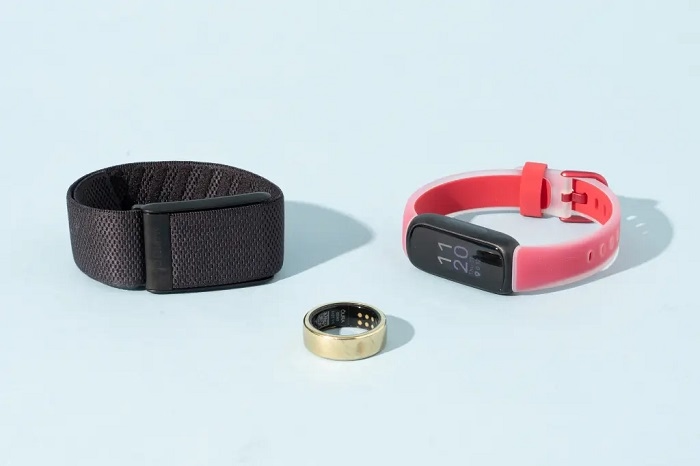
Wear the watch snugly but comfortably on your wrist. Ensure the back of the watch touches your skin for accurate sensor readings.
Charge Apple Watch Before Bed
Apple Watch needs at least 30 percent battery for sleep tracking. Charge it before bedtime or after waking up.
Enable Heart Rate and Motion Tracking
Go to settings, privacy, motion and fitness. Turn on fitness tracking and heart rate for accurate sleep data.
Troubleshooting Common Sleep Tracking Issues
Apple Watch Is Not Tracking Sleep
Ensure track sleep with Apple Watch is enabled in the watch app. Restart Apple Watch and iPhone to refresh settings. Update to the latest watchos and ios version.
Sleep Data Is Inaccurate
Adjust the watch fit to ensure proper skin contact. Manually log sleep data in the health app if needed. Use a consistent sleep schedule for more accurate results.
Wind Down or Sleep Mode Not Activating
Check if sleep focus is enabled in settings, focus. Confirm the wind down duration is set correctly.
FAQs
How do I set up sleep tracking on Apple Watch
Enable sleep tracking in the health app and set up a schedule in the watch app.
Can Apple Watch track sleep automatically
Yes, it detects sleep automatically if sleep tracking is enabled in settings.
Why is my Apple Watch not tracking sleep
Ensure track sleep with Apple Watch is turned on and that the watch is worn correctly.
Does Apple Watch show sleep quality
Yes, it tracks sleep duration, heart rate, and respiratory rate but does not provide sleep quality scores.
How do I view sleep data on iPhone
Open the health app, tap sleep, and review your sleep trends and metrics.