

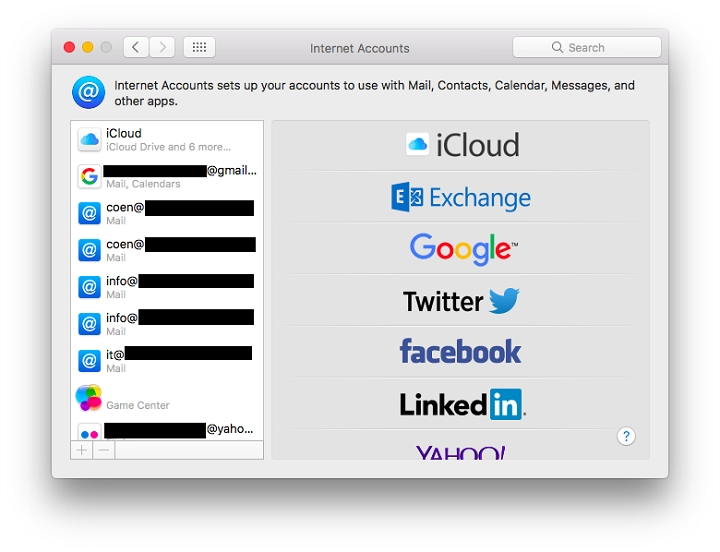
Apple Internet Accounts allow users to manage multiple online services such as email, calendars, and contacts across all Apple devices. Whether you use iCloud, Google, Microsoft Exchange, or other third-party services, Apple provides a centralized system to keep everything in sync.
Understanding how Apple Internet Accounts work can help you streamline your digital experience, enhance security, and ensure smooth functionality. This guide explains everything from setting up accounts to troubleshooting common issues.
What Are Apple Internet Accounts
Apple Internet Accounts is a built-in feature in macOS, iOS, and iPadOS that allows users to connect various online accounts to Apple services. Instead of signing into each service separately, you can add accounts once, and Apple syncs the data across Mail, Calendar, Contacts, and other apps.
This integration makes it easier to access and manage different services from one place, improving workflow efficiency for both personal and professional use.
How to Access Apple Internet Accounts
Managing Apple Internet Accounts is simple and can be done through system settings on macOS and iOS devices.
On Mac
- Click on the Apple menu and select System Settings.
- Scroll down and click Internet Accounts in the sidebar.
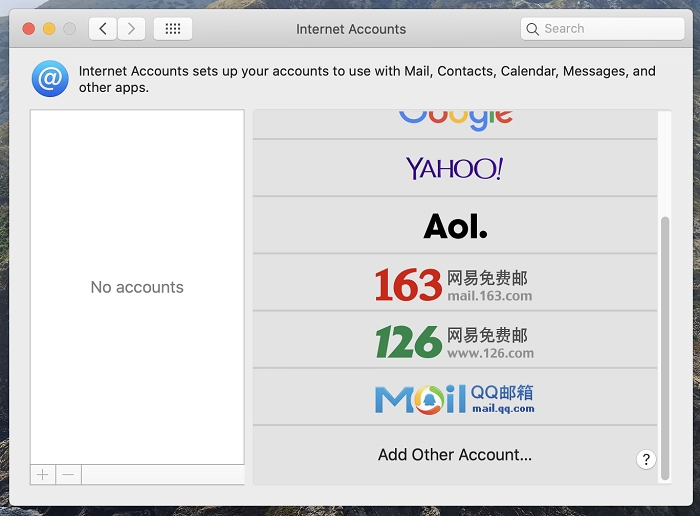
- Click Add Account and select the service you want to add, such as iCloud, Google, or Microsoft.
- Enter your login credentials and approve access permissions.
- Choose the services you want to sync, such as Mail, Contacts, Calendar, or Notes.
On iPhone or iPad
- Open Settings and scroll down to Mail or Contacts.
- Tap Accounts, then Add Account.
- Choose the provider and enter your login credentials.
- Enable the services you want to sync, such as Mail, Contacts, or Calendar.
- Tap Save, and your account will be added.
Supported Internet Accounts
Apple allows integration with multiple online services. Here are some of the most commonly used accounts.
iCloud
Apple’s cloud service for email, storage, calendars, contacts, reminders, and more. It offers seamless synchronization between Apple devices.
Allows integration with Gmail, Google Calendar, Google Drive, and Contacts. Many users link their Google accounts for cross-platform accessibility.
Microsoft Exchange
Commonly used in professional settings, Microsoft Exchange enables seamless access to work emails, contacts, and scheduling tools.
Yahoo and AOL
These popular email services can be linked with Apple’s Mail app for convenient access.
Other IMAP and POP Accounts
For users with private email servers or accounts not listed above, Apple allows manual setup via IMAP or POP settings.
Benefits of Using Apple Internet Accounts
Unified Account Access
Once you sign in, all Apple apps, including Mail, Calendar, and Contacts, integrate automatically, reducing the need for multiple logins.
Seamless Device Synchronization
Any changes made on one Apple device instantly sync to all connected devices, ensuring consistency.
Enhanced Security
Apple supports two-factor authentication, encrypted connections, and privacy-focused account management.
Better Productivity
By centralizing emails, calendars, and contacts, users can manage workflows efficiently.
How to Edit or Remove Internet Accounts
Editing an Account on Mac
- Go to System Settings and open Internet Accounts.
- Select the account you want to modify.
- Enable or disable syncing for Mail, Contacts, Calendars, and other services.
Editing an Account on iPhone or iPad
- Open Settings and navigate to Mail.
- Tap Accounts and select the account you want to edit.
- Adjust syncing preferences or update credentials.
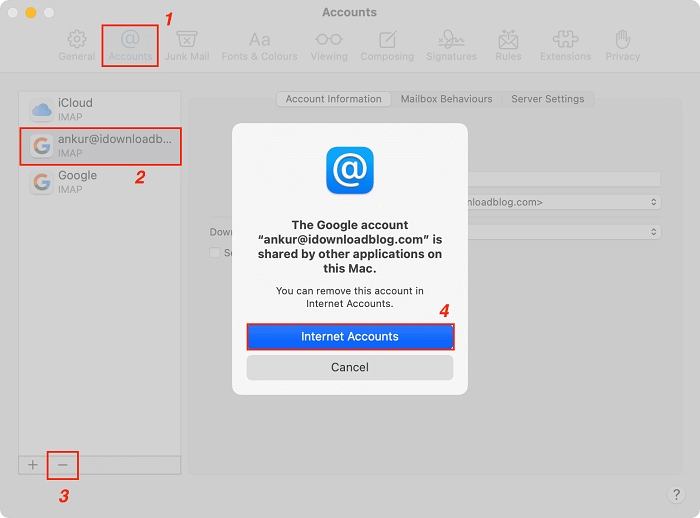
Removing an Account on Mac
- Go to System Settings and open Internet Accounts.
- Click on the account and select Delete Account.
- Confirm the removal.
Removing an Account on iPhone or iPad
- Open Settings and navigate to Mail.
- Select Accounts and tap the account you want to delete.
- Confirm the deletion.
Deleting an account only removes it from the device; it does not delete the account itself.
Troubleshooting Common Issues
Account Not Syncing Properly
- Ensure a stable internet connection.
- Check if account permissions allow syncing.
- Restart the device and try again.
Unable to Add an Account
- Verify login credentials and try again.
- Update to the latest iOS or macOS version.
- Check if the service provider is experiencing issues.
Emails Not Updating
- Ensure Mail Sync is enabled under settings.
- Manually refresh the inbox in the Mail app.
- Remove and re-add the account if the issue persists.
Contacts or Calendar Not Syncing
- Ensure Contacts and Calendars are enabled for that account.
- Restart the device to refresh sync services.
- Check Apple’s system status page for outages.
FAQs
What are Apple Internet Accounts
They allow users to manage email, calendars, and contacts from different providers within Apple’s ecosystem.
How do I add an email account to my Mac
Go to System Settings, select Internet Accounts, click Add Account, and sign in.
Can I use multiple email accounts on Apple devices
Yes, you can add multiple accounts, including iCloud, Google, and Microsoft.
Why isn’t my email syncing on my iPhone
Check internet connection, enable Mail Sync, and restart the device.
How do I remove an account from my Apple device
Go to Settings, navigate to Mail, select Accounts, and tap Delete Account.