

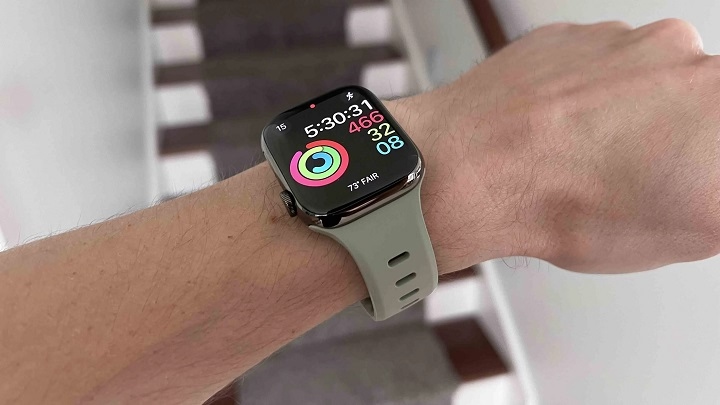
Apple Watch is a powerful fitness companion that helps track steps, distance, calories burned, and overall movement throughout the day. While the device emphasizes closing activity rings, many users want a straightforward way to see their step count. Unlike some fitness trackers, Apple Watch does not display steps on the default watch face, but it does track them in the background.
This guide covers how to check step count on Apple Watch, view past step history, add a step counter to the watch face, set daily goals, and troubleshoot tracking issues.
How Apple Watch Tracks Steps
Apple Watch uses a built-in accelerometer and motion sensors to track steps. It continuously records movement data and calculates steps based on arm swings and walking motion.
Step count is automatically stored in the Activity app on the watch and the Health app on iPhone. Apple Watch can also sync with third-party apps that display step counts more prominently.
How to Check Step Count on Apple Watch
Even though Apple Watch does not have a dedicated step counter on the home screen, checking your steps is simple.
Using the Activity App on Apple Watch
- Press the Digital Crown to open the app menu.
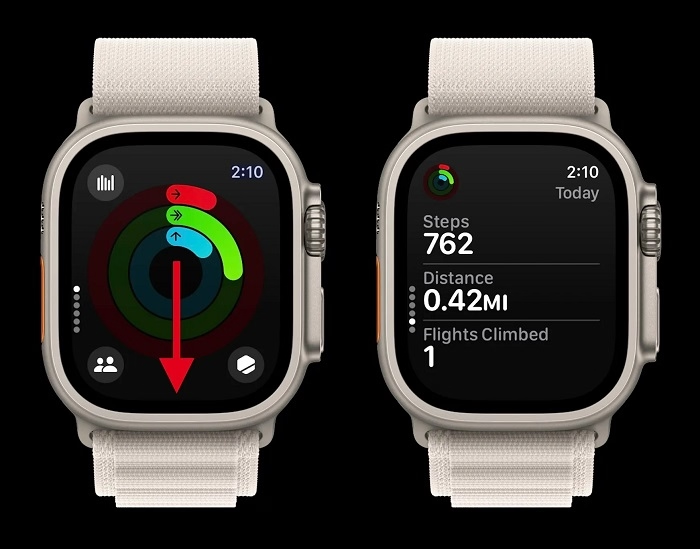
- Tap the Activity app, which displays the three activity rings.
- Scroll down using the Digital Crown or swipe up.
- Look for Total Steps to see your current step count.
This section also shows total distance walked and flights of stairs climbed.
Using the Health App on iPhone
For a more detailed step history, use the Health app on iPhone.
- Open the Health app.
- Tap Browse at the bottom of the screen.
- Select Activity, then tap Steps.
- View daily, weekly, monthly, or yearly step history.
The Health app stores all movement data, allowing users to track trends over time.
How to Add Step Count to Apple Watch Face
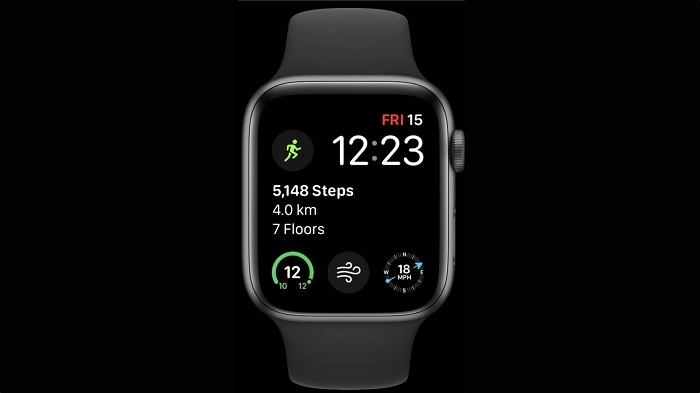
Since Apple Watch does not include steps in its default complications, users can add a step tracker using a third-party app.
Using a Third-Party Step Tracking App
Apps like Pedometer++, StepsApp, and StepCounter provide real-time step counts on the watch face.
- Download a step tracking app from the App Store.
- Open the app and grant permission to access Health data.
- Open the Watch app on iPhone.
- Tap My Watch, then select Complications.
- Choose the step counter app to appear on the watch face.
Now, your step count will update in real-time, providing quick access without opening the Activity app.
Viewing Step History on Apple Watch and iPhone
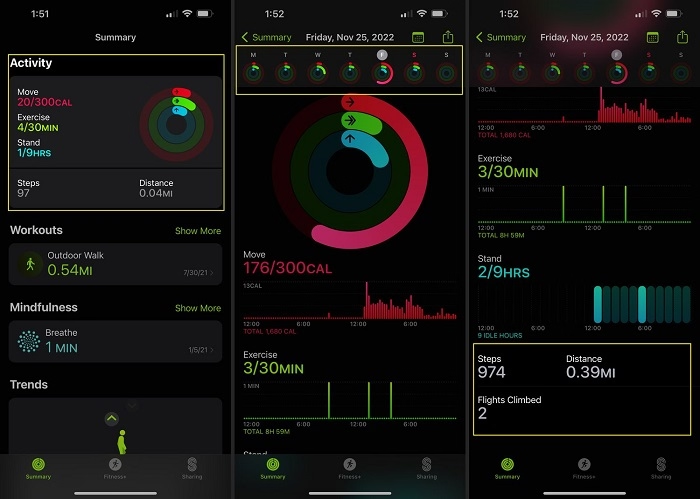
Apple Watch records step data daily, and users can access historical step counts on both the watch and iPhone.
Checking Step History on Apple Watch
- Open the Activity app.
- Scroll down and tap on Summary.
- Tap Steps to see step count for previous days.
Checking Step History on iPhone
- Open the Health app.
- Tap Browse, then select Activity.
- Tap Steps to view step history.
- Use the calendar view to check historical step counts.
This feature is useful for tracking long-term fitness trends and ensuring daily movement goals are met.
How to Set a Daily Step Goal on Apple Watch
Apple Watch does not have a built-in step goal feature like some fitness trackers, but users can set a move goal that aligns with step count objectives.
Adjusting the Move Goal
- Open the Activity app on Apple Watch.
- Scroll down and tap Change Move Goal.
- Increase or decrease the calorie goal based on your step count expectations.
While this method does not count steps directly, a higher move goal often translates to a higher step count.
Using Third-Party Apps for Step Goals
Apps like Pedometer++ and StepsApp allow users to set step-based goals. These apps provide a clearer breakdown of daily step achievements compared to Apple’s default activity tracking system.
Syncing Apple Watch Steps with Other Fitness Apps
Apple Watch steps can sync with fitness apps like MyFitnessPal, Strava, and Fitbit to integrate step tracking with diet and workout plans.
- Open the Health app on iPhone.
- Tap Browse, then select Steps.
- Scroll down and tap Data Sources & Access.
- Enable third-party apps to read step data.
This ensures all step-related activity syncs seamlessly with external health platforms.
Tips for More Accurate Step Tracking
Apple Watch provides accurate step tracking, but certain factors can affect results.
Wear the Watch Properly
- Make sure the watch is snug on your wrist to prevent movement errors.
- Keep the watch on your non-dominant wrist if you use your dominant hand for tasks that involve repetitive movement.
Walk Naturally
- Swing your arms while walking to improve accuracy.
- Avoid placing hands in pockets or holding objects while walking, as it can reduce recorded steps.
Enable Fitness Tracking
- Open Settings on iPhone.
- Tap Privacy, then Motion & Fitness.
- Ensure Fitness Tracking is enabled.
This setting helps improve step counting accuracy by ensuring all movement data is recorded.
Troubleshooting Step Tracking Issues
If step tracking is not working correctly, follow these solutions.
Apple Watch Not Counting Steps
- Restart the Apple Watch and iPhone.
- Make sure Fitness Tracking is enabled in Privacy settings.
- Update to the latest watchOS version.
Step Count Seems Inaccurate
- Adjust the watch fit to ensure proper skin contact.
- Reset calibration in Settings > Privacy > Motion & Fitness > Reset Calibration Data.
Steps Not Syncing to iPhone
- Open the Health app and check if Apple Watch is listed under Sources.
- Ensure Bluetooth is enabled for syncing.
- Try unpairing and repairing the Apple Watch.
Common Myths About Apple Watch Step Tracking
Apple Watch Only Tracks Steps During Workouts
False. Apple Watch tracks steps all day, even when not in workout mode.
Apple Watch Needs GPS to Track Steps
False. Steps are recorded using the accelerometer, not GPS. GPS is only needed for tracking running or walking routes.
Apple Watch Step Count Is Always 100% Accurate
False. Like all fitness trackers, Apple Watch estimates step count based on movement patterns and may have slight variations.
FAQs
How do I check my step count on Apple Watch
Open the Activity app and scroll down to view total steps.
Can I add a step counter to my Apple Watch face
Yes, third-party apps like Pedometer++ allow step tracking on the watch face.
Does Apple Watch track steps automatically
Yes, steps are recorded automatically using motion sensors.
Can I view my weekly or monthly step history
Yes, open the Health app on iPhone to see long-term step trends.
Why is my step count inaccurate
Ensure the watch is worn correctly, and enable Fitness Tracking in Privacy settings.