


Apple Watch is designed to provide real-time notifications for calls, messages, and app alerts. However, some users experience issues where their Apple Watch does not notify them of texts. This can be frustrating, especially when expecting important messages.
This guide explores why Apple Watch may not be notifying texts, possible solutions, and tips to ensure message alerts work properly.
Why Is Apple Watch Not Notifying Texts?
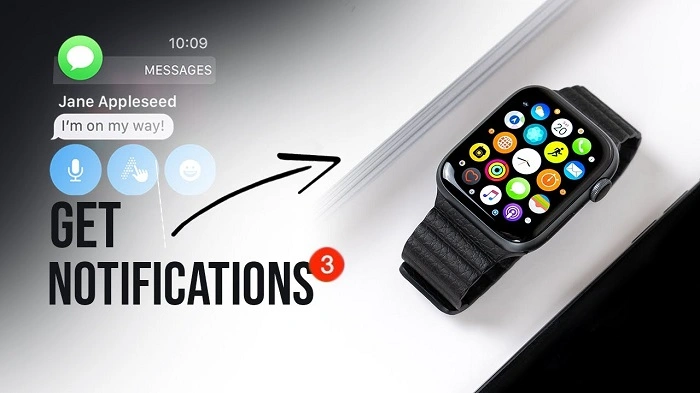
There are several reasons why Apple Watch may not notify texts, including:
- Do Not Disturb or Focus Mode is enabled
- Connection issues between Apple Watch and iPhone
- Message notifications are turned off
- Apple Watch is locked or in Silent Mode
- iPhone is actively being used
- Software glitches or outdated watchOS
Identifying the cause can help resolve the issue quickly.
How to Fix Apple Watch Not Notifying Texts
If Apple Watch is not notifying texts, try the following solutions.
Check Connection Between iPhone and Apple Watch
Apple Watch needs to be connected to an iPhone via Bluetooth or Wi-Fi to receive notifications.
- Swipe up on Apple Watch to open Control Center
- Check if there is a green phone icon, indicating connection
- If the icon is red, reconnect Apple Watch to the iPhone
If disconnected, bring Apple Watch closer to the iPhone or reconnect via the Watch app.
Restart Apple Watch and iPhone
Restarting both devices can resolve temporary software glitches.
Restart Apple Watch
- Press and hold the side button
- Slide Power Off
- After a few seconds, press and hold the side button to turn it back on
Restart iPhone
- Press and hold the power button and volume button (for iPhones with Face ID)
- Slide to power off
- Turn it back on after a few seconds
Make Sure Do Not Disturb or Focus Mode Is Disabled
If Do Not Disturb or a Focus Mode is enabled, notifications will not appear on Apple Watch.
- Swipe up on Apple Watch to open Control Center
- Check if the moon icon (Do Not Disturb) or Focus Mode is on
- If enabled, tap the icon to turn it off
Alternatively, check the iPhone’s Settings > Focus to disable any active Focus Mode.
Check Notification Settings on iPhone
Apple Watch mirrors notification settings from the iPhone. If message alerts are disabled on the iPhone, they will not appear on Apple Watch.
- Open Settings on iPhone
- Tap Notifications
- Select Messages
- Ensure Allow Notifications is turned on
- Check that Alerts are enabled for Lock Screen, Notification Center, and Banners
If notifications are off, toggle them on and restart both devices.
Make Sure Apple Watch Is Not in Silent Mode
If Apple Watch is in Silent Mode, text notifications may not make a sound.
- Swipe up to open Control Center
- Look for the bell icon
- If the icon is red, tap it to disable Silent Mode
For vibrations, check Settings > Sounds & Haptics on Apple Watch and ensure Haptic Alerts is enabled.
Ensure Wrist Detection Is Enabled
Wrist Detection must be turned on for Apple Watch to send notifications when worn.
- Open the Watch app on iPhone
- Tap Passcode
- Toggle Wrist Detection on
This ensures messages appear only when Apple Watch is on the wrist and unlocked.
Check If Messages Are Being Delivered to iPhone Instead
Apple Watch does not notify texts if the iPhone is unlocked and in use.
To force notifications to appear on Apple Watch:
- Lock the iPhone screen
- Ensure Apple Watch is worn on the wrist
- Send a test message to check if the notification appears
If the iPhone is being actively used, message alerts will not be sent to Apple Watch.
Unpair and Re-Pair Apple Watch
If notifications are still not working, unpairing and re-pairing Apple Watch may help.
- Open the Watch app on iPhone
- Tap All Watches
- Select Apple Watch and tap Unpair Apple Watch
- Restart both devices
- Re-pair Apple Watch and restore from backup
This process refreshes the connection and can fix notification issues.
Update iOS and watchOS
An outdated operating system may cause notification problems.
To update iPhone:
- Open Settings
- Tap General > Software Update
- Install the latest iOS version
To update Apple Watch:
- Open the Watch app on iPhone
- Tap General > Software Update
- Download and install any available updates
Updating ensures Apple Watch runs the latest software, fixing any notification-related bugs.
Why Do Apple Watch Notifications Go to iPhone Instead?
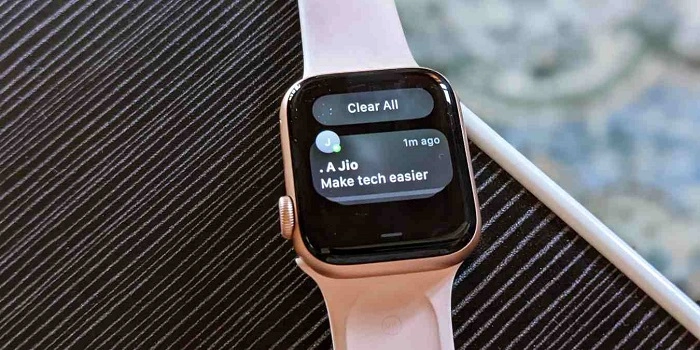
Apple Watch will not notify texts if the iPhone is in use. Notifications appear only on the iPhone when it is unlocked. If Apple Watch is locked, messages will also go to the iPhone instead.
To receive notifications on Apple Watch:
- Keep the iPhone screen off
- Ensure Apple Watch is worn and unlocked
- Disable Focus Mode or Do Not Disturb
Frequently Asked Questions
Why is my Apple Watch not vibrating for texts?
Apple Watch may not vibrate if Haptic Alerts are turned off. Check Settings > Sounds & Haptics on Apple Watch and ensure vibrations are enabled.
Why is my Apple Watch not showing message notifications?
Check if Apple Watch is connected to the iPhone, notifications are enabled, and Focus Mode is turned off. Restarting both devices may also help.
Can I receive texts on Apple Watch without my iPhone?
Yes, if Apple Watch has cellular service or is connected to Wi-Fi, it can receive messages without an iPhone nearby.
Why does my Apple Watch show notifications late?
Notification delays may be caused by weak Bluetooth or Wi-Fi connections. Restart both devices and ensure Apple Watch has a stable connection.
How do I reset Apple Watch notifications?
Turn off notifications in the Watch app, restart Apple Watch, then re-enable message notifications. This refreshes the notification system.
If Apple Watch is not notifying texts, checking settings, disabling Focus Mode, ensuring proper connection, and restarting both devices can help resolve the issue. Keeping Apple Watch updated and re-pairing it with the iPhone can also fix persistent notification problems.
By following these steps, users can restore Apple Watch text notifications and never miss an important message.