

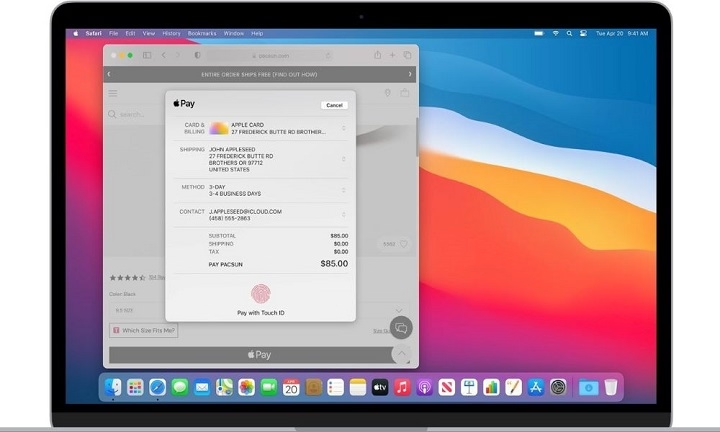
Apple Pay isn’t just for iPhones and Apple Watches—it also works seamlessly on Mac. If you regularly shop online or use your MacBook for browsing and purchases, apple pay on mac offers a fast, private, and secure way to pay without entering your card details every time.
Here’s everything you need to know about setting up Apple Pay on Mac, how it works, where to use it, and how to fix common issues.
What Is Apple Pay on Mac?
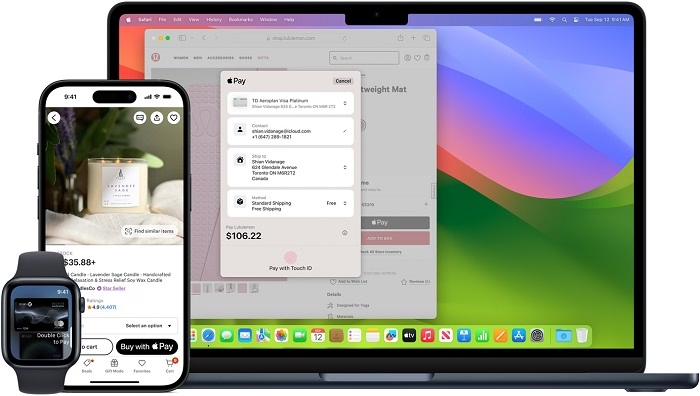
Apple Pay on Mac allows you to make online purchases using the Safari browser. It works across supported websites and apps, letting you use Touch ID on supported MacBook models or authenticate with your iPhone or Apple Watch.
Instead of typing in your credit or debit card number at checkout, you can simply click “Apple Pay” and authorize the transaction in seconds. It’s safe, fast, and keeps your payment information private.
What You Need to Use Apple Pay on Mac
To use Apple Pay on your Mac, you’ll need the following:
- A Mac model with Touch ID, or a Mac without Touch ID paired with an iPhone or Apple Watch
- Safari browser
- A card added to your Apple Wallet on iPhone, Apple Watch, or Mac
- macOS Sierra or later
- iCloud account with two-factor authentication enabled
Once those requirements are met, you can use Apple Pay on your Mac for supported purchases.
How to Set Up Apple Pay on Mac
The steps vary slightly depending on your Mac model.
For MacBook Pro or MacBook Air with Touch ID
- Go to System Settings (or System Preferences on older macOS)
- Click Wallet & Apple Pay
- Click Add Card
- Follow the prompts to add a debit or credit card
- Authenticate using Touch ID
For Macs Without Touch ID
- On your iPhone, open Settings > Wallet & Apple Pay
- Turn on Allow Payments on Mac
- Ensure your Mac and iPhone are signed in to the same Apple ID and have Bluetooth enabled
- During checkout, your Mac will prompt you to confirm the payment on your iPhone or Apple Watch
Once set up, you’ll see Apple Pay as a payment option during checkout on compatible websites.
How to Use Apple Pay on Mac When Shopping
- Visit a website that supports Apple Pay (look for the Apple Pay logo at checkout)
- Choose Apple Pay as your payment method
- Review your order details, shipping info, and card
- Confirm the payment using either:
- Touch ID on MacBook
- Face ID/Touch ID on iPhone
- Double-click side button on Apple Watch
- Touch ID on MacBook
- Once approved, you’ll see a “Done” message
It’s that simple—no need to enter card numbers, billing addresses, or security codes.
Where You Can Use Apple Pay on Mac
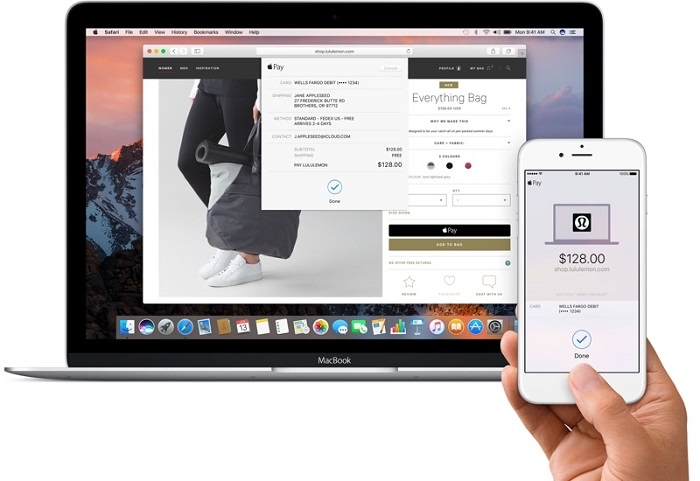
You can use Apple Pay on any website or app that supports it and accepts Safari-based checkouts. Popular stores and platforms include:
- Apple.com
- Nike
- Etsy
- Target
- Best Buy
- Instacart
- Airbnb
- Groupon
Just look for the Apple Pay button when checking out.
Benefits of Using Apple Pay on Mac
Quick Checkout
Fewer steps at checkout mean faster purchases—perfect for limited-time deals or flash sales.
Enhanced Security
Apple Pay doesn’t store or share your actual card number. It uses a unique token for each transaction, reducing the risk of fraud.
Privacy
Your personal data stays private. Merchants don’t see your actual card or billing information.
Seamless Integration Across Devices
You can start shopping on your Mac and authorize the payment using your iPhone or Apple Watch with no interruptions.
Managing Cards on Mac
To view or manage your cards on Mac:
- Go to System Settings > Wallet & Apple Pay
- From here, you can add, remove, or update payment methods
- You can also manage billing addresses, shipping info, and default cards
Changes sync across devices if you’re signed into the same iCloud account.
Common Issues and Fixes
Apple Pay Option Not Appearing at Checkout
- Make sure you’re using the Safari browser
- Ensure the website supports Apple Pay
- Check that your card is correctly added to your Wallet
- Confirm you’re signed into iCloud and have Bluetooth enabled
Can’t Add Card on Mac
- Update to the latest macOS version
- Make sure your bank supports Apple Pay
- Try adding the card through iPhone Wallet and enabling “Allow Payments on Mac”
Payment Not Going Through
- Ensure your internet connection is stable
- Double-check billing info and address
- Try restarting your Mac and iPhone
FAQs
Can I use Apple Pay on any browser on Mac?
No, Apple Pay works only with the Safari browser on Mac.
Do I need an iPhone to use Apple Pay on Mac?
Only if your Mac does not have Touch ID. In that case, you’ll need to use your iPhone or Apple Watch to confirm payments.
Is Apple Pay free to use?
Yes. There are no extra fees for using Apple Pay as a customer.
Can I use Apple Pay for subscriptions on Mac?
Yes. You can use Apple Pay to subscribe to services like Apple Music, iCloud, and third-party apps that support it.
Is Apple Pay on Mac safe?
Absolutely. Apple Pay uses encryption, secure tokens, and never shares your actual card number with merchants.