

Apple’s Always-On Display has become one of the most talked-about features in recent iPhone and Apple Watch models. If you’ve been wondering, what exactly is Apple’s Always-On Display and how does it work?—you’re in the right place.
This guide covers how Always-On Display works across devices, what models support it, how to customize it, and everything else you should know before you start using or buying a device with this feature.
What Is Apple’s Always-On Display?
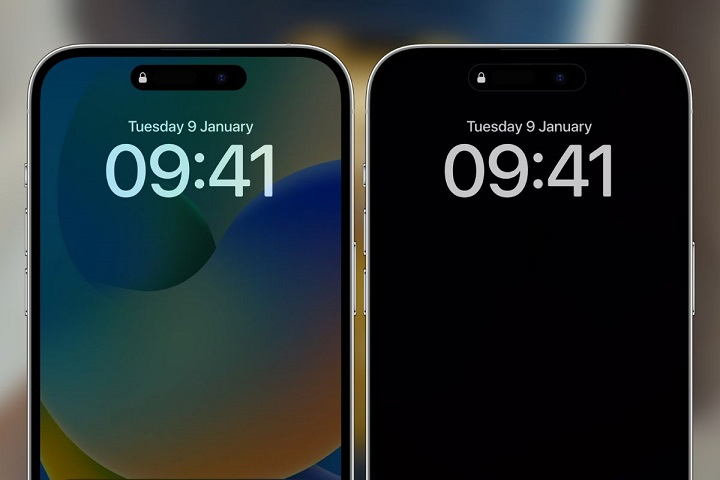
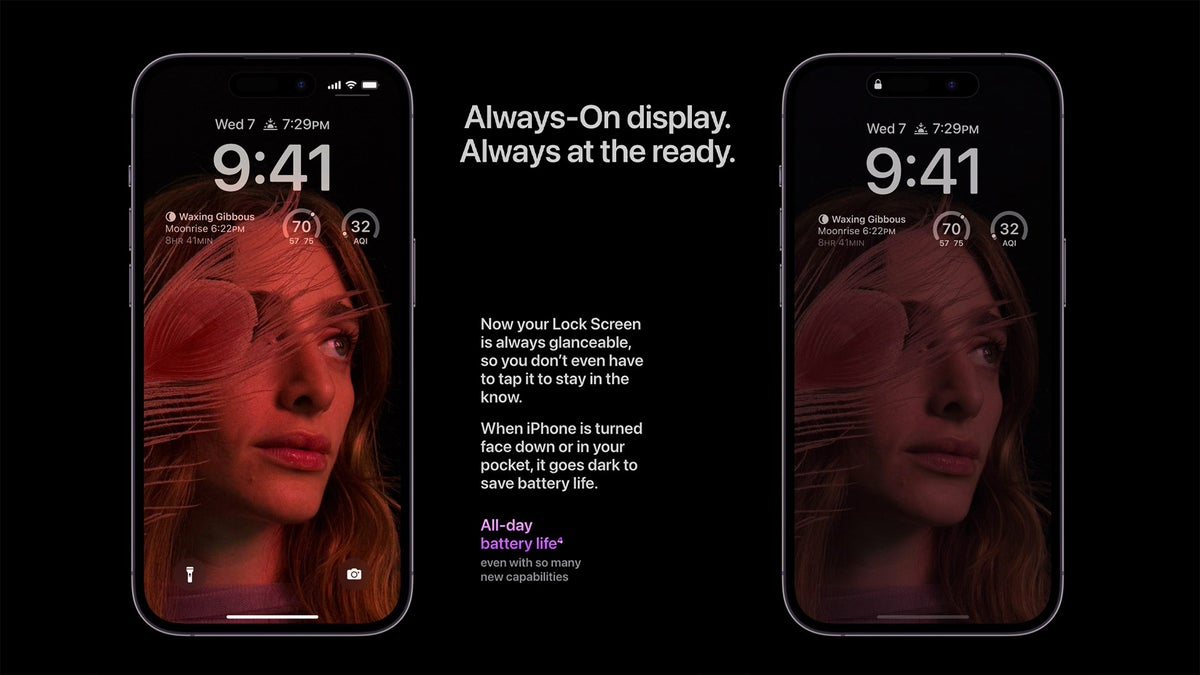
Always-On Display (AOD) is a feature that keeps part of your screen visible even when the device is locked. Unlike older displays that turn off entirely when inactive, Apple’s AOD shows minimal but useful information—like time, date, widgets, or background dimmed visuals—at all times.
Introduced first on the Apple Watch Series 5 and later on iPhone 14 Pro and iPhone 14 Pro Max, this feature has quickly become a staple in Apple’s premium devices.
How Always-On Display Works
Apple’s AOD relies on LTPO (Low-Temperature Polycrystalline Oxide) display technology, which allows the screen to reduce its refresh rate to as low as 1Hz when idle. This saves battery life while keeping the screen minimally active.
You’ll still see:
- Time and date
- Lock Screen widgets (like Weather or Activity rings)
- Notifications (if enabled)
- Your wallpaper in a dimmed tone
The screen intelligently adjusts brightness based on ambient lighting and user activity.
Devices That Support Apple’s Always-On Display
Not all Apple devices support this feature. It’s currently limited to higher-end models that use LTPO display panels.
iPhones with Always-On Display
| iPhone Model | AOD Support |
| iPhone 14 Pro | ✅ |
| iPhone 14 Pro Max | ✅ |
| iPhone 15 Pro | ✅ |
| iPhone 15 Pro Max | ✅ |
| iPhone 13 or lower | ❌ |
| iPhone 14/15 (non-Pro) | ❌ |
Apple Watches with Always-On Display
| Watch Model | AOD Support |
| Apple Watch Series 5+ | ✅ |
| Apple Watch SE (all) | ❌ |
| Apple Watch Ultra | ✅ |
| Apple Watch Series 9 | ✅ |
How to Enable or Disable Always-On Display

If you’d prefer to keep your screen fully off when not in use (for privacy or battery reasons), you can toggle this feature on or off.
On iPhone:
- Open the Settings app
- Tap Display & Brightness
- Tap Always On Display
- Toggle it on or off
You can also customize:
- Show Wallpaper: Hide or display the Lock Screen wallpaper
- Show Notifications: Choose whether or not alerts show when the display is dimmed
On Apple Watch:
- Open the Settings app on your watch
- Tap Display & Brightness
- Scroll to Always On
- Toggle it on or off
When the Always-On Display Automatically Turns Off
To preserve battery or maintain privacy, the screen will turn off entirely in certain scenarios:
- When your iPhone is face down
- When it’s in your pocket or bag
- If Low Power Mode is enabled
- During Sleep Focus or Do Not Disturb
- When using CarPlay or Continuity Camera
This makes the feature smart—not just always on, but intelligently on.
Battery Impact of Always-On Display
A common concern is: Does Always-On Display drain the battery? The impact is minimal, thanks to Apple’s optimizations.
Apple designed AOD to consume very little power, using:
- Low refresh rates
- Dimmed display levels
- Smart context-aware shut-off
However, if you’re trying to extend your battery as much as possible, disabling AOD will help.
Benefits of Using Apple’s Always-On Display

Here’s why users love this feature:
| Benefit | Description |
| Glanceable Info | Check time and widgets without touching your device |
| Saves Taps | No need to wake your screen to check basic details |
| Smooth Experience | Beautiful lock screen transitions with AOD |
| Privacy Options | Choose what stays visible when screen is idle |
Can You Customize What Appears on AOD?
Yes—especially on iPhone. Apple allows you to:
- Choose specific Lock Screen widgets
- Select a wallpaper style
- Enable or disable notification previews
- Set up Focus modes that interact with AOD
Apple Watch also offers customization through Watch Faces and complications that adapt to AOD.
Common Issues and Fixes
Always-On Display Not Working?
Check these:
- Confirm your device supports AOD
- Make sure AOD is enabled in settings
- Check Focus modes or Low Power Mode
- Restart your device
Sometimes software updates or settings conflicts can temporarily disable the feature.
FAQs
What is the point of Apple’s Always-On Display?
It allows you to see the time, widgets, and notifications at a glance—even when your device is locked.
Does Always-On Display drain the battery?
Yes, but only slightly. Apple optimizes power consumption using a 1Hz refresh rate and dimmed display.
Can I turn off the Always-On Display?
Yes. Go to Settings > Display & Brightness > Always On Display and toggle it off.
Is Always-On Display available on all iPhones?
No. It is currently limited to iPhone 14 Pro, iPhone 14 Pro Max, iPhone 15 Pro, and iPhone 15 Pro Max.
Does Always-On Display show my notifications?
Yes—if enabled. You can control this in the Always-On settings.