


If you’re new to Mac or switching over from Windows, one of the first keys you’ll notice is the Command key (⌘). It’s a core part of the Mac experience, used in almost every shortcut you’ll ever need. From copying and pasting to launching apps and managing files, the Command key is your gateway to faster, more efficient computing on macOS.
What is the Command Key (⌘)?

The Command key is a apple command key key on Windows. It’s used in combination with other keys to perform keyboard shortcuts—actions like:
- ⌘ + C for Copy
- ⌘ + V for Paste
- ⌘ + Q to Quit an app
Apple introduced the key to allow users to execute commands quickly without navigating through menus.
Where is the Command Key Located?
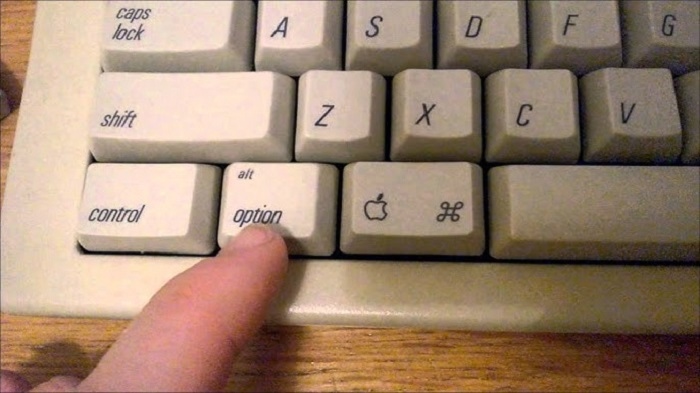
You’ll typically find two Command keys on Apple keyboards:
- One to the left of the space bar
- One to the right of the space bar
It’s marked with either the ⌘ symbol or the word “Command”, sometimes both.
Command Key Symbol (⌘) Meaning
The symbol ⌘ is known as the “Place of Interest” sign in Nordic countries. Apple adopted it in the 1980s to avoid cluttering the screen with the word “Command.” It has since become iconic and widely recognized by Mac users globally.
Most Common Command Key Shortcuts
| Shortcut | Function |
| ⌘ + C | Copy selected item |
| ⌘ + V | Paste copied item |
| ⌘ + X | Cut selected item |
| ⌘ + Z | Undo last action |
| ⌘ + A | Select all |
| ⌘ + Q | Quit current app |
| ⌘ + W | Close current window |
| ⌘ + Tab | Switch between open apps |
| ⌘ + Space | Open Spotlight Search |
| ⌘ + Shift + 4 | Take a screenshot (selection) |
Using the Command Key in Finder
In Finder, the Command key can help you manage files more efficiently:
- ⌘ + N – Open new Finder window
- ⌘ + Delete – Move file to Trash
- ⌘ + ↑ / ↓ – Navigate folders up/down
- ⌘ + O – Open selected file or app
Command Key vs. Control Key
If you’re coming from Windows, you might confuse Command (⌘) with Control (Ctrl). Here’s a quick comparison:
| Action | macOS Shortcut | Windows Equivalent |
| Copy | ⌘ + C | Ctrl + C |
| Paste | ⌘ + V | Ctrl + V |
| Select All | ⌘ + A | Ctrl + A |
| Quit App | ⌘ + Q | Alt + F4 |
On Mac, the Control key is used less often in shortcuts and more for secondary functions like right-clicking (Ctrl + Click).
Command Key in Apps
The Command key works differently depending on the app:
- In Safari, ⌘ + T opens a new tab.
- In Photoshop, ⌘ + Z undoes actions, just like in most software.
- In Mail, ⌘ + R replies to the selected message.
Nearly every app on macOS has its own set of Command key shortcuts—just explore the menu bar to see them.
How to Customize Command Key Shortcuts
You can customize keyboard shortcuts on your Mac through:
- System Settings > Keyboard > Keyboard Shortcuts
- Select the category (e.g., App Shortcuts, Accessibility)
- Click the “+” to add a new custom command
- Enter the exact menu title and assign a shortcut using the Command key
This allows power users to create a personalized workflow.
Command Key on External Keyboards
If you’re using a Windows keyboard with a Mac, the Windows key usually functions as the Command key. You can also remap keys in:
- System Settings > Keyboard > Modifier Keys
The Command key is the beating heart of macOS productivity. Whether you’re a new user or a seasoned Mac pro, mastering its shortcuts will drastically speed up how you interact with your computer. From managing files to navigating apps, once you get used to the Command key, there’s no going back.