


Turning off your Samsung phone is a simple task, but with the variety of models and versions of Android, it can sometimes be confusing for new users or those upgrading to a different model. Whether you want to power off your device for a restart, to save battery, or to troubleshoot an issue, it’s important to know the exact method for your particular model. In this guide, we’ll walk you through the steps on how to turn off different Samsung phone models.
For Newer Samsung Galaxy Models (Galaxy S20, S21, S22, S23, and newer)
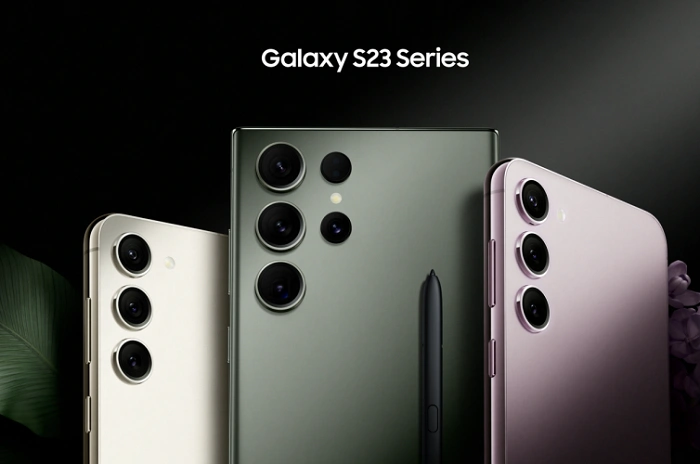
Starting with the Galaxy S20 series and newer models, Samsung changed the way to power off the phone. Instead of the traditional method, newer models use a combination of buttons.
Steps to turn off:
- Press and hold the Power button and the Volume Down button simultaneously for a few seconds.
- This will bring up the power options screen, where you will see options like “Power Off,” “Restart,” and “Emergency Mode.”
- Tap on “Power Off” and then confirm by selecting “Power Off” again when prompted.
This is the quickest way to turn off a newer Samsung phone. If you prefer, you can also choose “Restart” if you’re looking to reboot your phone instead of turning it off completely.
For Samsung Galaxy Models with a Home Button (Galaxy S9, S8, Note 9, etc.)
Older Samsung Galaxy models with a physical home button, like the Galaxy S9, S8, and Note 9, have a slightly different way of turning off the device.
Steps to turn off:
- Press and hold the Power button located on the right-hand side of the phone.
- After holding the button for a few seconds, a power options screen will appear on the display.
- Tap on “Power Off” and then confirm by selecting “Power Off” again when prompted.
If you want to restart the phone, you can select the “Restart” option instead.
For Older Samsung Phones (Galaxy S7, S6, Note 7, and earlier)
For very old Samsung Galaxy models, the process is similar to the ones mentioned above but may be even more straightforward. These phones also have a physical power button, and turning off the phone doesn’t require multiple buttons.
Steps to turn off:
- Press and hold the Power button on the right side (or the back, depending on the model).
- Once the power options screen appears, simply tap on “Power Off” and confirm by selecting “Power Off” again.
This was the default method for older Samsung devices that didn’t feature the side-volume button combination of more recent models.
Using Bixby to Turn Off the Phone
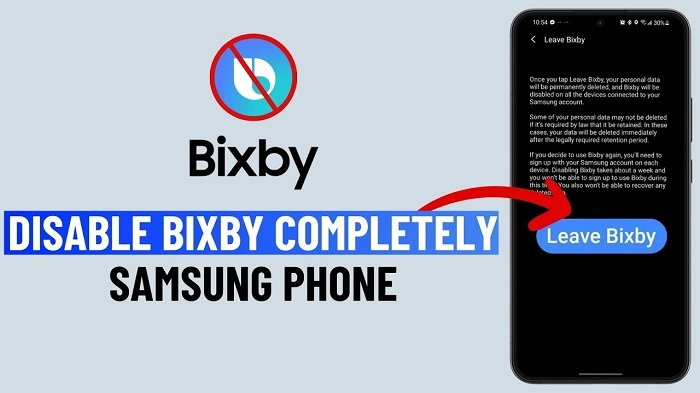
If you’ve set up Bixby, Samsung’s virtual assistant, you can also turn off your phone using voice commands. This is especially useful if you’re looking for a hands-free option.
Steps to use Bixby to turn off:
- Activate Bixby by pressing and holding the Bixby button or saying “Hi, Bixby” if voice activation is set up.
- Once Bixby is active, say, “Turn off my phone,” or “Power off.”
- Bixby will prompt you to confirm, and once you do, your Samsung phone will power off.
This method is not available on all models and is more commonly found on newer devices with Bixby integration.
For Devices with a Broken Power Button
If your power button is not functioning and you need to turn off your Samsung phone, there are alternative methods, especially if you rely on accessibility features or other options.
Steps to turn off with accessibility features:
- Enable the Accessibility menu by going to Settings > Accessibility and then toggling on the “Accessibility Menu.”
- Once activated, you can use the on-screen buttons to navigate.
- Open the “Accessibility Menu,” where you’ll find the option to power off your phone.
- Tap on the “Power Off” option to turn off your phone.
Using the “Quick Settings” Menu (for Restart)
In addition to the physical buttons, you can use the “Quick Settings” menu to restart your Samsung phone. While this doesn’t turn off your phone completely, it does allow you to perform a soft restart.
Steps to restart via Quick Settings:
- Swipe down from the top of the screen to open the Quick Settings menu.
- Tap on the Power icon (it looks like a small circle with a line through the top).
- Select the Restart option to reboot the phone.
This is a good alternative when you want to restart your phone without using the power and volume buttons.
Turning Off with Developer Options (Advanced Users)
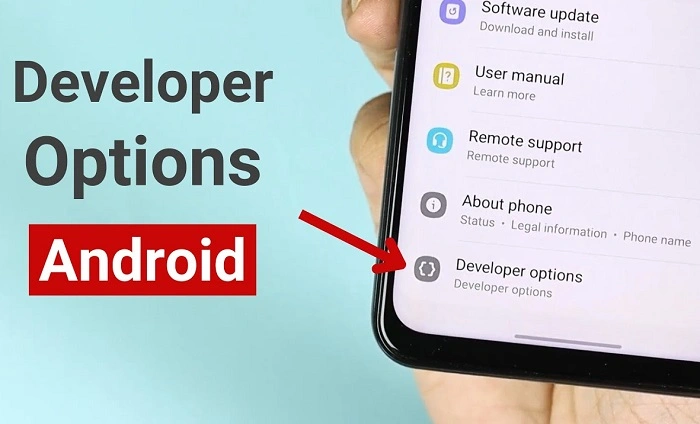
For users who have enabled Developer Options, there is an option that can allow you to turn off the phone with a special gesture. While this isn’t a common method, it is an option if you’ve enabled Developer Options and are familiar with it.
Steps to use Developer Options:
- Go to Settings > About phone and tap on “Build number” several times until Developer Options are enabled.
- Now, navigate to Settings > Developer options.
- There, you can activate features like “Enable power button instantly” for specific behaviors and gestures.
This is useful for advanced users, but the steps for activation depend on the particular settings and customizations you’ve made.
Turning off your Samsung phone is a simple process, but the method may vary depending on the model you own. Whether you use the physical power button, volume button combination, Bixby, or accessibility features, knowing these options can make your experience smoother. For newer Samsung models, the combination of the power and volume down buttons is standard, while older models rely on holding the power button alone. If you’re dealing with a malfunctioning power button or prefer a hands-free method, Bixby or the Accessibility menu can come to the rescue.