

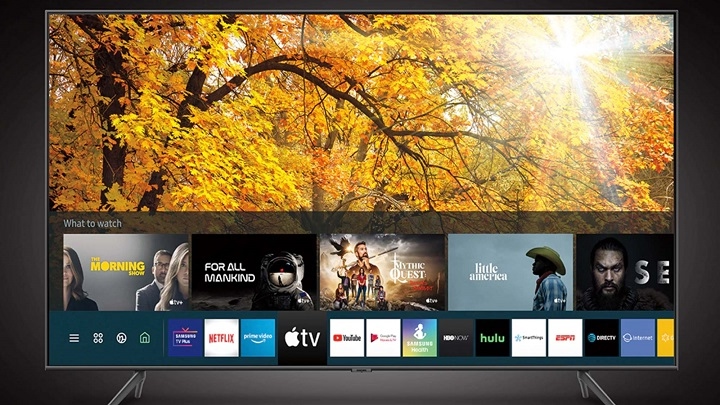
Setting up your Samsung TV correctly is the key to unlocking an exceptional entertainment experience. Whether you’re upgrading your home theater or setting up a new smart TV, the process should be simple and intuitive. Samsung TVs are designed with user-friendliness in mind, but understanding the setup process can ensure that you make the most of its powerful features. In this guide, we’ll walk you through every step of the Samsung TV setup so you can enjoy crisp visuals, immersive sound, and smart features right away.
Unboxing and Positioning Your Samsung TV
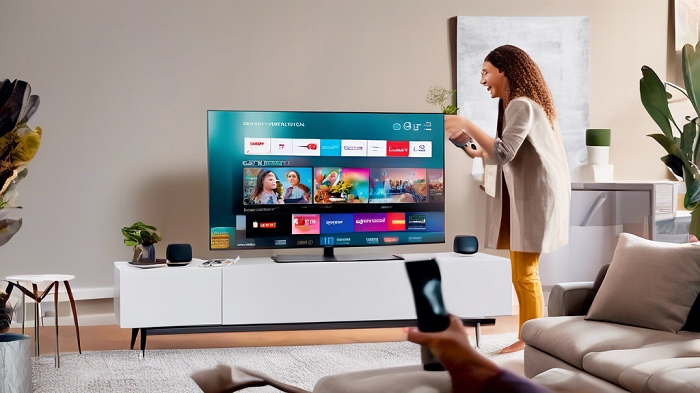
Before you dive into the setup process, the first step is unboxing and positioning your Samsung TV. Ensure you have enough space for your new TV and its accessories.
Unboxing
Carefully open the box and check that all components are included:
- TV unit
- Remote control
- Stand or mounting hardware
- Power cord
- Batteries for the remote
- User manual
If you’re setting up a wall-mounted TV, you’ll need a compatible wall mount bracket, which is often sold separately.
Positioning Your TV
Once you’ve unboxed everything, the next step is deciding where to place your TV. If you’re using a TV stand, place the stand in a spot where the screen has a clear line of sight for optimal viewing. For wall mounting:
- Use a stud finder to locate the studs in your wall.
- Follow the instructions provided with the mounting kit to secure the bracket on the wall.
Make sure the TV is at eye level for comfortable viewing. If you are using the stand, ensure it is stable and that the TV is centered to avoid any wobbling.
Powering Up Your Samsung TV
Once your TV is properly positioned, plug the power cable into the TV and connect it to an outlet. Power it on by pressing the power button on the remote or the TV itself.
You should see the Samsung logo on the screen, followed by a welcome message guiding you through the initial setup.
Initial TV Setup and Configuration
Language and Region Settings
When the TV turns on for the first time, the setup process will begin. You’ll be prompted to select your preferred language and region. This ensures the TV’s menu system and settings are tailored to your location and language preferences.
Connecting to Wi-Fi
To make the most of your Samsung TV’s smart features, connecting to Wi-Fi is essential. Select your Wi-Fi network from the list, enter your password, and confirm the connection. This will enable you to access streaming services, apps, and updates directly on the TV.
Signing in to Your Samsung Account
To unlock the full potential of your Samsung Smart TV, signing into your Samsung account is highly recommended. If you already have one, simply enter your credentials. If not, you can create a new account during the setup process.
Having a Samsung account allows you to sync your apps, settings, and personal preferences across multiple Samsung devices, making your entertainment experience more streamlined.
Software Updates
After connecting to the internet, your Samsung TV may prompt you to update the firmware to the latest version. It’s always a good idea to allow the TV to update, as new software can improve performance, add new features, and fix bugs.
Optimizing Picture and Sound Settings
Once the basic configuration is complete, it’s time to optimize the picture and sound settings for the best experience.
Picture Settings
Samsung TVs offer various picture modes to suit different types of content. Common modes include:
- Standard: Balanced settings for everyday content.
- Dynamic: A brighter picture ideal for rooms with lots of light.
- Movie: Best for watching movies in a darker room, offering a more cinematic look.
- Game: Enhanced settings for gaming with reduced input lag.
To adjust these settings:
- Go to Settings > Picture > Picture Mode.
- Choose the one that best suits your viewing environment. If you prefer more control, you can also adjust settings like Brightness, Contrast, and Sharpness manually.
Sound Settings
Just as with the picture settings, you can tailor the sound output to match your viewing preferences:
- Standard is fine for most content.
- Clear Voice enhances dialogue for easier understanding.
- Adaptive Sound adjusts the sound automatically based on what you’re watching (sports, movies, news, etc.).
To adjust sound settings:
- Go to Settings > Sound > Sound Mode.
- Select your preferred mode or customize the equalizer to boost bass or treble based on your preferences.
Setting Up Your Favorite Apps
Samsung Smart TVs come with Samsung Smart Hub, which gives you easy access to a wide variety of streaming apps. Some popular ones include:
- Netflix
- Hulu
- Amazon Prime Video
- Disney+
- YouTube
- Apple TV+
To download and install apps:
- Press the Home button on your remote to open Smart Hub.
- Navigate to the Apps section.
- Browse or search for your desired app, then click Install.
- Log in to the app using your account credentials.
Once installed, you can easily access your favorite apps through the Smart Hub.
Connecting External Devices
If you plan on using external devices such as gaming consoles, soundbars, Blu-ray players, or streaming devices, you’ll need to connect them to your Samsung TV.
HDMI Connections
The HDMI ports on your Samsung TV allow you to connect high-quality devices like gaming consoles or streaming boxes. Simply plug in the HDMI cable from your device into one of the TV’s HDMI ports. Be sure to choose the correct input source on the TV using the remote.
Bluetooth Devices
For wireless devices such as Bluetooth headphones or speakers:
- Go to Settings > Sound > Bluetooth Audio.
- Turn on the Bluetooth device you want to connect.
- Your TV will search for nearby devices. Select your device when it appears, and you’re all set!
Exploring Smart Features and Voice Control
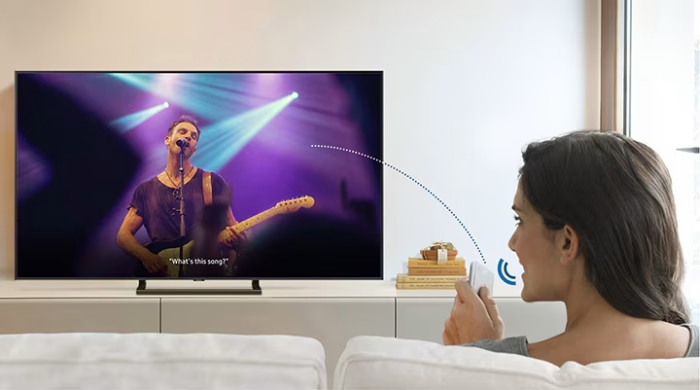
Samsung Smart TVs come with voice assistants like Bixby, Amazon Alexa, and Google Assistant built-in. You can control your TV with voice commands like:
- “Turn off the TV.”
- “Change the channel.”
- “Open Netflix.”
To activate voice control:
- Press the microphone button on your remote.
- Follow the on-screen instructions to set up your preferred voice assistant.
You can also control compatible smart home devices with your TV through Samsung SmartThings.
Final Checks and Enjoying Your TV
After completing the setup and configuration, make sure to check that everything is working as expected. Test the picture quality, sound output, and app functionality. You can now sit back, relax, and enjoy the full potential of your new Samsung TV.
Setting up your Samsung TV doesn’t need to be complicated. By following these simple steps, you can ensure that your TV is ready for the best possible viewing experience. Whether you’re using it for streaming, gaming, or watching your favorite shows, Samsung’s smart features and high-quality display are sure to enhance your entertainment. Now that your TV is set up, enjoy the rich visuals and immersive sound that come with being a Samsung TV owner.