

Apple’s AirTag is a powerful tool for tracking personal items, but there are times when you might need to disable it. This comprehensive guide will walk you through everything you need to know about how to disable AirTag. We’ll cover various related topics to provide a thorough understanding, including privacy concerns, reactivation, and alternative uses.
Understanding AirTag
What is an AirTag?
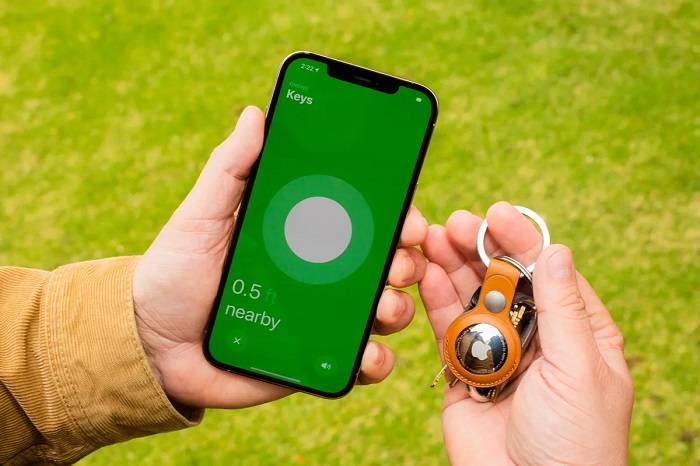
An AirTag is a small, circular tracking device developed by Apple. It helps users locate personal items such as keys, wallets, bags, and more using the Find My app on an iPhone or other Apple devices.
Key Features of AirTag
- Precision Finding: Utilizes Ultra-Wideband technology for accurate location tracking.
- Find My Network: Leverages Apple’s extensive network of devices to help locate your AirTag.
- Privacy and Security: Designed with end-to-end encryption to ensure your data is secure.
- Lost Mode: Notifies you when your AirTag is detected by another device in the Find My network.
Why Disable an AirTag?
Privacy Concerns
There may be situations where you are concerned about privacy and tracking. Disabling an AirTag can prevent it from being used to track your location without your consent.
Battery Conservation
If you are not using the AirTag for an extended period, disabling it can help conserve the battery life, ensuring it is ready for use when needed.
Device Management
Managing multiple devices can be cumbersome. Disabling an AirTag that you are not currently using can simplify device management.
How to Disable AirTag
Using the Find My App
- Open the Find My App: Launch the app on your iPhone.
- Select Your AirTag: Tap on the Items tab, then select the AirTag you want to disable.
- Remove Item: Scroll down and tap ‘Remove Item.’ Confirm your choice when prompted. This will disable the AirTag and remove it from your account.
Manually Removing the Battery
- Open the AirTag: Press down on the stainless steel back cover and rotate it counterclockwise.
- Remove the Cover: Lift the cover off.
- Remove the Battery: Take out the CR2032 battery to disable the AirTag. Reassemble it without the battery if you wish to store it.
Using Lost Mode
While not a permanent disablement, enabling Lost Mode can render the AirTag inactive for tracking by others:
- Open the Find My App: Launch the app on your iPhone.
- Select Your AirTag: Tap on the Items tab, then select the AirTag.
- Enable Lost Mode: Scroll down and tap ‘Enable Lost Mode.’ Follow the prompts to complete the process.
Practical Uses for Disabling AirTag
Security Measures

Disabling an AirTag temporarily can be a good security measure if you suspect it might be used to track you without your permission. This can provide immediate relief while you investigate further.
Lending Items
If you are lending an item with an AirTag to someone, disabling the AirTag can ensure that their movements are not tracked through your account.
Traveling
During air travel or other long journeys where you might not need to track your items continuously, disabling the AirTag can help preserve its battery life.
Re-enabling a Disabled AirTag
Reactivating Through Find My App
To reactivate an AirTag that you have disabled through the Find My app:
- Open the Find My App: Launch the app on your iPhone.
- Add New Item: Tap on ‘Add Item’ and follow the prompts to re-add the AirTag to your account.
Reinstalling the Battery
To reactivate an AirTag that you have disabled by removing the battery:
- Open the AirTag: Press down on the stainless steel back cover and rotate it counterclockwise.
- Insert the Battery: Place a new or existing CR2032 battery into the AirTag with the positive side facing up.
- Reassemble the AirTag: Align the three tabs on the cover with the slots on the AirTag, press down, and rotate the cover clockwise until it stops.
Related Topics
Privacy and Security Features
End-to-End Encryption
AirTags use end-to-end encryption to ensure that your location data is secure. The location data and history are never stored on the AirTag itself. Communication with the Find My network is encrypted, ensuring that only you can see where your AirTag is located.
Anti-Stalking Measures
Apple has implemented measures to prevent AirTags from being used to track individuals without their consent. If an unknown AirTag is detected moving with you, your iPhone will alert you. This feature ensures that AirTags cannot be used to track people without their knowledge.
Alternative Uses for Disabled AirTags
Storage and Organization
Even when disabled, AirTags can be used for organizing items. Labeling them can help keep track of items without the need for active tracking.
Child Safety
If you have children who frequently borrow your items, disabling the AirTag temporarily can ensure they have privacy while still keeping the option to track the items later.
Environmental Considerations
Battery Life and Replacement
The battery in an AirTag typically lasts about one year under normal usage conditions. The Find My app will notify you when the battery is running low, ensuring you have ample time to replace it.
Proper Disposal of Batteries
Proper disposal of old batteries is crucial for environmental sustainability. Used CR2032 batteries should be recycled at designated battery recycling centers to prevent harmful chemicals from entering the environment.
Comparing AirTag with Other Tracking Devices
Tile Trackers
Tile trackers are a popular alternative to AirTags. They use Bluetooth technology to track items and have a similar app-based interface. However, Tile lacks the extensive Find My network and Precision Finding capabilities of AirTag.
Samsung Galaxy SmartTag
Samsung Galaxy SmartTag is specifically designed for use within the Samsung ecosystem, offering robust tracking features and integration with Samsung’s SmartThings app. It provides a seamless experience for Samsung users.
Chipolo One
Chipolo One trackers offer a comparable experience to AirTags, with Bluetooth tracking and app integration. However, they do not match the seamless integration and advanced privacy features of AirTags.
Comparison Table
| Feature | Apple AirTag | Tile Trackers | Samsung Galaxy SmartTag | Chipolo One |
| Bluetooth Tracking | Yes | Yes | Yes | Yes |
| Ultra-Wideband Technology | Yes | No | No | No |
| Find My Network | Yes | No | No | No |
| Precision Finding | Yes | No | Yes | No |
| Privacy and Security | End-to-End Encryption | Basic | Advanced | Basic |
| Lost Mode | Yes | Yes | Yes | Yes |
Troubleshooting Common Issues with AirTags
AirTag Not Connecting
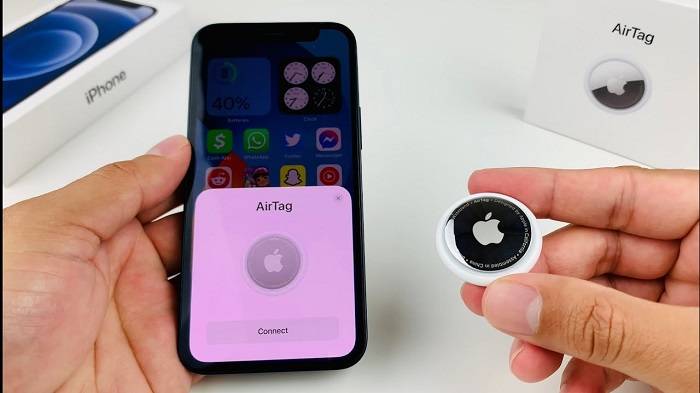
If your AirTag is not connecting, ensure that your iPhone’s Bluetooth is turned on and that it is running the latest version of iOS. Restart your iPhone and try the setup process again.
AirTag Not Updating Location
If the location of your AirTag is not updating, ensure it is within the range of your iPhone or the Find My network. If you are in an area with poor connectivity, the update might be delayed.
AirTag Beeping Unexpectedly
If your AirTag is beeping unexpectedly, it could be due to movement or proximity to another Apple device. Check the Find My app for any alerts or notifications.
Frequently Asked Questions
How do I disable AirTag through the Find My app?
To disable AirTag through the Find My app, open the app, select the AirTag, and tap ‘Remove Item.’ Confirm your choice to disable it.
How can I manually disable an AirTag?
To manually disable an AirTag, remove the CR2032 battery by opening the AirTag, lifting the cover, and taking out the battery.
Can I reactivate a disabled AirTag?
Yes, you can reactivate a disabled AirTag by reinstalling the battery or re-adding it through the Find My app.
Why is my AirTag not connecting?
Ensure Bluetooth is enabled on your iPhone, and it is running the latest iOS version. Restart your iPhone and try connecting the AirTag again.
Is my location data secure when using AirTags?
Yes, AirTags use end-to-end encryption to ensure that your location data is secure and only accessible by authorized users. Apple has also implemented anti-stalking measures to enhance security.
Related Post:
How to Setup AirTag: A Comprehensive Guide
How to Setup AirTag: A Comprehensive Guide
How to Find AirTag on iPhone: A Complete Guide
How to Connect AirTag: A Comprehensive Guide
Knowing how to disable AirTag is essential for maintaining privacy, conserving battery life, and managing your devices efficiently. Whether you need to disable it temporarily or permanently, the steps outlined in this guide will help you achieve your goal. By understanding the various features and security measures associated with AirTags, you can use them effectively while ensuring your privacy and security.