

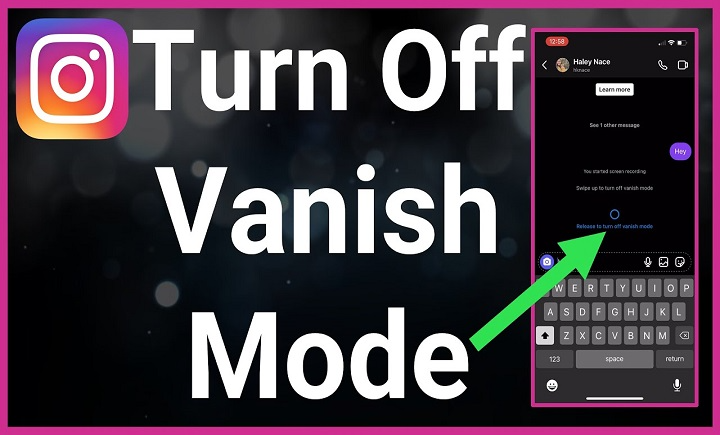
Alright, let’s cut to the chase—have you ever swiped up in an Instagram chat and suddenly everything went poof? Yup, that’s Vanish Mode. Sounds fancy, right? But sometimes, it’s more of a headache than a high-tech feature. If you’re like me and you’ve accidentally turned it on (more than once, oops), or just want to get back to normal, non-disappearing messages, you’re in the right place.
So, grab your phone, maybe a snack (because why not), and let’s walk through how to actually turn off Vanish Mode on Instagram. I’ll break it down with clear steps, personal stories, and a few chuckles along the way.
What Is Vanish Mode, Anyway?
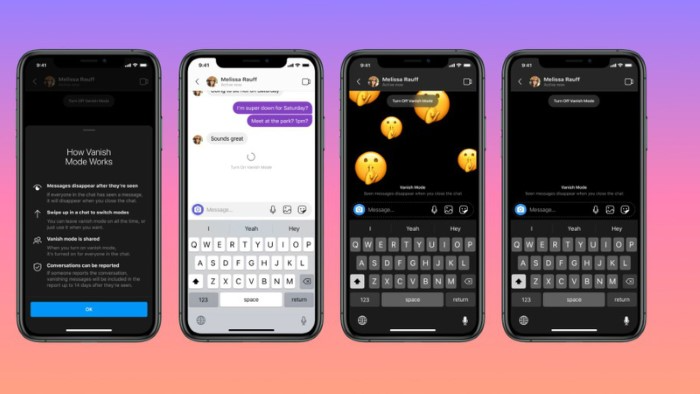
Before we dive into how to turn it off, let’s talk about what Vanish Mode even is—because if you’re googling it, there’s a chance you’re not totally sure what happened in your chat. And that’s okay. Instagram doesn’t exactly throw a tutorial your way when you stumble into it.
In Simple Terms…
Vanish Mode is Instagram’s take on disappearing messages. It’s like Snapchat’s chat feature got invited to Instagram’s party.
When it’s on, messages vanish after they’re seen and you leave the chat. Photos, videos, texts—gone like a magician’s rabbit. Poof.
Sounds Cool, But…
Honestly? It’s useful if you’re sharing something sensitive or silly that you don’t want saved. But if you’re trying to keep a record of conversations (or if you accidentally activated it while trying to scroll), it can be kinda annoying.
Trust me, I once sent someone a super important message while Vanish Mode was on and didn’t realize it. Next thing I knew—it was gone. Forever. I had to retype it from memory. Not fun.
How Did I Even Turn It On?
That’s the million-dollar question. Instagram made it ridiculously easy to activate—sometimes too easy. Here’s how it usually happens:
The Swipe-Up Trigger
You’re in a chat with someone. You swipe up from the bottom of the screen, maybe while scrolling or trying to close your keyboard… bam, Vanish Mode is on.
No warning. No confirmation button. It just happens. Kinda like when you accidentally like a post from 2014 while stalking your ex. We’ve all been there.
How to Tell If Vanish Mode Is On
Before turning it off, let’s confirm it’s actually on. There are a few telltale signs:
- The chat background turns dark (like, moody-dark).
- You see a little dotted circle icon at the top.
- A message pops up saying “You’re in Vanish Mode”.
- Any messages you send or receive will disappear after they’re seen and you exit the chat.
Basically, if your chat looks like it’s ready for a top-secret mission, you’re probably in Vanish Mode.
Okay, So How Do I Turn Off Vanish Mode?
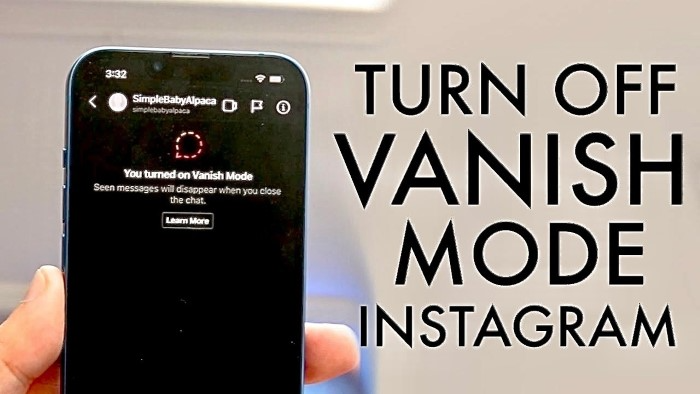
Now, the part you came for. And good news: it’s super simple. Like, surprisingly simple.
Step-by-Step (For Both iPhone & Android)
- Open the Instagram app.
– Duh, but hey, let’s cover all bases.
- Go to your DMs.
– Tap that little paper plane (or Messenger icon) in the top right.
- Open the chat that’s in Vanish Mode.
– You’ll know it by the dark background and disappearing messages.
- Swipe up again.
– Just like you did to turn it on, swipe up from the bottom and release. That’s it.
- Boom—you’re back to normal.
– Your chat should now have the regular light background (or your default theme), and messages will stop disappearing.
Heads up: If your Instagram is integrated with Facebook Messenger, the steps are the same. Instagram might just look a lil’ different depending on updates and your phone.
Still Not Working? Here’s What to Try
Tech can be moody sometimes. If swiping up doesn’t do the trick, here are a few things to try:
Restart the App
Sometimes the app gets a little… buggy. Close it completely and open it again. Check the chat—it might have reset on its own.
Update Instagram
If your app’s older than your phone case, it’s time to update. Go to the App Store (iPhone) or Google Play Store (Android) and check for updates.
Clear Cache (Android only)
- Go to Settings > Apps > Instagram > Storage > Clear Cache.
This can help if something’s glitchy.
Reinstall the App
Bit drastic, I know. But it works. Uninstall and reinstall Instagram—just make sure you remember your password (unlike me last week… whoops).
Can I Turn Off Vanish Mode Forever?
Ah, the golden question.
Sadly, as of now, Instagram doesn’t let you permanently disable Vanish Mode. There’s no toggle in settings to stop it from turning on.
But—and this is important—you can avoid it by simply not swiping up in your DMs. I know, easier said than done when your fingers have a mind of their own. But being aware of that swipe motion helps a ton.
Wouldn’t it be nice if they had a lock setting for it? Instagram, if you’re listening, please make it happen!
Bonus: What Happens to Messages in Vanish Mode?
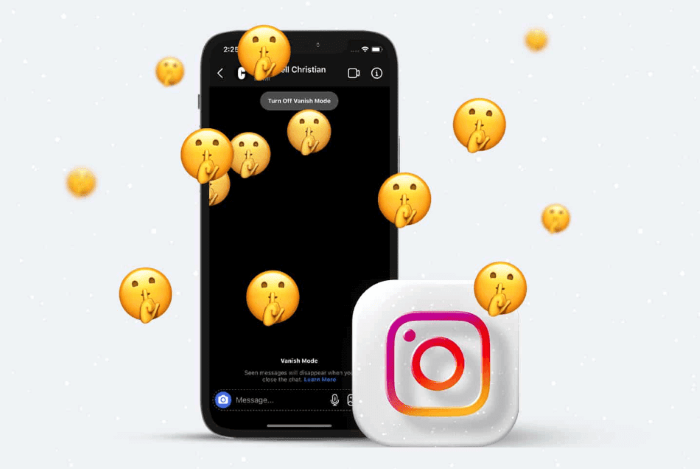
Curious about what actually happens when stuff vanishes?
- Messages disappear after they’re seen and you leave the chat.
- Screenshots can be taken, but both people are notified.
- You can’t copy or save messages (unless you take a screenshot or record your screen—but again, the other person will know).
Basically, Instagram tried to build it so things are temporary and secure. It’s kinda like whispering a secret and then walking away.
Is Vanish Mode Safe?
Quick side tangent, because I know some folks worry about privacy (myself included). Here’s the real deal:
- Instagram encrypts chats, but not end-to-end like WhatsApp.
- So technically, it’s secure-ish, but not bulletproof.
- If you really need privacy, apps like Signal or Telegram are better.
For casual convos or silly memes? Vanish Mode’s fine. Just don’t use it to send your bank details, okay?
Real Talk: Should You Even Use Vanish Mode?
Here’s my personal take—take it or leave it.
I think Vanish Mode is fun for certain things. Like if you’re joking around with friends, sending a weird selfie you don’t want saved, or planning a surprise party.
But for regular convos? Meh. I prefer keeping receipts. You never know when you’ll need to refer back to something—especially if it’s important.
Also, it’s way too easy to activate by mistake. One wrong swipe and suddenly, you’re in ghost-chat mode. And the worst part? You don’t always realize it right away.
So yeah, I use it sparingly. Like hot sauce. A little is fine, but too much? No thanks.
Wrap-Up: Vanish Mode, You Tricky Little Feature
Let’s recap:
- Vanish Mode makes messages disappear after they’re seen.
- You turn it on or off by swiping up in a chat.
- If it’s stuck or buggy, try restarting the app or updating it.
- You can’t permanently disable it (yet), but you can avoid activating it.
- Use it wisely—like for fun, casual stuff, not for anything you’d need to reference later.
Hope this helped clear the fog around Vanish Mode! And if you were panicking because your message disappeared into the digital abyss—deep breaths. We’ve all been there.
Now go forth and chat responsibly. And hey, next time your chat turns dark all of a sudden, you’ll know exactly what to do.
If you found this guide helpful (or mildly entertaining), feel free to share it with your forgetful friends or that one person who always activates Vanish Mode on accident. You know the one.