

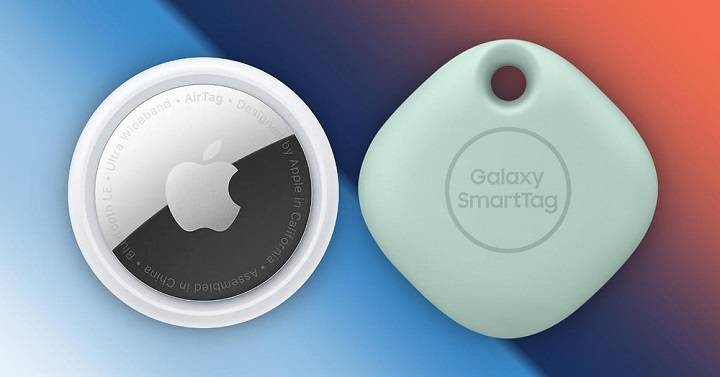
Samsung’s AirTag equivalent, often referred to as the Samsung SmartTag, is a versatile and powerful tool designed to help you keep track of your belongings. In this comprehensive guide, we will explore everything you need to know about the Samsung AirTag, its features, how it compares to Apple’s AirTag, and much more.
Understanding Samsung AirTag

What is a Samsung AirTag?
A Samsung AirTag, officially known as the Samsung Galaxy SmartTag, is a small tracking device that helps you locate personal items such as keys, wallets, bags, and even pets. By attaching a SmartTag to your belongings, you can easily locate them using the SmartThings Find app on your Samsung Galaxy device. The SmartTag is designed to seamlessly integrate into the Samsung ecosystem, providing a user-friendly experience for tracking lost items.
Key Features of Samsung AirTag
- Precise Tracking: Utilizes Bluetooth Low Energy (BLE) technology for accurate tracking.
- SmartThings Find: Integrates with the SmartThings ecosystem for easy location tracking.
- Privacy and Security: Ensures your data is secure with end-to-end encryption.
- Versatile Integration: Works seamlessly with Samsung Galaxy devices and the SmartThings app.
How to Set Up Samsung AirTag
Step-by-Step Guide to Setting Up Your Samsung AirTag
- Unbox Your SmartTag: Remove the SmartTag from its packaging. Make sure you have the SmartTag and your Samsung Galaxy device ready.
- Prepare Your Galaxy Device: Ensure your Samsung Galaxy device is updated to the latest software version. This is crucial for compatibility and to access all features.
- Open the SmartThings App: Launch the SmartThings app on your Samsung device. If you do not have the app, download it from the Galaxy Store or Google Play Store.
- Add New Device: Tap on the ‘+’ icon to add a new device within the SmartThings app.
- Select SmartTag: Choose SmartTag from the list of devices. The app will guide you through the process.
- Follow On-Screen Instructions: Follow the prompts to complete the setup and register the SmartTag to your Samsung account. This includes naming your SmartTag and confirming its connection to your device.
Troubleshooting Setup Issues
- Check Bluetooth Settings: Ensure Bluetooth is enabled on your device. Go to Settings > Connections > Bluetooth and make sure it is turned on.
- Restart Your Device: If the SmartTag doesn’t connect, try restarting your Samsung Galaxy device. This can resolve temporary connectivity issues.
- Update Software: Make sure your SmartThings app and device software are up to date. Outdated software can cause compatibility issues.
- Move Closer: Ensure the SmartTag is close to your device during the setup process. Proximity can significantly affect the connection success rate.
Maximizing Samsung AirTag Functionality
Using SmartThings Find
SmartThings Find is the core app for locating your SmartTag. It provides real-time location updates and helps you track your items accurately.
- Open SmartThings Find: Launch the app to see all registered SmartTags.
- Select a SmartTag: Tap on the SmartTag you want to locate.
- View Location: The app will display the current or last known location of your SmartTag. If the SmartTag is within range, it will show the precise location.
- Use Navigation: Follow the on-screen directions to navigate to your SmartTag. The app provides step-by-step directions, making it easy to find your lost items.
Setting Up Notifications
You can set up notifications to alert you when your SmartTag moves or is left behind.
- Open SmartThings App: Navigate to your SmartTag settings.
- Set Notifications: Configure notifications to alert you of movement or when the SmartTag leaves a designated area. This feature is particularly useful for preventing loss of important items.
Sharing SmartTag with Family
Family Sharing allows multiple users to track the same SmartTag, providing additional security and convenience.
- Open SmartThings App: Go to the SmartTag settings.
- Share Device: Use the share option to add family members who can also track the SmartTag. This is useful for shared items like car keys or luggage.
Comparing Samsung AirTag to Apple AirTag
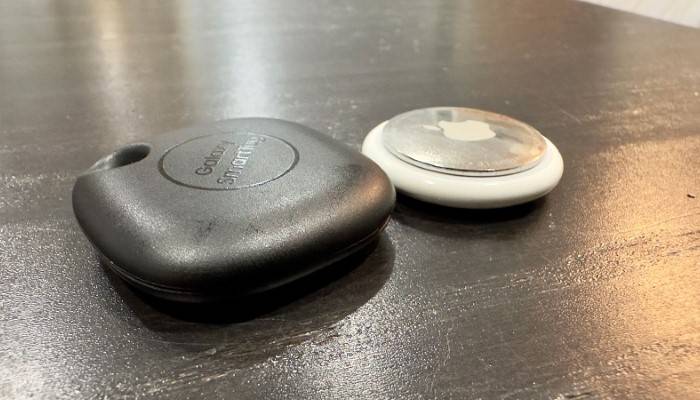
Compatibility and Ecosystem
- Samsung AirTag: Works best within the Samsung ecosystem, particularly with Galaxy devices and the SmartThings app. It is designed for seamless integration with Samsung’s suite of smart devices.
- Apple AirTag: Designed to work seamlessly with the Apple ecosystem, including iPhones, iPads, and the Find My app. It leverages Apple’s extensive network of devices for tracking.
Tracking Technology
- Samsung AirTag: Uses Bluetooth Low Energy (BLE) for tracking. While BLE provides accurate tracking, it does not offer the ultra-precise location features found in Apple’s AirTag.
- Apple AirTag: Utilizes Ultra-Wideband (UWB) technology for more precise location tracking. UWB offers higher accuracy and better performance in locating items in complex environments.
Privacy and Security
Both devices prioritize user privacy with end-to-end encryption and anti-stalking features, ensuring that only the owner can see the location data.
- Samsung AirTag: Ensures data privacy with robust encryption protocols and alerts users if an unknown SmartTag is found moving with them.
- Apple AirTag: Also employs end-to-end encryption and anti-stalking measures, providing users with alerts if an unknown AirTag is detected nearby.
Protecting Your Samsung AirTag
Privacy and Security Features
Samsung has designed the SmartTag with privacy and security in mind. Location data is encrypted and shared only with your Samsung account. Anti-stalking features alert you if a SmartTag that doesn’t belong to you is moving with you.
Environmental Considerations
SmartTags are designed to withstand various environmental conditions, making them durable and reliable for everyday use. They are water-resistant, ensuring they function well even in challenging environments.
Enhancing Samsung AirTag Usage with Accessories
Keychains and Holders
Various accessories, such as keychains and holders, are available to enhance your SmartTag experience. These accessories help secure your SmartTag to different items and come in various styles and materials.
Protective Cases
Protective cases add an extra layer of durability to your SmartTag, making it more resistant to drops and impacts. These cases are available in materials like silicone and leather, helping to extend the life of your device.
Custom Labels
Personalize your SmartTag with custom labels or engravings. This can be useful for distinguishing between multiple SmartTags within a household or workspace.
Common Uses for Samsung AirTag
Everyday Items
Attach SmartTags to everyday items like keys, wallets, and bags to ensure you can always find them. This is particularly helpful for items that are easily misplaced, saving you time and reducing the stress of searching for lost belongings.
Travel
Use SmartTags to keep track of your luggage when traveling. Placing a SmartTag in your suitcase can help you locate it quickly at baggage claim or if it gets lost. This provides peace of mind during your travels, knowing you can track your luggage at any time.
Pets
Attach a SmartTag to your pet’s collar to monitor their whereabouts. This provides peace of mind knowing you can find your pet if they wander off. While SmartTags are not a substitute for a dedicated pet tracker, they can be a useful addition for monitoring your pet’s location.
Electronics
Attach SmartTags to electronics like cameras, tablets, and laptops. This helps you locate these valuable items if they are misplaced or stolen. Securing your electronics with SmartTags can protect your investment and ensure you always know where your devices are.
Outdoor Gear
Attach SmartTags to outdoor gear such as bicycles, camping equipment, and sports gear. This can help you keep track of your items during outdoor activities and ensure they are not lost or stolen.
Frequently Asked Questions
How do I set up a Samsung AirTag?
To set up a Samsung AirTag, unbox the device, open the SmartThings app on your Galaxy device, add a new device, select SmartTag, and follow the on-screen instructions.
Can I use Samsung AirTag with non-Samsung devices?
No, Samsung AirTag is designed to work within the Samsung ecosystem and is best used with Samsung Galaxy devices and the SmartThings app.
How can I check the battery life of my SmartTag?
You can check the battery life of your SmartTag in the SmartThings app. Navigate to the SmartTag settings to see the battery status.
What should I do if my SmartTag is not connecting?
If your SmartTag is not connecting, ensure Bluetooth is enabled, your device is updated, and the SmartTag is close to your device. Restart your device if necessary.
Can I share my SmartTag with family members?
Yes, you can share your SmartTag with family members using the Family Sharing feature in the SmartThings app, allowing multiple users to track the same SmartTag.
Related Post:
Maximizing the Lifespan of AirTag Batteries: How Long Does an AirTag Battery Last?
Mastering the Art of Finding Your Airtag: A Comprehensive Guide
Mastering Airtag Battery Replacement: A Comprehensive Guide
Understanding how to effectively use a Samsung AirTag, or Samsung Galaxy SmartTag, can greatly enhance your ability to keep track of your personal belongings. With features like SmartThings Find, precise tracking, and robust privacy measures, the Samsung AirTag offers a comprehensive solution for locating lost items. By following the setup steps and maximizing the device’s functionality, you can ensure your SmartTag is always ready to help you find your items. Whether for everyday use, travel, pets, electronics, or outdoor gear, this guide ensures you get the most out of your Samsung AirTag investment.