

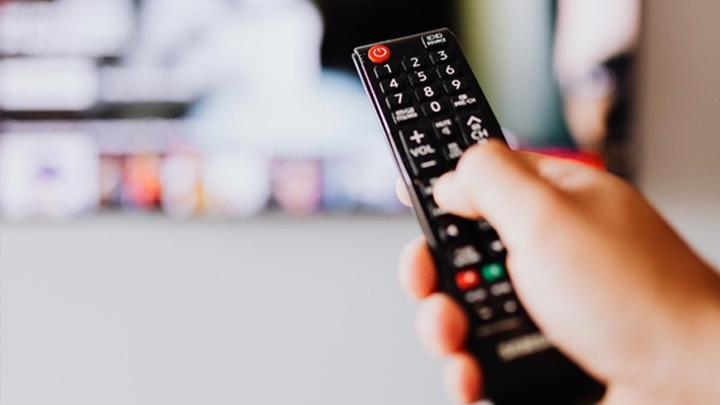
A Samsung soundbar is an excellent way to upgrade your home audio system and get more immersive sound from your television. However, managing your soundbar effectively often relies on its remote control. Whether you’re adjusting the volume, switching inputs, or activating special sound modes, the Samsung soundbar remote is key to optimizing your audio experience. In this guide, we’ll walk you through everything you need to know about using and troubleshooting your Samsung soundbar remote.
How Does the Samsung Soundbar Remote Work?
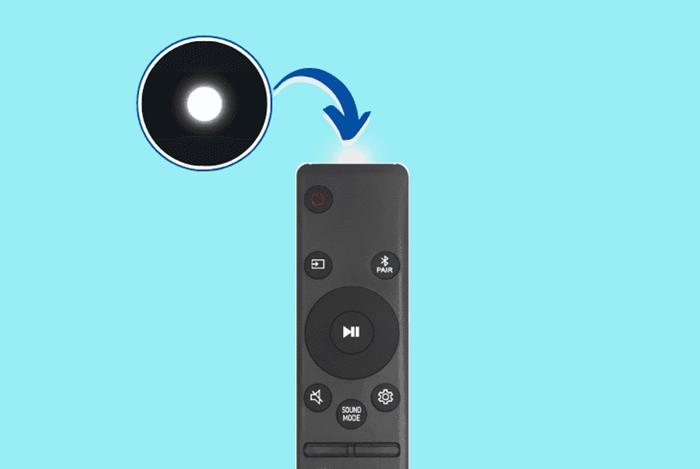
Samsung soundbars come with their own remote controls that are designed to manage various features, from adjusting the volume to managing equalizer settings. The remote typically communicates with the soundbar through infrared (IR) signals, allowing you to make adjustments without needing to get up or manually interact with the soundbar itself.
The remote usually includes several key buttons:
- Power: Turns the soundbar on or off.
- Volume: Adjusts the soundbar’s volume levels.
- Input Source: Switches between different audio sources, like HDMI, optical, Bluetooth, or AUX.
- Sound Modes: Activates preset modes such as Standard, Surround, or Night Mode, depending on your model.
- Bass/Treble Controls: Allows you to adjust the bass or treble for a more personalized audio experience.
The exact features and layout can vary depending on the model of your Samsung soundbar, so it’s always helpful to refer to your specific soundbar’s user manual.
Setting Up Your Samsung Soundbar Remote
Setting up your Samsung soundbar remote is generally a straightforward process. In most cases, it’s simply a matter of pairing the remote with your soundbar.
Steps to Pair Your Samsung Soundbar Remote:
- Insert Batteries: First, make sure the remote has fresh batteries installed. The correct battery type is usually indicated on the inside of the battery compartment.
- Power On the Soundbar: Make sure your soundbar is powered on.
- Pairing Process: For most Samsung soundbars, the remote should automatically pair with the device once you turn it on. If it doesn’t, you may need to press a specific button on the remote (e.g., the “Power” button) while simultaneously pressing a button on the soundbar itself to establish a connection.
- Test the Remote: Once paired, test the remote by adjusting the volume or switching inputs to ensure it’s functioning properly.
Troubleshooting Samsung Soundbar Remote Issues
Like any other electronic device, your Samsung soundbar remote may occasionally run into issues. Here are some common problems and solutions:
1. Remote Not Working
- Check the Batteries: The most common reason a remote stops working is dead batteries. Try replacing the batteries and see if that fixes the issue.
- Ensure Direct Line of Sight: Samsung soundbars use IR signals to communicate with the remote. Ensure there are no obstructions between the remote and the soundbar’s IR sensor.
- Reset the Remote: If the remote still doesn’t respond, remove the batteries for 10 seconds and then reinsert them.
2. Remote Control Buttons Aren’t Responding Properly
- Clean the Remote: Dust and dirt can build up on the buttons, causing them to stick or not register when pressed. Use a microfiber cloth to clean the remote.
- Reset the Soundbar: Sometimes, the soundbar itself needs to be reset. To reset most Samsung soundbars, simply power it off, wait for about 10 seconds, and turn it back on.
3. Soundbar Not Responding to Remote Commands
- Check Input Source: Ensure that the soundbar is on the correct input source. If you’re trying to control the soundbar while it’s set to an unused source, it may not respond to volume or mode changes.
- Re-pair the Remote: If your remote stops responding, it could be unpaired from the soundbar. Follow the pairing process again to restore functionality.
Alternative Ways to Control Your Samsung Soundbar
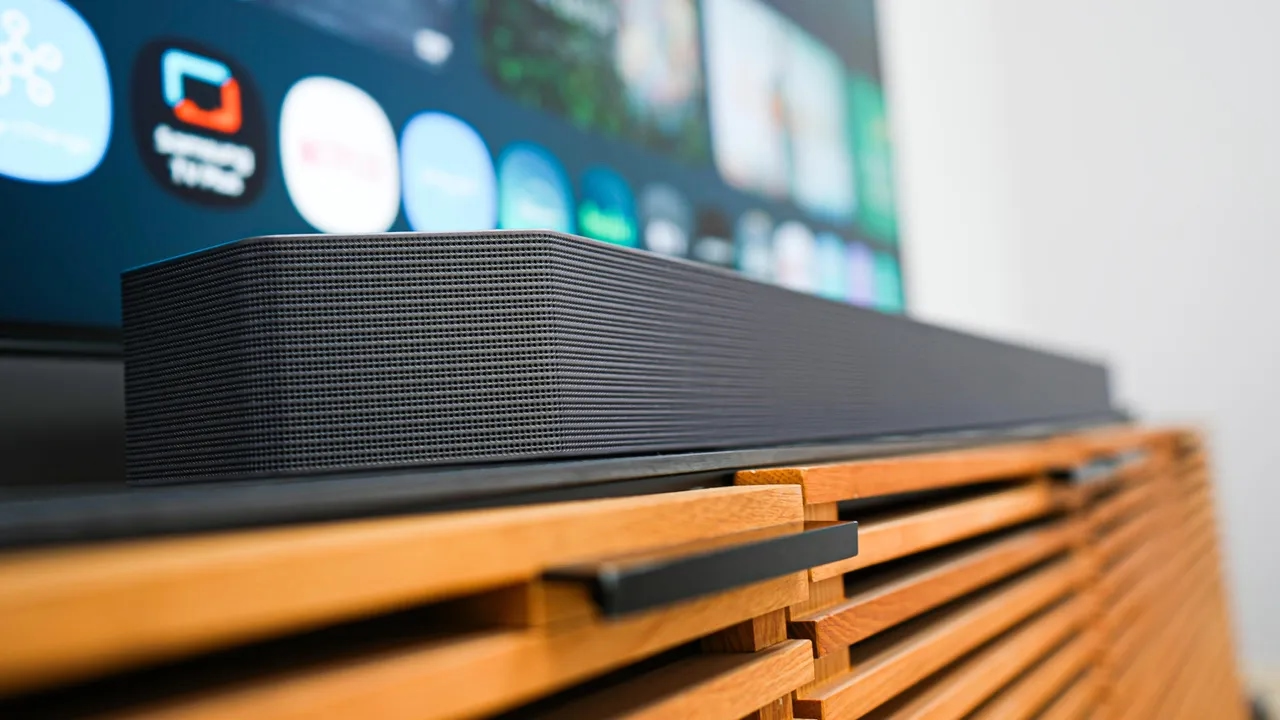
While the physical remote control is typically the easiest way to manage your soundbar, there are other ways to control the device:
1. Samsung SmartThings App
For many newer Samsung soundbars, you can use the SmartThings app on your smartphone to control the soundbar remotely. This can be especially convenient if you’ve lost the physical remote or if you want to adjust settings from across the room.
To use the SmartThings app:
- Download the app from the Google Play Store or Apple App Store.
- Ensure your soundbar is connected to the same Wi-Fi network as your phone.
- Open the app, add your soundbar to your devices, and use the app’s controls to adjust settings, such as volume and sound modes.
2. Voice Control with Samsung Bixby, Google Assistant, or Alexa
Many Samsung soundbars support voice commands via Bixby, Google Assistant, or Amazon Alexa. If your soundbar is connected to a smart assistant, you can control it using voice commands like “Hey Google, turn the volume up on my soundbar.”
Tips for Optimizing Your Samsung Soundbar Experience
To get the best sound quality and experience with your Samsung soundbar, consider these additional tips:
- Adjust Sound Modes: Most Samsung soundbars come with multiple sound modes like Surround, Standard, or Night Mode. Experiment with these modes depending on the type of content you’re listening to, whether it’s movies, music, or news.
- Subwoofer Placement: If your Samsung soundbar comes with a subwoofer, experiment with its placement. Typically, placing it in a corner or near a wall can enhance bass performance.
- Update Firmware: Keep your soundbar up to date by checking for firmware updates via the Samsung SmartThings app or the soundbar’s menu settings. Firmware updates can improve functionality and resolve issues.
- Use HDMI ARC: For the best sound quality and ease of control, use HDMI ARC (Audio Return Channel) to connect your soundbar to your TV. This allows you to control both devices with one remote.
The Samsung soundbar remote is an essential tool for making the most of your sound system. While it’s generally easy to use, knowing how to troubleshoot common issues and optimize your setup can significantly enhance your listening experience. Whether you’re using the remote control, the SmartThings app, or voice commands, Samsung offers a variety of ways to make your audio experience more enjoyable. If you encounter any issues with your remote, remember that simple fixes like changing the batteries, resetting the remote, or pairing it again usually do the trick.