

If you’re struggling with your Samsung TV not connecting to Wi-Fi, you’re not alone. Whether you’re trying to stream your favorite shows, play games, or use apps, a poor or missing connection can put a serious damper on your entertainment. The good news is that Wi-Fi connectivity issues with Samsung TVs are common and can often be resolved with a few simple troubleshooting steps. In this blog post, we’ll walk you through the possible causes of Wi-Fi connectivity problems and offer solutions to get your TV back online.
1. Check Your Wi-Fi Connection
The first step in troubleshooting any Wi-Fi connectivity problem is to ensure that your internet connection is working properly. Here’s how you can rule out network issues:
- Verify Other Devices Are Connected: Check if other devices in your home (like smartphones, laptops, or tablets) are able to connect to the same Wi-Fi network. If other devices are also having trouble connecting, it’s likely an issue with your Wi-Fi network rather than the TV itself.
- Restart Your Router: Sometimes, simply restarting your router can resolve connection issues. Unplug the router for about 10 seconds, then plug it back in. Wait for all the lights to stabilize and try connecting your TV again.
- Test Internet Speed: Slow internet speeds or intermittent connections could affect the TV’s ability to connect. Run a speed test using another device to see if your Wi-Fi is functioning properly. If your internet speed is too slow, try resetting the router or contacting your internet service provider.
2. Check the TV’s Network Settings
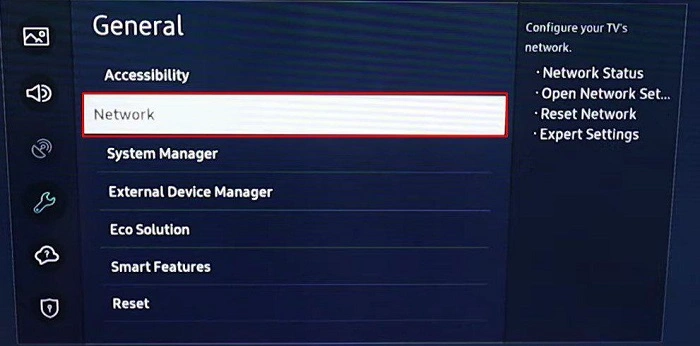
If the internet is working fine on other devices, but your Samsung TV still won’t connect to Wi-Fi, the issue could be within the TV’s network settings. Here’s what to do:
- Forget and Reconnect to Wi-Fi: Sometimes, your TV’s connection settings may become corrupted. To resolve this:
- Go to Settings on your Samsung TV.
- Select General, then Network, and then Network Settings.
- Choose your Wi-Fi network, and select Forget or Delete.
- After the TV forgets the network, reconnect by entering the Wi-Fi password again.
- Check for Correct Network: Make sure your TV is trying to connect to the correct Wi-Fi network. If you have multiple networks in your home (like a 2.4GHz and 5GHz network), ensure that your TV is connecting to the right one. Some Samsung TVs have trouble connecting to 5GHz networks, so if you’re using that frequency, try switching to 2.4GHz to see if it works.
3. Restart Your Samsung TV
Sometimes, a simple restart of your Samsung TV can fix temporary software glitches that might be preventing a Wi-Fi connection. Here’s how to restart your TV:
- Soft Reset: Hold the power button on the TV remote for about 10 seconds until the TV turns off and then back on.
- Hard Reset: If the soft reset doesn’t work, you can perform a hard reset by unplugging the TV from the wall outlet for 30 seconds and then plugging it back in.
After the restart, attempt to reconnect to Wi-Fi.
4. Update Your TV’s Firmware
Outdated firmware could be another cause of Wi-Fi connection issues. Samsung frequently releases updates to fix bugs and improve connectivity. To check for and install updates:
- Go to Settings on your TV.
- Select Support, then Software Update.
- Choose Update Now to search for any available updates.
If there is an update available, let your TV download and install it. After the update is complete, try connecting to Wi-Fi again.
5. Check for Interference
Wi-Fi interference can also be a problem. Devices such as microwaves, baby monitors, or cordless phones can disrupt the Wi-Fi signal. Additionally, the physical placement of your router might impact the connection strength. To minimize interference:
- Move the Router: Ensure your router is placed in a central location in your home, away from heavy objects or other electronics that could interfere with the signal.
- Reduce Interference: Try turning off other devices that could be using the same frequency as your Wi-Fi.
6. Reset Network Settings
If none of the previous steps worked, you may need to reset your TV’s network settings. This will erase all saved Wi-Fi networks and settings, so you’ll need to reconnect your TV to your network afterward.
To reset your network settings:
- Go to Settings > General > Network > Reset Network Settings.
- Confirm that you want to reset the settings, and the TV will reset the Wi-Fi configuration.
- Reconnect to your Wi-Fi by selecting your network and entering the password again.
7. Test Your TV’s Network Adapter
If your Samsung TV’s internal Wi-Fi adapter is faulty, it may not be able to connect to Wi-Fi networks. You can check the adapter by attempting to connect to Wi-Fi via an Ethernet cable. If the TV works fine with a wired connection but still won’t connect to Wi-Fi, the issue could be with the Wi-Fi adapter.
Unfortunately, if the adapter is defective, this may require professional repair or a replacement. Contact Samsung’s customer service or a qualified technician for assistance.
8. Router Compatibility and Settings
Another less common but possible issue is that your router’s settings or firmware may not be fully compatible with your Samsung TV. Certain routers have settings that can prevent new devices from connecting. If you’re using an older router, consider upgrading to a more modern model that supports the latest Wi-Fi standards (like Wi-Fi 5 or Wi-Fi 6).
- Change Router Settings: Some routers have advanced settings like MAC filtering or security settings that might block your TV from connecting. Log into your router’s configuration page and check for any security settings that could be limiting new connections.
- Check Router Firmware: Ensure your router’s firmware is up to date. Visit your router manufacturer’s website to find the latest firmware and installation instructions.
9. Contact Samsung Support
If you’ve tried all the above steps and your Samsung TV still won’t connect to Wi-Fi, it might be time to contact Samsung support. There could be an underlying hardware issue that requires professional attention, or they may be able to offer additional troubleshooting steps tailored to your specific model.
Wi-Fi connectivity issues with your Samsung TV can be frustrating, but there are several steps you can take to resolve the problem. Start by checking your Wi-Fi connection, resetting your TV’s network settings, and ensuring that both your router and TV are up to date. If these steps don’t work, consider contacting Samsung customer support for further assistance. With a little patience and troubleshooting, you’ll be back to streaming your favorite shows in no time!