

If you’ve lost your iPhone, suspect suspicious activity, or simply want to pause access to your funds, learning how to lock your Apple Cash card is essential. Apple makes it simple to take control of your money with just a few taps from your iPhone or iPad. Whether you’re locking it temporarily or for safety reasons, here’s everything you need to know to secure your Apple Cash account.
This step-by-step guide explains how to lock your Apple Cash card, when and why to do it, and what happens after it’s locked.
What Does It Mean to Lock Your Apple Cash Card?
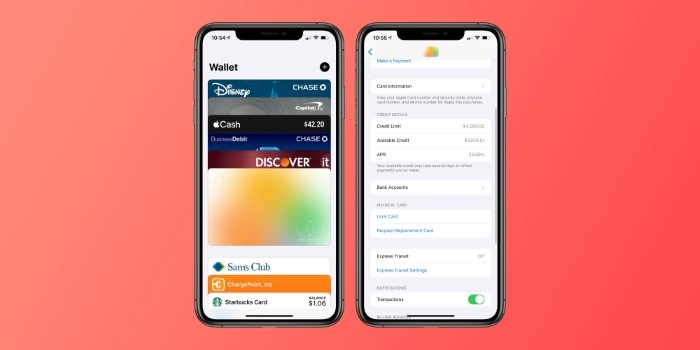
Locking your Apple Cash card prevents it from being used for any transactions—both online and in-store. It’s similar to freezing a debit card: you still have access to your funds, but nobody can use the card to make payments or transfers until it’s unlocked.
This action is reversible and doesn’t close your Apple Cash account or affect your Apple Wallet permanently.
Why Would You Need to Lock Apple Cash?
There are several situations where locking your Apple Cash card is the smartest move:
- Your iPhone or Apple Watch is lost or stolen
- You notice unauthorized activity on your Apple Cash balance
- You accidentally left your device unattended in a public place
- You want to prevent your child or someone else from using it temporarily
- You are taking a break from using Apple Cash and want to pause transactions
Locking your card adds a layer of control and security, especially when linked to your Apple Pay and Messages.
How to Lock Apple Cash Card from iPhone
You can lock your Apple Cash card directly from your device in under a minute.
Step-by-Step Instructions
- Open the Settings app on your iPhone.
- Scroll down and tap on Wallet & Apple Pay.
- Under Payment Cards, select Apple Cash.
- Tap on Apple Cash card.
- Tap Card Details.
- Scroll down and tap Lock Card.
Once locked, a message will appear confirming that your Apple Cash card is now locked. No one can use it until you unlock it.
How to Lock Apple Cash via Apple Wallet App
You can also use the Apple Wallet app to manage and lock your card.
- Open the Wallet app.
- Tap on your Apple Cash card.
- Tap the More (three dots) icon.
- Select Card Details.
- Scroll down and tap Lock Card.
This gives you quick access from the Wallet app without needing to dive into Settings.
Locking Apple Cash Using iCloud and Lost Mode
If you’ve lost your device, you can lock your Apple Cash remotely using iCloud and Lost Mode.
- Visit iCloud.com/find and sign in using your Apple ID.
- Select your lost iPhone or iPad.
- Choose Mark As Lost or Enable Lost Mode.
Once Lost Mode is activated:
- Apple Pay and Apple Cash will be automatically disabled.
- No one can access or use your payment methods.
- Your Apple Cash card will remain secure even if someone accesses your device.
What Happens After You Lock Apple Cash Card?
- All transactions will be declined until you unlock the card.
- You will still see your balance and transaction history.
- The funds remain safe in your Apple Cash account.
- No money is withdrawn or lost.
- You can unlock the card any time following similar steps.
This makes it different from permanently closing your Apple Cash account or canceling the card.
How to Unlock Apple Cash Card
When you’re ready to start using your Apple Cash card again:
- Go to Settings > Wallet & Apple Pay > Apple Cash > Card Details.
- Tap Unlock Card.
Or, from the Wallet app:
- Tap your Apple Cash card.
- Tap the More icon.
- Tap Card Details > Unlock Card.
You’ll immediately regain the ability to send, receive, and spend your balance.
Apple Cash and Security Features
Apple takes your financial security seriously. In addition to the lock card feature, it offers:
- Face ID/Touch ID for transactions
- Real-time alerts for purchases
- End-to-end encryption
- Two-factor authentication
Together, these features ensure your Apple Cash and Wallet remain protected from unauthorized access.
Apple Cash for Families: Locking a Child’s Card
If you use Apple Cash Family, you can manage your child’s Apple Cash account directly from your device.
To Lock Your Child’s Card:
- Open Settings on your device.
- Tap [Your Name] > Family Sharing.
- Select your child’s name.
- Tap Apple Cash > Card Details.
- Tap Lock Card.
This is particularly useful if you want to pause their spending temporarily or set boundaries.
Tips for Managing Your Apple Cash Card Securely
- Always enable Face ID or Touch ID for added protection.
- Use two-factor authentication on your Apple ID.
- Review your transaction history regularly.
- Use Lost Mode immediately if your device is misplaced.
- Avoid sharing your Apple ID or iCloud credentials.
By following these practices, you reduce the risk of misuse or unauthorized spending.
FAQs
How do I lock my Apple Cash card?
Go to Settings > Wallet & Apple Pay > Apple Cash > Card Details, then tap Lock Card. You can also do this from the Wallet app.
What happens if my Apple Cash card is locked?
You won’t be able to make purchases or send money. However, your balance remains secure, and the card can be unlocked at any time.
Can I still receive money if my Apple Cash card is locked?
Yes, others can send money to your Apple Cash even if the card is locked. You just can’t spend or send money until you unlock it.
Is locking Apple Cash cards the same as turning off Apple Pay?
No. Locking only affects your Apple Cash card. Other cards in Apple Pay will continue to work unless you disable them individually.
Can I lock my Apple Cash card remotely?
Yes, use iCloud > Find My iPhone and enable Lost Mode. This automatically disables Apple Pay and locks your Apple Cash card.