

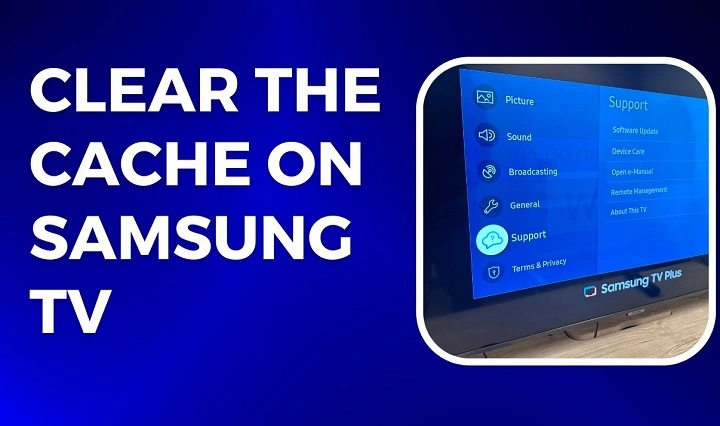
Clearing the cache on your Samsung TV is a simple yet effective way to improve its performance, resolve app glitches, and free up storage space. Over time, cached data can accumulate, causing your smart TV to slow down or apps to behave erratically. In this guide, we will explain how to clear cache on Samsung TV, including step-by-step instructions for different TV models, tips to maintain your TV’s performance, and answers to common questions.
Whether you want to fix slow app loading times, streaming issues, or just keep your TV running smoothly, learning how to clear cache on Samsung TV is essential. Let’s dive into the details and help you optimize your viewing experience.
What is Cache on Samsung TV and Why Should You Clear It?
Understanding Cache on Samsung Smart TVs
Cache refers to temporary files and data stored by apps and the system on your Samsung TV. These files help apps load faster by storing frequently accessed information locally. For example, video streaming apps like Netflix or YouTube store cache to preload parts of videos and reduce buffering.
Why Clearing Cache is Important
While cache can improve speed, too much cached data can cause problems such as:
- Slower app performance
- Freezing or crashing apps
- Inability to update apps or install new ones
- Reduced available storage on your TV
Regularly clearing the cache on your Samsung TV helps remove outdated or corrupted data, ensuring apps run smoothly and the TV operates at optimal speed.
How to Clear Cache on Samsung TV: Step-by-Step Instructions
Samsung smart TVs may vary by model and software version, but the process to clear cache is generally straightforward. Below are the main methods you can use.
Method 1: Clear Cache Through Samsung Smart Hub
The Smart Hub is the interface where you access all apps on your Samsung TV. Clearing the cache here can help resolve app-related issues.
- Press the Home button on your Samsung remote to open the Smart Hub.
- Navigate to Settings (gear icon) in the top right corner.
- Select Apps or Apps Manager from the menu.
- Scroll to the app you want to clear the cache for (e.g., Netflix, YouTube).
- Select the app, then choose Clear Cache.
- Confirm the action if prompted.
Repeat this process for each app that is causing problems or where you want to free up cache.
Method 2: Clear Cache by Power Cycling the TV
A simple power cycle can also clear temporary cache and refresh the system.
- Turn off your Samsung TV using the remote.
- Unplug the TV power cable from the wall outlet.
- Wait for about 1 to 5 minutes to allow the TV to fully power down.
- Plug the TV back in and turn it on.
This method clears temporary data and can improve general performance without affecting saved settings or apps.
Method 3: Clear Cache by Resetting Samsung TV Apps
If clearing cache from individual apps is not enough, you can reset the apps to clear all associated data.
- Open the Settings menu from the Home screen.
- Go to Apps or Applications.
- Select the problematic app.
- Choose Clear Data or Reset (this option clears cache plus app settings).
- Confirm your choice.
Note: Resetting apps may log you out and erase personalized settings, so use this option carefully.
Method 4: Perform a Factory Reset to Clear All Cache
As a last resort, if your Samsung TV still faces performance issues, a factory reset will erase all data, including cache, apps, and settings.
- Press the Home button on your remote and open Settings.
- Scroll down to General.
- Select Reset.
- Enter your PIN (default is 0000 if unchanged).
- Confirm the factory reset.
This will restore your TV to default settings, clearing all cache and data, but you will need to set up your TV again.
Tips to Maintain Samsung TV Performance and Cache Management
Regularly Clear Cache for Problematic Apps
Make it a habit to clear cache periodically for apps you use often, especially streaming apps. This keeps your TV running smoothly.
Keep Your Samsung TV Firmware Updated
Software updates often include performance improvements and cache management fixes. Check for updates regularly:
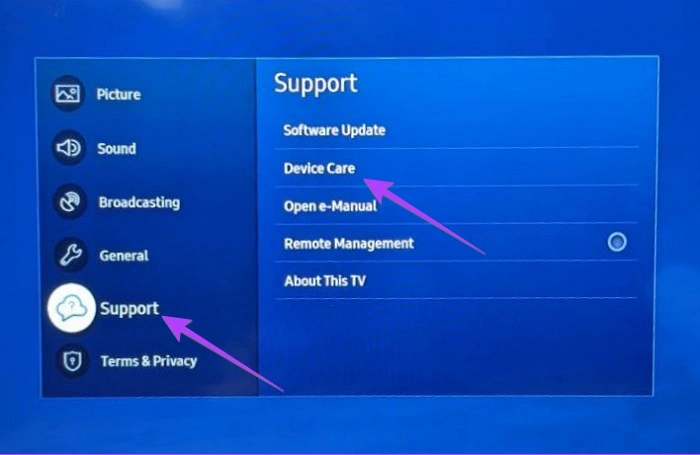
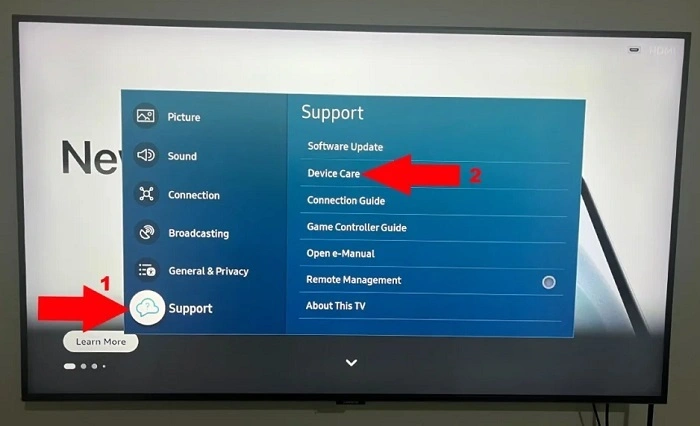
- Go to Settings > Support > Software Update > Update Now
Avoid Overloading Your TV with Too Many Apps
Having too many apps installed can consume storage and cache space. Uninstall apps you no longer use.
Restart Your TV Occasionally
A simple restart or power cycle clears temporary cache files and refreshes the system.
Common Issues Related to Cache on Samsung TV and How Clearing Cache Helps
| Issue | How Clearing Cache Helps |
| Apps freezing or crashing | Removes corrupted cached data causing crashes |
| Slow app loading times | Deletes old cache, speeding up app launches |
| Streaming buffering or lagging | Clears preloaded data causing streaming glitches |
| Unable to update or install apps | Frees storage space by removing cached files |
| TV running slow or lagging | Frees system resources for better performance |
Frequently Asked Questions (FAQs)
How often should I clear cache on my Samsung TV?
For optimal performance, clear cache every few weeks or whenever you notice slowdowns or app issues.
Will clearing cache delete my saved app data?
No, clearing cache only removes temporary files. Your login credentials and app settings usually remain intact unless you clear app data or reset the app.
Can clearing cache improve video streaming quality on Samsung TV?
Clearing cache can fix buffering and lag issues caused by corrupted temporary data, improving streaming performance.
Is clearing cache on Samsung TV safe?
Yes, clearing cache is a safe process that helps maintain TV performance without affecting important data.
What if my Samsung TV has no option to clear cache in the app settings?
Older or some Samsung TV models may not offer a direct “Clear Cache” option. In such cases, try power cycling the TV or resetting the app.
Knowing how to clear cache on Samsung TV is a valuable skill to keep your smart TV running efficiently. Cache buildup is normal but can cause performance hiccups over time. Whether through the Smart Hub, power cycling, or resetting apps, clearing cache is quick and effective for troubleshooting issues like app crashes, slow loading, and streaming problems.
Regular cache maintenance, combined with firmware updates and prudent app management, ensures your Samsung TV delivers the best viewing experience without interruptions. Use the steps and tips shared in this guide to clear cache on your Samsung TV and enjoy smoother, faster performance every time you watch.