


Losing your Samsung TV remote can be frustrating, especially when you want to enjoy your favorite shows without interruptions. The lost Samsung TV remote is a common problem many users face, but fortunately, there are multiple solutions to regain control over your television. In this article, we’ll walk you through various effective ways to manage a missing Samsung remote, from finding alternatives to using apps and buying replacements. Whether you misplaced your remote or it stopped working, this guide will help you get your TV back under control quickly.
Understanding the Problem of a Lost Samsung TV Remote

The lost Samsung TV remote issue disrupts your entertainment flow and can feel inconvenient. Unlike other gadgets, a TV remote is often small and easy to misplace around the home. The question is, how can you operate your Samsung TV without its original remote?
Why Samsung TV Remotes Are Easy to Lose
Samsung remotes are compact and lightweight, which makes them easy to carry but also easy to lose. With daily use, the remote might slip between couch cushions, get buried under papers, or even be misplaced in another room.
Impact of a Missing Samsung Remote on TV Usage
Without a remote, basic TV functions such as power on/off, volume control, input switching, and menu navigation become difficult or impossible unless your TV has physical buttons. This limitation can make watching TV frustrating, especially for smart TVs that rely heavily on remote inputs.
How to Control Your Samsung TV Without a Remote
If your Samsung TV remote is lost, don’t panic. Several alternatives let you continue using your TV efficiently.
Using Samsung SmartThings App as a Remote Alternative
Samsung’s official SmartThings app transforms your smartphone into a powerful TV remote. It supports most Samsung smart TVs and offers comprehensive control over your device.
How to Set Up the SmartThings App
- Download the SmartThings app from Google Play Store or Apple App Store.
- Connect your smartphone to the same Wi-Fi network as your Samsung TV.
- Open the app and select your TV from the list of available devices.
- Use the app’s remote control interface to operate your TV.
This method is perfect for those who have smartphones and want an immediate solution to a lost Samsung TV remote.
Using Physical Buttons on Your Samsung TV
Most Samsung TVs come with a few physical buttons located on the side, back, or bottom of the TV panel.
Functions Available via TV Buttons
- Power On/Off
- Volume Up/Down
- Channel Up/Down
- Menu Access
While not as convenient as a remote, these buttons provide essential control until you find a replacement or app solution.
Universal Remote Controls Compatible with Samsung TVs
Universal remotes offer an affordable and widely available alternative if your Samsung remote is lost.
Choosing a Compatible Universal Remote
Look for universal remotes that specifically list Samsung TV compatibility. Many models come pre-programmed or allow easy setup through codes.
Using HDMI-CEC Feature to Control Samsung TV
HDMI-CEC (Consumer Electronics Control) lets you use another device’s remote, like a Blu-ray player or gaming console remote, to control your TV.
Activating HDMI-CEC on Samsung TV
- Go to TV Settings > General > External Device Manager.
- Enable Anynet+ (HDMI-CEC).
- Use the connected device’s remote to control basic TV functions.
This is a convenient method for users who have other HDMI devices connected to their TV.
Buying a Replacement Samsung TV Remote
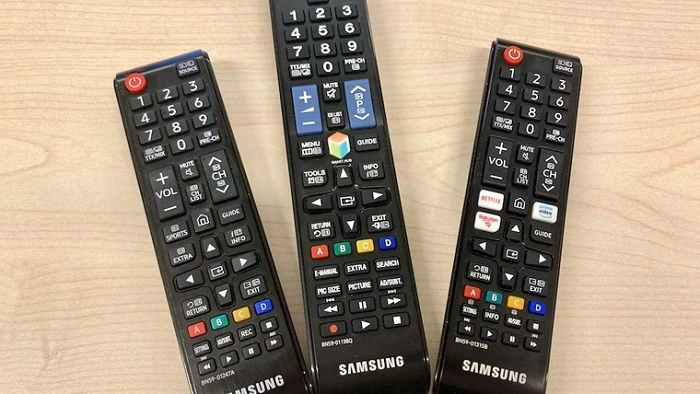
If you prefer a traditional remote, buying a replacement for your lost Samsung TV remote is simple.
Official Samsung Replacement Remote
Samsung sells official replacement remotes through their website and authorized dealers. These remotes guarantee full compatibility and reliability.
Third-Party Replacement Remotes
Third-party remotes are less expensive and available on platforms like Amazon or eBay. Make sure to check compatibility with your specific Samsung TV model before purchasing.
Where to Buy a Samsung Remote Replacement
- Samsung official online store
- Electronics retailers
- Online marketplaces (Amazon, eBay)
- Local electronics repair shops
Ordering online is often the fastest way to get a replacement, but verify the model number for compatibility.
Tips for Avoiding Future Loss of Samsung TV Remote
To prevent the inconvenience of losing your Samsung TV remote again, follow these simple tips.
Designate a Specific Spot for Your Remote
Always keep your remote in a consistent, visible location, such as a remote holder or a dedicated shelf.
Use Remote Tracking Gadgets
Attach a small Bluetooth tracker to your remote. These devices connect to your phone and help locate your remote quickly.
Label Your Remote
Use bright stickers or a colorful case to make your remote more noticeable and less likely to get lost.
FAQs About Lost Samsung TV Remote
How can I control my Samsung TV without a remote?
You can use the Samsung SmartThings app, physical TV buttons, a universal remote, or HDMI-CEC enabled device remotes.
Can I use my smartphone as a Samsung TV remote?
Yes, the Samsung SmartThings app allows you to control your Samsung TV using your smartphone.
Where can I buy a replacement Samsung TV remote?
Official Samsung stores, authorized dealers, electronics retailers, and online marketplaces like Amazon offer replacement remotes.
Are universal remotes compatible with Samsung TVs?
Many universal remotes are compatible, but ensure the remote you choose specifically supports Samsung TV codes.
How do I enable HDMI-CEC on my Samsung TV?
Go to Settings > General > External Device Manager and turn on Anynet+ (HDMI-CEC) to use other device remotes.
A lost Samsung TV remote does not have to ruin your viewing experience. With modern solutions like the SmartThings app, physical buttons, universal remotes, and HDMI-CEC controls, you can easily manage your Samsung TV without the original remote. Additionally, replacement remotes are accessible and affordable, ensuring you won’t be without control for long. Use the tips provided to keep your remote safe and easily found in the future.