

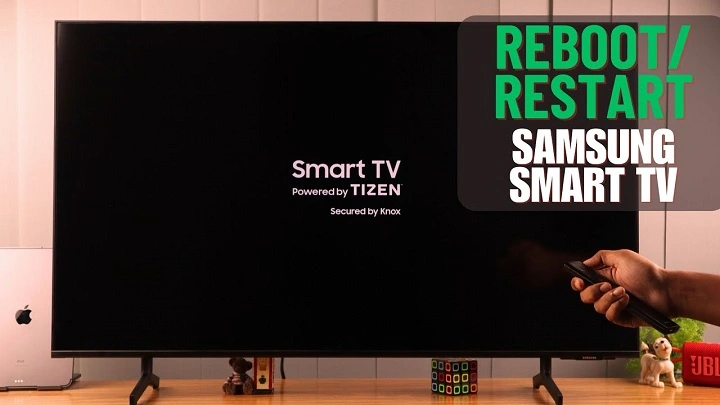
Is your Samsung TV acting up? Whether it’s freezing, experiencing glitches, or just not performing as smoothly as it should, restarting the TV can often solve the issue. Just like rebooting a computer or smartphone, restarting your TV can refresh the system and clear out any temporary software or connectivity issues. In this guide, we’ll walk you through the different ways to restart your Samsung TV, depending on the issue you’re facing.
Why You Might Need to Restart Your Samsung TV

There are several reasons why you might want to restart your Samsung TV:
- Frozen or Lagging Screen: If the TV is stuck on one screen or has become slow to respond, restarting it can help resolve these issues.
- No Sound or Picture: Sometimes, sound or picture issues can be fixed with a simple restart.
- App Crashes or Freezes: If apps on your Samsung Smart TV aren’t working correctly or are freezing, a restart may help reset the apps and allow them to run smoothly again.
- Wi-Fi Connectivity Problems: If your TV is having trouble connecting to Wi-Fi or streaming services, restarting can resolve network-related issues.
- Software Glitches or System Errors: General glitches, bugs, or errors within the TV’s system can often be resolved by restarting the device.
How to Restart Your Samsung TV Using the Remote Control
The most straightforward way to restart your Samsung TV is by using the remote control. This method can fix most software-related issues without needing to manually unplug or reset the TV.
a. Power Cycle Method
- Turn Off the TV: Press the Power button on the remote control to turn off the TV.
- Unplug the TV: After turning off the TV, unplug the power cord from the wall socket. Wait for about 60 seconds. This step ensures that the TV has fully powered down and any temporary settings or glitches are cleared.
- Plug the TV Back In: After waiting a minute, plug the TV back into the power outlet.
- Turn the TV On: Press the Power button on the remote control again to turn the TV back on.
This process is simple but effective in resolving most issues like frozen screens, audio problems, or system crashes.
b. Restart Using the Menu (If Available)
On some Samsung TVs, you can restart the system through the settings menu, which can be more convenient than unplugging it.
- Press the Home button on your Samsung remote.
- Navigate to Settings and select General.
- Look for Restart (or Self Diagnosis on some models) in the menu.
- Select Restart, and the TV will automatically restart itself.
This method is typically used for software-related issues, such as app malfunctions or connectivity problems, and doesn’t require unplugging the TV.
How to Restart Your Samsung Smart TV Without the Remote Control
If you’ve lost your remote or it isn’t working properly, you can still restart your Samsung TV manually. Here’s how you can do it:
a. Using the Power Button on the TV
- Turn Off the TV: Locate the Power button on your TV. The location of the power button can vary depending on the model, but it’s typically on the bottom or side of the TV frame.
- Unplug the TV: Unplug the power cord from the wall socket and leave it unplugged for 60 seconds.
- Plug It Back In: After waiting for about a minute, plug the TV back into the power outlet.
- Turn the TV On: Press the Power button on the TV to turn it back on.
This manual process is similar to the remote method and should help with general performance issues, even if your remote isn’t available.
How to Restart a Samsung TV with the Smart Hub or Menu Settings

Sometimes, restarting a specific feature, like the Smart Hub, can help fix issues related to apps or streaming services without needing to restart the entire TV. Here’s how to reset the Smart Hub:
a. Reset the Smart Hub
- Press the Home button on your Samsung remote.
- Navigate to Settings > Support > Self Diagnosis.
- Select Reset Smart Hub, then follow the on-screen instructions.
- Once the Smart Hub is reset, you may need to log back into your streaming accounts, but it can help resolve app-related issues like freezing or crashing.
This process is useful if you’re having problems with apps but don’t want to fully restart the TV.
Perform a Factory Reset (If Necessary)
If the basic restart methods don’t resolve the issues you’re facing, you might want to perform a factory reset on your Samsung TV. This will restore the TV to its original settings, which can help resolve persistent problems, but it will also erase all your settings and preferences, including installed apps, saved Wi-Fi networks, and personal configurations. Only perform a factory reset if other troubleshooting steps haven’t worked.
a. Factory Reset Using the Settings Menu
- Press the Home button on your Samsung remote.
- Go to Settings > General > Reset.
- Enter the PIN if prompted (default PIN is usually 0000).
- Follow the on-screen instructions to complete the factory reset.
Keep in mind that after the reset, you’ll need to set up your TV again, including logging into your accounts and reconfiguring your preferences.
When to Contact Samsung Support
If your Samsung TV continues to have issues after restarting or factory resetting it, there could be a deeper issue at play. Some reasons you might need to contact Samsung support include:
- Persistent Freezing or Lag: If the TV continues to freeze or experience lag despite restarts, there may be an issue with the hardware or software that requires expert attention.
- Audio/Visual Problems: If your TV isn’t producing sound or is showing a black screen despite restarting, this could indicate a malfunctioning display or audio component.
- Connectivity Issues: If your TV repeatedly fails to connect to Wi-Fi or certain apps, and the restart doesn’t fix it, the problem may be related to network hardware or software that needs professional diagnosis.
You can contact Samsung’s customer service team or visit an authorized Samsung repair center for assistance. They can help diagnose the issue and guide you through further steps.
Restarting your Samsung TV is a simple and effective solution for fixing many common issues, including freezing screens, slow performance, and app malfunctions. Whether you use the remote, the power button on the TV, or the settings menu, restarting your TV is a fast way to clear out temporary glitches and improve overall performance. If the problem persists after restarting, performing a factory reset or contacting Samsung support may be necessary. With a few simple steps, you can get your TV back to its optimal performance in no time.