

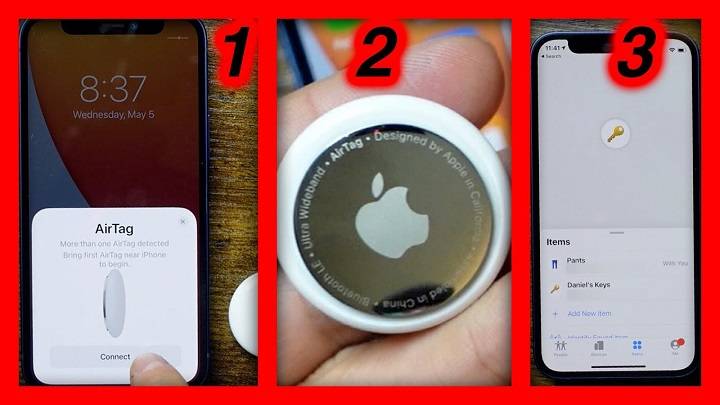
Apple’s AirTag is a revolutionary device designed to help you keep track of your personal belongings. If you’re new to AirTag or looking to enhance your usage, this comprehensive guide will walk you through how to set up AirTag on iPhone, troubleshoot common issues, and explore related topics to maximize its functionality.
Understanding AirTag
What is an AirTag?
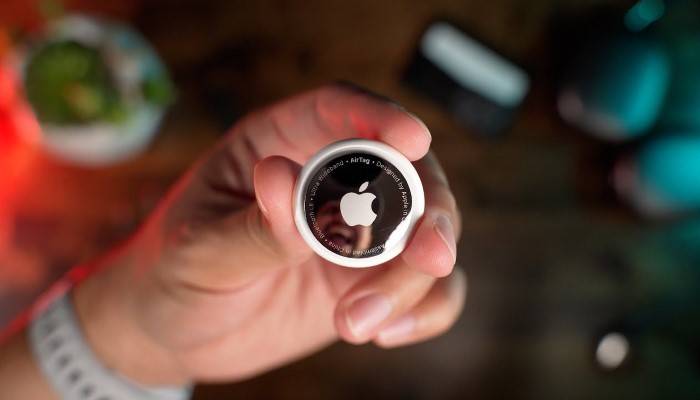
An AirTag is a small, circular tracking device developed by Apple. It uses Bluetooth technology to communicate with nearby Apple devices, helping you locate your belongings using the Find My app on your iPhone, iPad, or Mac.
Key Features of AirTag
- Precision Finding: Uses Ultra-Wideband technology to locate your items precisely.
- Find My Network: Leverages Apple’s vast network of devices to help you find lost items.
- Replaceable Battery: Powered by a CR2032 coin cell battery with a lifespan of about one year.
- Water and Dust Resistance: Rated IP67, making it resistant to water and dust.
- Privacy and Security: Features end-to-end encryption to ensure your location data is secure.
How to Set Up AirTag on iPhone
Step-by-Step Guide to Setting Up AirTag
- Unbox Your AirTag: Remove the AirTag from its packaging and pull the tab to activate the battery.
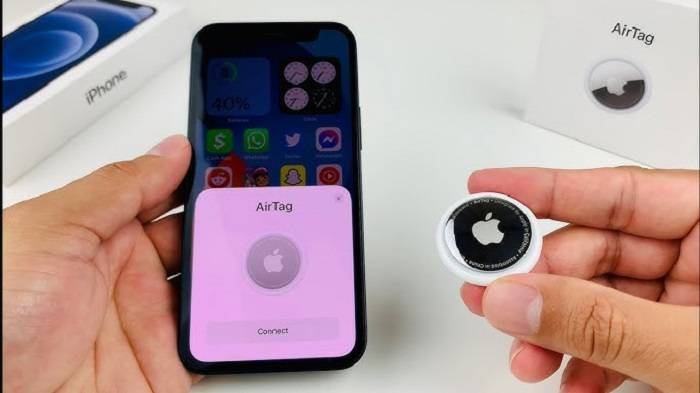
- Bring AirTag Close to Your iPhone: Ensure your iPhone is unlocked and Bluetooth is enabled.
- Follow On-Screen Instructions: A setup prompt will appear on your iPhone screen. Tap Connect and follow the on-screen instructions.
- Assign a Name: Choose a name for your AirTag from the list or create a custom name.
- Register AirTag with Apple ID: The AirTag will be associated with your Apple ID, allowing you to track it using the Find My app.
- Complete Setup: Once setup is complete, you can view the AirTag in the Items tab of the Find My app.
Troubleshooting Setup Issues
- Ensure Bluetooth is Enabled: Go to Settings > Bluetooth and make sure it is turned on.
- Update iOS: Ensure your iPhone is running the latest version of iOS.
- Restart Your iPhone: Sometimes, a simple restart can resolve connectivity issues.
- Reset AirTag: If the AirTag is not setting up properly, press down on the stainless steel back cover and rotate it counterclockwise to open it. Remove and reinsert the battery, then try setting up again.
Video Tutorials and Guides
For those who prefer visual instructions, Apple provides detailed video tutorials on their website and YouTube channel that can guide you through the setup and troubleshooting processes.
Using AirTag with the Find My App

Tracking Items
- Open the Find My App: Launch the Find My app on your iPhone or iPad.
- Select the Items Tab: Tap the Items tab at the bottom of the screen.
- View AirTag Location: Select your AirTag from the list to see its current location on the map.
- Use Precision Finding: If you’re close to your AirTag, tap Find to use Precision Finding for detailed directions.
Enabling Lost Mode
- Activate Lost Mode: If you lose an item with an AirTag attached, open the Find My app and select the AirTag.
- Tap Enable: Scroll down and tap Enable under Lost Mode.
- Enter Contact Information: Provide your phone number or email address so that anyone who finds your item can contact you.
- Receive Notifications: You’ll receive notifications when the AirTag is detected by a device in the Find My network.
Customizing Notifications
In the Find My app, you can customize the notifications you receive for each AirTag, ensuring you are alerted in a way that suits your needs.
Enhancing Your AirTag Experience
Using Protective Accessories
- Keychain Holders: Attach your AirTag to keys or bags using a protective keychain holder.
- Pet Collars: Use specialized holders to attach AirTag to your pet’s collar for easy tracking.
- Luggage Tags: Secure your AirTag to luggage or backpacks with durable tags.
Regularly Check Battery Status
Monitor the battery status of your AirTag through the Find My app and replace it promptly when needed to ensure continuous tracking.
Customize AirTag Names
Customize the name of your AirTag in the Find My app to reflect the item it is attached to, making it easier to manage multiple AirTags.
Use of AirTag Accessories
There are numerous accessories designed to enhance the functionality and protection of your AirTag, including silicone cases, adhesive mounts, and more.
Related Topics
AirTag Privacy and Security
- Data Encryption: AirTags use end-to-end encryption to ensure that your location data is secure.
- Anti-Stalking Measures: Apple has implemented features to prevent AirTags from being used to track individuals without their consent. Your iPhone will alert you if an unknown AirTag is detected moving with you.
Comparing AirTag with Other Trackers
- Tile Trackers: Tile offers similar functionality but lacks the extensive Find My network and Precision Finding capabilities of AirTag.
- Samsung Galaxy SmartTag: Designed for Samsung users, it provides robust tracking features within the Samsung ecosystem.
- Chipolo One: A comparable alternative with Bluetooth tracking and app integration, but without the seamless integration of AirTag.
Maintaining Your AirTag
- Battery Replacement: Learn how to replace the AirTag battery to ensure it remains functional.
- Software Updates: Keep your iPhone and the Find My app updated to the latest versions for the best performance.
Practical Uses of AirTag
- Traveling: Attach AirTags to your luggage for easy tracking during trips.
- Pet Tracking: Securely attach an AirTag to your pet’s collar to keep an eye on their location.
- Vehicle Tracking: Place an AirTag in your car to help locate it in large parking lots.
AirTag and the Apple Ecosystem
AirTags are designed to integrate seamlessly with the Apple ecosystem, enhancing their functionality when used with other Apple devices like the iPhone, iPad, Apple Watch, and Mac. Understanding this integration can help you make the most of your AirTag.
Common Issues and Fixes
- AirTag Not Pairing: Detailed steps to troubleshoot and resolve pairing issues.
- AirTag Not Updating Location: Solutions to ensure your AirTag updates its location accurately in the Find My app.
- AirTag Not Detected by Nearby Devices: Steps to resolve issues when the AirTag is not detected by other devices in the Find My network.
Enhancing AirTag Performance
- Regular Software Updates: Ensure your devices are running the latest software to benefit from new features and security improvements.
- Proper Placement: Attach the AirTag in a location on your items where it is least likely to be obstructed or damaged.
Alternative Uses of AirTag
- Bicycle Tracking: Attach an AirTag to your bike to keep track of its location.
- Remote Control Tracking: Attach an AirTag to your TV remote or other frequently misplaced items.
- Backpack Tracking: Place an AirTag in your backpack to ensure it’s easily trackable.
Frequently Asked Questions
How do I set up AirTag on my iPhone?
Bring the AirTag close to your iPhone, follow the setup prompt, and complete the on-screen instructions. Ensure Bluetooth is enabled and your iPhone is updated.
What should I do if my AirTag is not setting up?
Ensure Bluetooth is on, restart your iPhone, update to the latest iOS version, and reset the AirTag by removing and reinserting the battery.
Can multiple people track the same AirTag?
No, an AirTag can only be associated with one Apple ID at a time. Only the person who set up the AirTag can track it.
How do I check the battery status of my AirTag?
Open the Find My app, select your AirTag, and the battery status will be displayed on the screen.
What are the main uses of an AirTag?
AirTags can be used to track personal items like keys, wallets, luggage, pets, and even vehicles.
Related Post:
Expert Guide to Replacing Your AirTag Battery: Everything You Need to Know
Choosing Your IPL Fantasy Cricket Team: Player Selection Tips
Can Someone Wear an Emerald Eternity Ring as a Wedding Band?
Understanding how to set up AirTag on iPhone is crucial for leveraging its full potential. This guide has covered the step-by-step process of setting up an AirTag, troubleshooting tips, and enhancing its usage through various accessories and settings. By following these guidelines, you can ensure that your AirTag remains a valuable tool for keeping track of your belongings.